What Is the Terminal? A Beginner's Guide (No Fear Required)
Confused by the terminal? This lesson explains what it is, why developers use it every day, and why that blinking cursor is less scary than it looks.
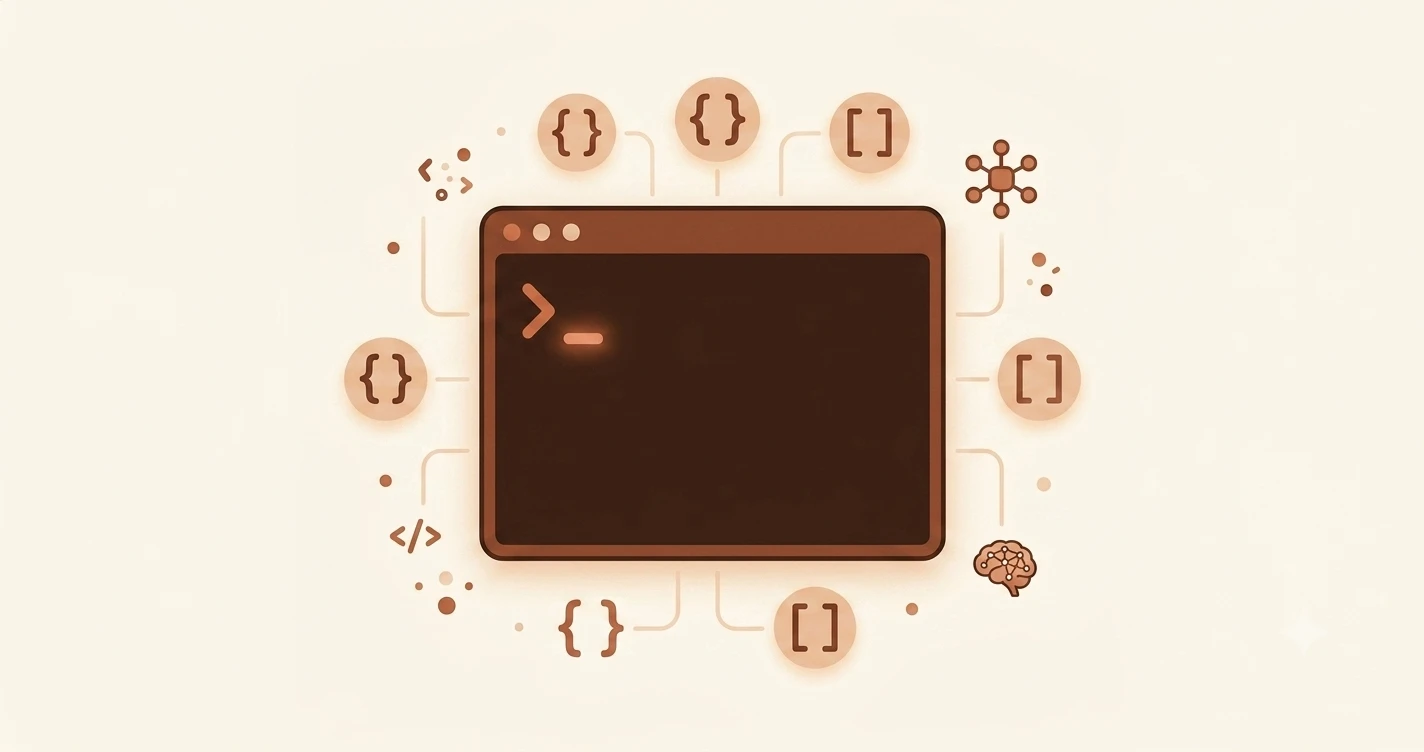
The first time most people open a terminal, they close it within 30 seconds. Not because it did something wrong; because it did nothing at all. Just a blinking cursor, waiting.
That reaction is completely normal. The terminal is a text-based window that lets you give your computer instructions by typing, instead of clicking. In this lesson, you'll learn what it actually is, why developers use it every single day, and why it's far less intimidating than it looks. By the end, you'll open one yourself.
Key Takeaways
- The terminal is a text-based window for giving your computer instructions, no clicking required
- Developers use it because it's faster, more precise, and because some tools only exist there
- You cannot break anything just by opening the terminal, the cursor is just waiting for you to type
- Every action you can click, you can also type; some actions only exist as text commands
It's just a text box that talks to your computer
Here is the simplest way to think about the terminal: it is a window that lets you give your computer instructions by typing, instead of clicking.
When you double-click an app icon, you're telling your computer to open that app. When you drag a file to the trash, you're telling it to delete that file. The terminal does the same thing, you just write the instruction instead of clicking it.
Everything happening behind the scenes of your computer, opening files, running programs, connecting to the internet, goes through the operating system (the software that runs your computer: Windows, macOS, or Linux). A regular app communicates with the operating system through buttons and menus. The terminal communicates with it directly, through text.
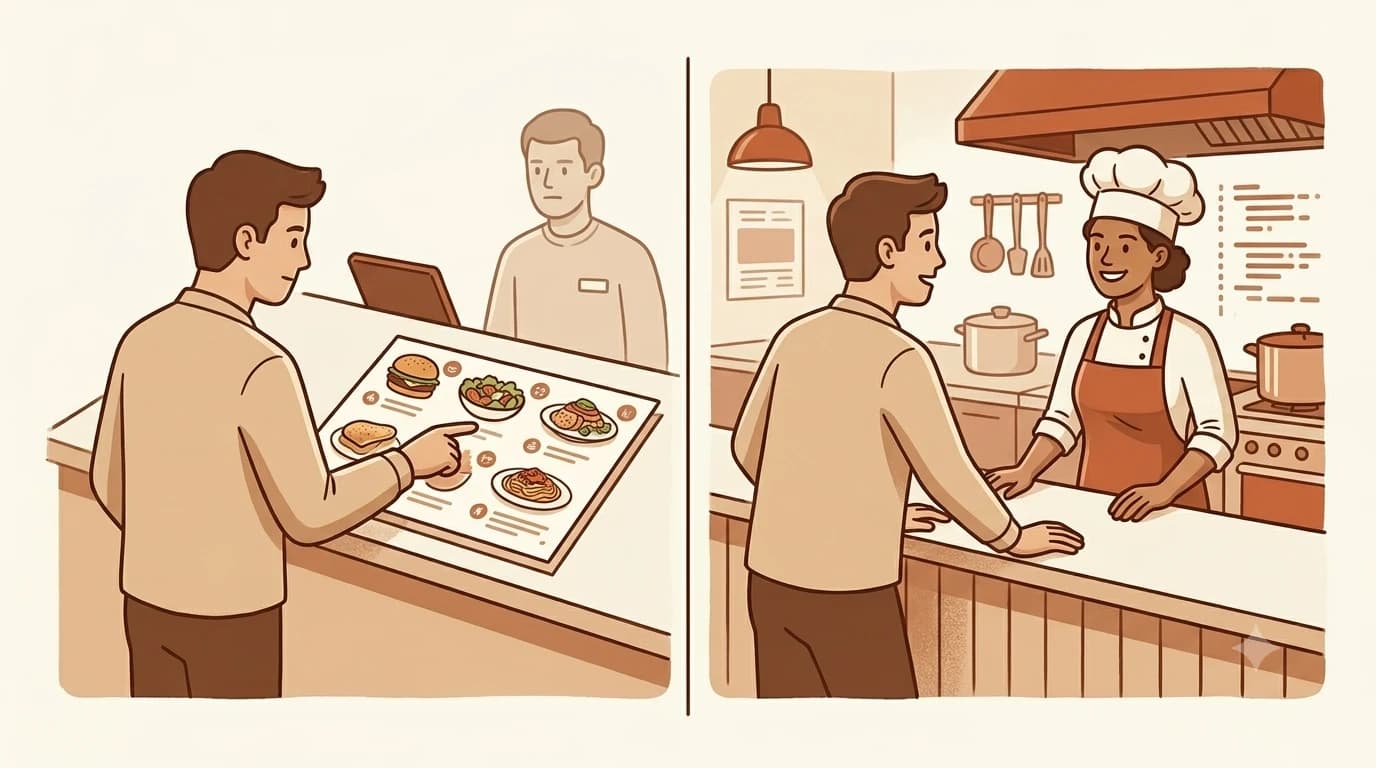
The best analogy: a GUI (the normal click-and-point interface) is like ordering at a restaurant by pointing at a picture menu. The terminal is like talking directly to the chef. More direct, more precise, and once you know what to say, you can ask for exactly what you want. No onions, extra garlic, different sauce.
With a picture menu, you get what's on the picture. With the terminal, you get exactly what you ask for.
So why would anyone type instead of click?
Three reasons. They matter more and more as you build things with AI.
Speed. One command does what ten clicks can't. Installing the Anthropic Python SDK with a GUI would mean: finding the right download page, downloading an installer, running it, clicking through five wizard screens, hoping you chose the right version. In the terminal, you type pip install anthropic and press Enter. It's done in under ten seconds, automatically fetched, right version, no decisions required.
Automation. You cannot automate clicking. But you can automate commands. Once you know the right commands, you can write a script that runs 50 of them automatically, the same sequence, every time, without errors.
This is how real development workflows are built. Every time a developer pushes code to GitHub and it automatically runs tests and deploys, that is a script running terminal commands in the background.
Some tools only exist in the terminal. When you follow a tutorial that says "run npm install," there is no button for that. The same goes for git, pip, python, and the commands you'll use most. These tools were built for the terminal. A GUI wrapper for them either doesn't exist or does less.
Why it looks scary (and why that's a design problem, not yours)
A regular app shows you your options. The terminal shows you nothing, just a cursor.
That blankness reads as dangerous. It isn't. It is just waiting. The terminal has no idea what you want to do yet, so it gives you a blank line and waits for you to tell it.
You can't hurt anything just by opening it. You would need to type a specific destructive command and usually confirm it before anything permanent happens. Opening the terminal and staring at it does nothing at all.
Even experienced developers see error messages constantly. They look alarming, red text, long stack traces, cryptic phrases. But they are not emergencies. They are the terminal explaining what went wrong, in the only way it knows how. Understanding those messages is a skill you'll build, and it's a lot more readable than it looks.
You cannot break anything just by opening the terminal. The blinking cursor is just waiting for your instructions.
The terminal looks like something from a hacker movie because that is where those scenes get their visual language from, and because nobody redesigned the interface to be friendlier. The intimidation is real. It just has nothing to do with danger.
Every developer I know has a story about their first terminal panic. It's a rite of passage.
Your Task
Open your terminal
Find and open your terminal using the steps for your operating system:
Windows: Press the Windows key, type PowerShell, and press Enter. The differences between the Windows and Mac terminal matter once you start running real commands.
Mac: Press Cmd + Space, type Terminal, and press Enter.
Linux: Press Ctrl + Alt + T.
You should see a window with a blinking cursor and some text showing your username. That's it, you've opened the terminal. You don't need to type anything yet.
Done? You've completed Lesson 02.01.
FAQ