What Is Antigravity CLI? Google's Free Coding Agent
What is Antigravity CLI? Google's free terminal AI coding agent, explained: how it works, its daily limits, and how it compares to Claude Code.

You open your terminal, type the command you used last month to launch Gemini CLI, and get an error instead of a prompt. Nothing is wrong with your machine. Google shut Gemini CLI down on June 18, 2026, and replaced it with a new tool called Antigravity CLI.
It's the terminal-based AI coding agent from Google, and like Claude Code from the last lesson, it has a free daily tier tied to any Google account, though that tier is a lot smaller than Gemini CLI's used to be.
Key Takeaways
- Antigravity CLI replaced Gemini CLI after Google retired it on June 18, 2026
- The free tier now allows roughly 20 agent requests a day, down sharply from Gemini CLI's old 1,000-a-day limit
- It works the same way Claude Code does: type a request, it edits files and runs commands for you
- Antigravity CLI can also connect to Claude and other model backends, not just Gemini
- It's a reasonable free option for light, occasional use, not a full replacement for a paid daily driver
What Is Antigravity CLI?
Antigravity CLI is Google's terminal-based AI coding agent: you describe a task in plain English, and it reads, edits, and runs files in your project, the same loop as GitHub Copilot and Claude Code from earlier lessons. It has a free daily tier tied to any Google account.
Open a terminal, install it, and type a request like "add a function that validates an email address." Within a few seconds it opens the relevant file, writes the function, and can run it to check the result.
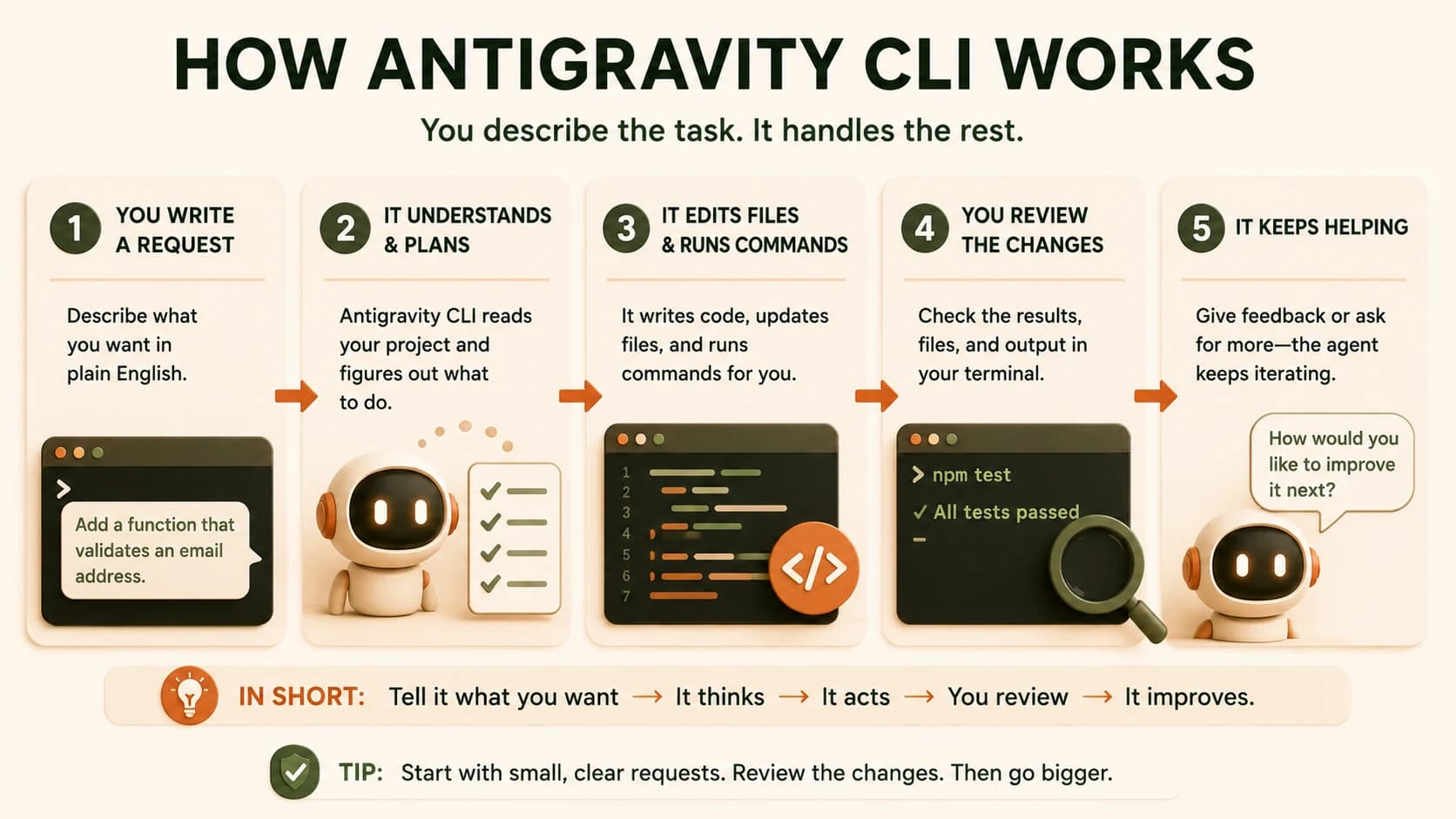
It's built by Google, and it shares its agent engine with Antigravity 2.0, Google's desktop coding app. That means settings, permissions, and even active sessions can sync between the terminal tool and the desktop version if you use both.
Two features stand out for a beginner. First, it can spin up subagents that keep working on a long refactor or a research question in the background while you keep typing in the main session. Second, its authentication flow notices when you're on a remote server over SSH and hands you a link to open in your local browser instead of leaving you stuck.
Without this, a Google-published tutorial can reference commands your terminal simply doesn't recognize, since most existing guides quietly assume you already know the tool replaced something else.
What Happened to Gemini CLI?
Gemini CLI was Google's original terminal coding agent, and it briefly had the most generous free tier of any tool in this category: about 1,000 requests a day. At Google I/O 2026, Google announced the consolidation of its coding tools under one brand, Antigravity, retiring Gemini CLI as a standalone product.
The cutoff was June 18, 2026. If you're reading an older article or watching an older video that walks through installing "Gemini CLI," treat it as historical: the commands it describes no longer connect to anything.
One exception: if your workplace uses a Gemini Code Assist Standard or Enterprise license through Google Cloud, that access kept working. Everyone else, including free-tier and individual Google AI Pro or Ultra subscribers, was moved to Antigravity CLI.
This is worth remembering the next time you hit an old install guide that references Gemini CLI directly: the problem isn't your setup, the guide is just out of date.
Antigravity CLI's Free Tier, What You Actually Get
Antigravity CLI's free tier currently allows about 20 agent requests a day, refreshing roughly every five hours, so you get a handful of small bursts rather than one big daily allowance. No credit card is required to start; you just sign in with any Google account.
That 20-a-day number is a steep drop from Gemini CLI's old 1,000-a-day free tier. If you saw Antigravity CLI described somewhere as "the generous free option," that description is describing the tool it replaced, not the tool itself.
Antigravity CLI free tier at a glance
| Detail | What you get |
|---|---|
| Cost | Free, no credit card required |
| Daily requests | Around 20 agent requests, refreshing every ~5 hours |
| Model used | Gemini Flash on the free tier |
| Paid upgrade | Google AI Pro ($20/month) or Ultra ($100/month) for higher quotas |
For a beginner, that's enough to run a handful of small experiments a day: enough to complete the task at the end of this lesson and try it out on your own project once or twice, not enough to lean on as your only coding tool.
Go in expecting more than that and you'll hit a wall mid-task with no warning, right when you were finally in a groove.
How Antigravity CLI Compares to Claude Code
Neither tool wins outright, and the honest answer is to try both on your own real task rather than trust a single verdict. On Terminal-Bench 2.1, a coding benchmark, Antigravity's default model scores 76.2% versus Claude Code's 78.9%, a real but modest gap, not a blowout.
Antigravity CLI vs. Claude Code
| Antigravity CLI | Claude Code | |
|---|---|---|
| Free tier | Yes, ~20 requests/day | No free tier |
| Starting paid price | $20/month (Google AI Pro) | $20/month (Claude Max) |
| Model flexibility | Gemini by default, can connect Claude and others | Anthropic's Claude models |
| Community and ecosystem | Newer, smaller | Larger, more mature (MCP, skills, plugins) |
I'd frame it this way: Claude Code is the steadier daily driver if you're only going to install one tool, since its limits are more predictable and its community support is deeper right now. Antigravity CLI earns its spot as a free backup for quick experiments, work you don't want to burn a paid quota on, or moments when you specifically want to try a Gemini-based response next to a Claude-based one. If you're starting from zero and want a broader map of where these tools fit, the Getting Started path covers the fundamentals this module builds on.
Pick blind and you'll end up going with whichever one you heard about first, not the one that actually fits your budget and workflow.
Install Antigravity CLI and compare it to Claude Code
Install Antigravity CLI following the official setup instructions (search "Antigravity CLI install" to find Google's current guide, since install commands can change).
Run it in the same project folder you used with Claude Code in lesson 08.01.
Give it the identical request: "Create a file called hello.txt with the text 'Hello from Claude Code'." Adjust the wording to reference Antigravity CLI if you like.
Compare: how fast was the response? Did the explanation style feel different? Write down one thing you preferred about each tool.
Done? You've completed Lesson 08.05.
FAQ