Git Core Workflow for Beginners: init, add, commit, push
Learn the basic Git workflow step by step, git init, add, commit, and push, with terminal examples, common error fixes, and a task to push your first repo.
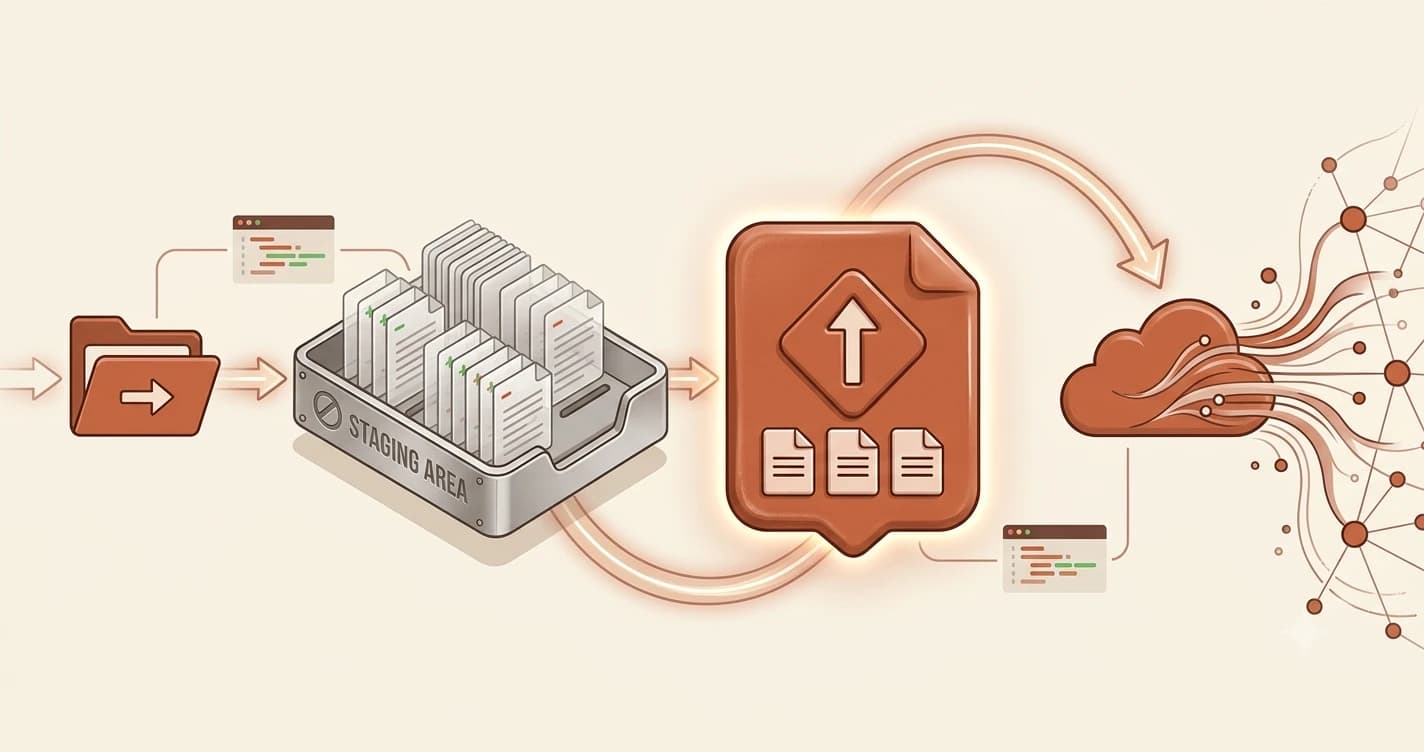
Every developer you will ever meet knows four commands by heart. They run them dozens of times a day. They run them without thinking. By the end of this beginner lesson, you will too.
The four commands are: git init, git add, git commit, and git push. Together, they are the core Git workflow, the ritual that turns your messy folder of files into a version-controlled project backed up on GitHub.
Key Takeaways
git inittells Git to start tracking a folder, run it once when you start a projectgit addchooses which changes to include in the next snapshotgit commitsaves the snapshot with a message describing what changedgit pushuploads your committed snapshots to GitHub
git init: Start tracking this folder
Every Git project starts with one command.
git init
Run this inside your project folder and Git will create a hidden .git directory. That directory is Git's brain, it stores the entire history of your project from this moment forward. You will never need to open or edit it. Just know it is there.
git init only runs once per project. After that, Git is always watching.
Run git status at any point to see what Git currently sees, which files are tracked, which are changed, and what is staged. It is the safest command in Git: it only reads, never changes anything.
At this stage, Git is watching your folder but not tracking anything yet. Nothing is saved. Nothing is recorded. You have just turned on the recorder, now you need to tell it what to capture.
git add: Choose what goes in the snapshot
Here is the step that confuses almost every beginner: why can't you just commit directly? Why is there an extra step?
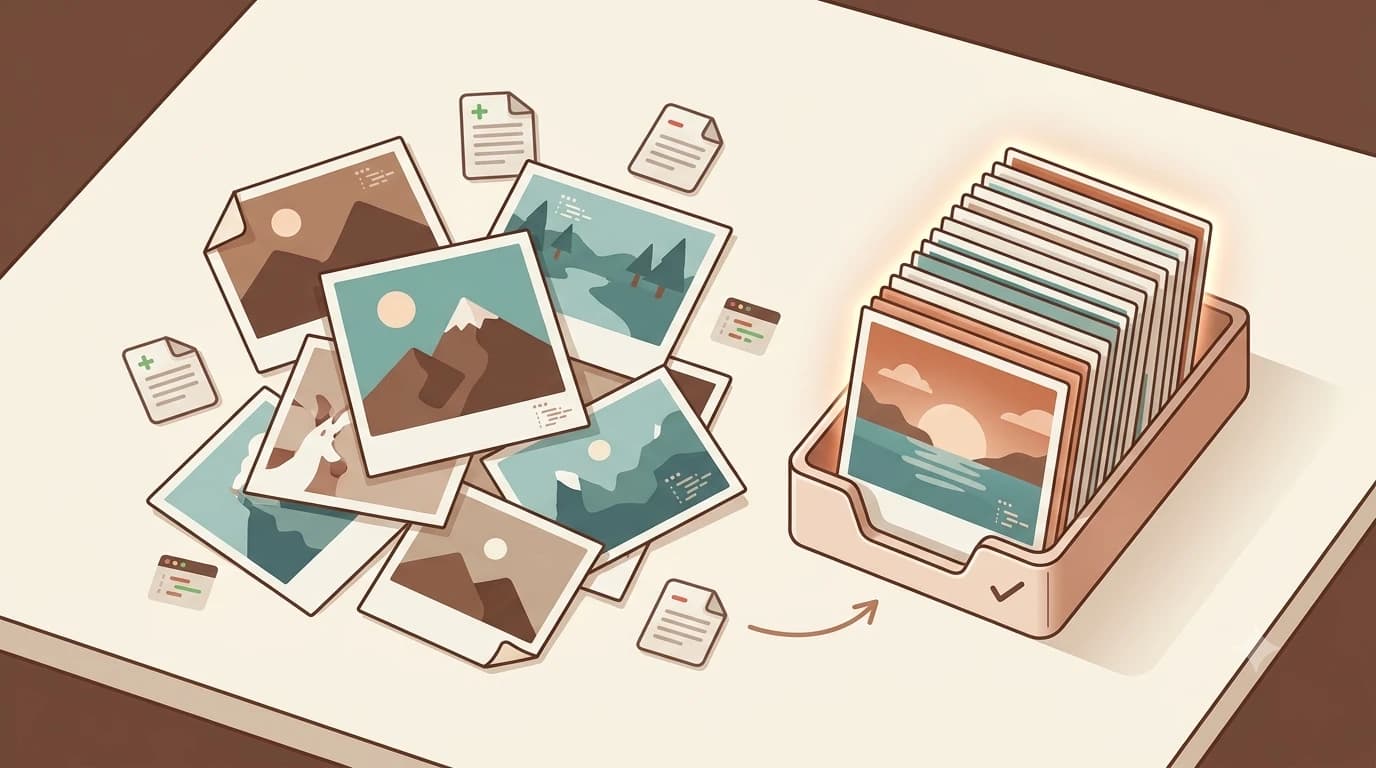
The answer is that git add gives you control. You can change ten files and choose to commit only three of them. That lets you group related changes into focused, meaningful snapshots instead of committing everything at once in one messy blob.
Think of it like making a scrapbook. You have a pile of photos spread across the table, those are your changed files. git add is you picking up the photos you want and placing them in a neat stack. git commit is gluing them onto the page.
To add everything in your current folder:
git add .
The dot means "all files here." You can also add individual files:
git add README.md
git commit: Save the snapshot
Once your files are staged, you commit them. This creates a permanent record in Git's history, a snapshot of exactly what your project looked like at this moment.
git commit -m "Add README with project description"
The -m flag lets you write your commit message inline. That message is the most underrated part of Git.
Think of your commit message as a letter to your future self. Six months from now, when you are trying to figure out why you changed something, your commit history is the only breadcrumb trail you have. "updated stuff" tells you nothing. "Fix broken API key validation on login" tells you everything.
I've gone back through old repos and been genuinely grateful for good commit messages more times than I can count — and frustrated by bad ones even more.
Good commit messages use the imperative mood, write what the commit does, not what you did. "Add login page" instead of "Added login page." Keep messages under 72 characters. You do not need to explain every line, just capture the intent.
After running git commit, you will see output like this:
[main (root-commit) a1b2c3d] Add README with project description
 1 file changed, 1 insertion(+)
 create mode 100644 README.md
That is success. Git is confirming what was committed, how many files changed, and the short identifier of your new commit (a1b2c3d).
git push: Upload to GitHub
Your commits live on your computer right now. git push uploads them to GitHub so they are backed up, visible to collaborators, and safe even if your machine dies.
git push
The first time you push a new repository, Git needs to know which remote branch to push to. You will typically run:
git push -u origin main
The -u flag sets the upstream connection once. After that, plain git push works every time.
When it succeeds, you will see something like:
Enumerating objects: 3, done.
Counting objects: 100% (3/3), done.
Writing objects: 100% (3/3), 235 bytes | 235.00 KiB/s, done.
To https://github.com/yourname/your-repo.git
 * [new branch] main -> main
If you see "rejected" or "non-fast-forward," it usually means someone else pushed changes you do not have yet. Run git pull first, then git push again.
Putting it all together
Here is the basic Git workflow, start to finish. You'll use this sequence on every project you ever build.
# 1. Create a folder and go into it
mkdir my-ai-project
cd my-ai-project

# 2. Tell Git to start tracking it
git init

# 3. Create a file
echo "# My AI Project" > README.md

# 4. Stage the file
git add .

# 5. Commit with a clear message
git commit -m "Add README"

# 6. Push to GitHub (after creating the repo on github.com)
git push -u origin main
That is it. Every project starts this way. And after the first push, your daily rhythm shrinks to three commands: git add ., git commit -m "...", git push.
Make a change. Add it. Commit it. Push it. Repeat. That rhythm, tracked in your previous lesson on git vs. GitHub, is what professional development actually looks like at the command level.
Your Task
Create your first Git repository and push it to GitHub
First, create a free GitHub account at github.com if you have not already.
Then in your terminal:
mkdir my-first-repo
cd my-first-repo
git init
echo "# My First Repo" > README.md
git add .
git commit -m "first commit"
Now on github.com: click New Repository, name it "my-first-repo", leave it empty (do not add a README), and click Create repository.
GitHub will show you two commands under "push an existing repository from the command line." Copy and run both of them, they look like:
git remote add origin https://github.com/yourname/my-first-repo.git
git push -u origin main
Refresh your GitHub page. Your README should appear. That is your first pushed repository, and the beginning of your Getting Started path.
Done? You have completed Lesson 04.03.
FAQ