How to Navigate a GitHub Repository as a Beginner
Learn how to read a GitHub repository. Understand README, stars, forks, issues, commits, and branches, and why it matters for AI development. Start here.
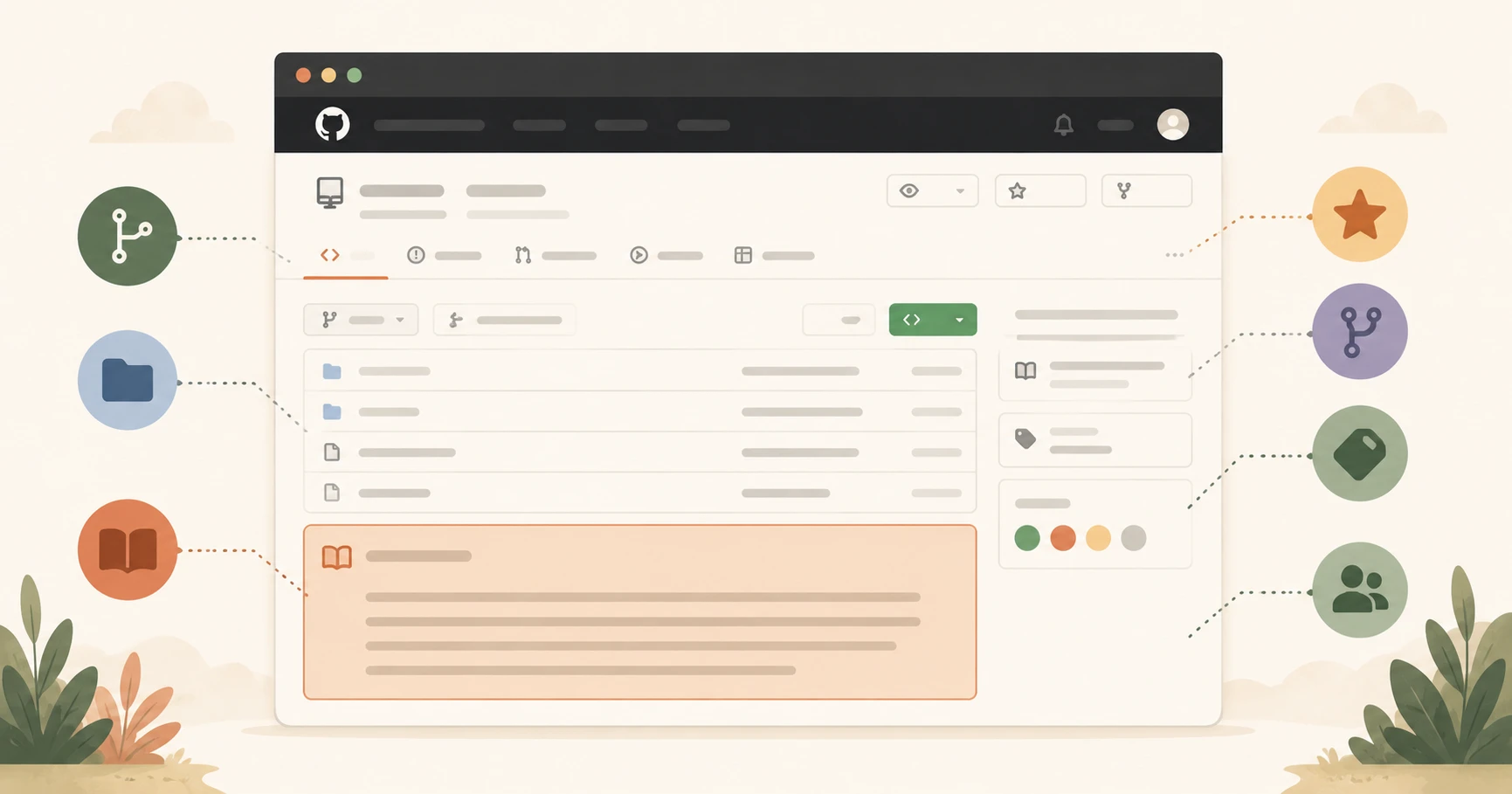
Someone sends you a link to a GitHub repository. You open it and immediately feel lost. There are files everywhere, numbers you don't recognize, and a row of tabs you've never clicked. GitHub has over 420 million repositories — and almost none of them come with a tour guide for newcomers.
A GitHub repository page has six key sections — and knowing what each one tells you lets you evaluate any project in under two minutes. Here's the tour.
Key Takeaways
- The README is always the first stop, it explains what the project does and how to use it
- Stars measure popularity, not quality; forks measure how many copies exist
- The Issues tab shows known bugs and feature requests, useful before you depend on a library
- The Commits page tells you how recently the project was updated
- Every AI SDK and developer tool you'll ever use lives on GitHub, this skill is used weekly
Start With the README: Your First Stop in Any Repository
Every file in a GitHub repository is code, configuration, or documentation. The README is the only file specifically written for humans who have no context about the project.
It lives at the root of the file tree and renders automatically below it, you don't have to click anything. Scroll down on any repo page and the README is right there.
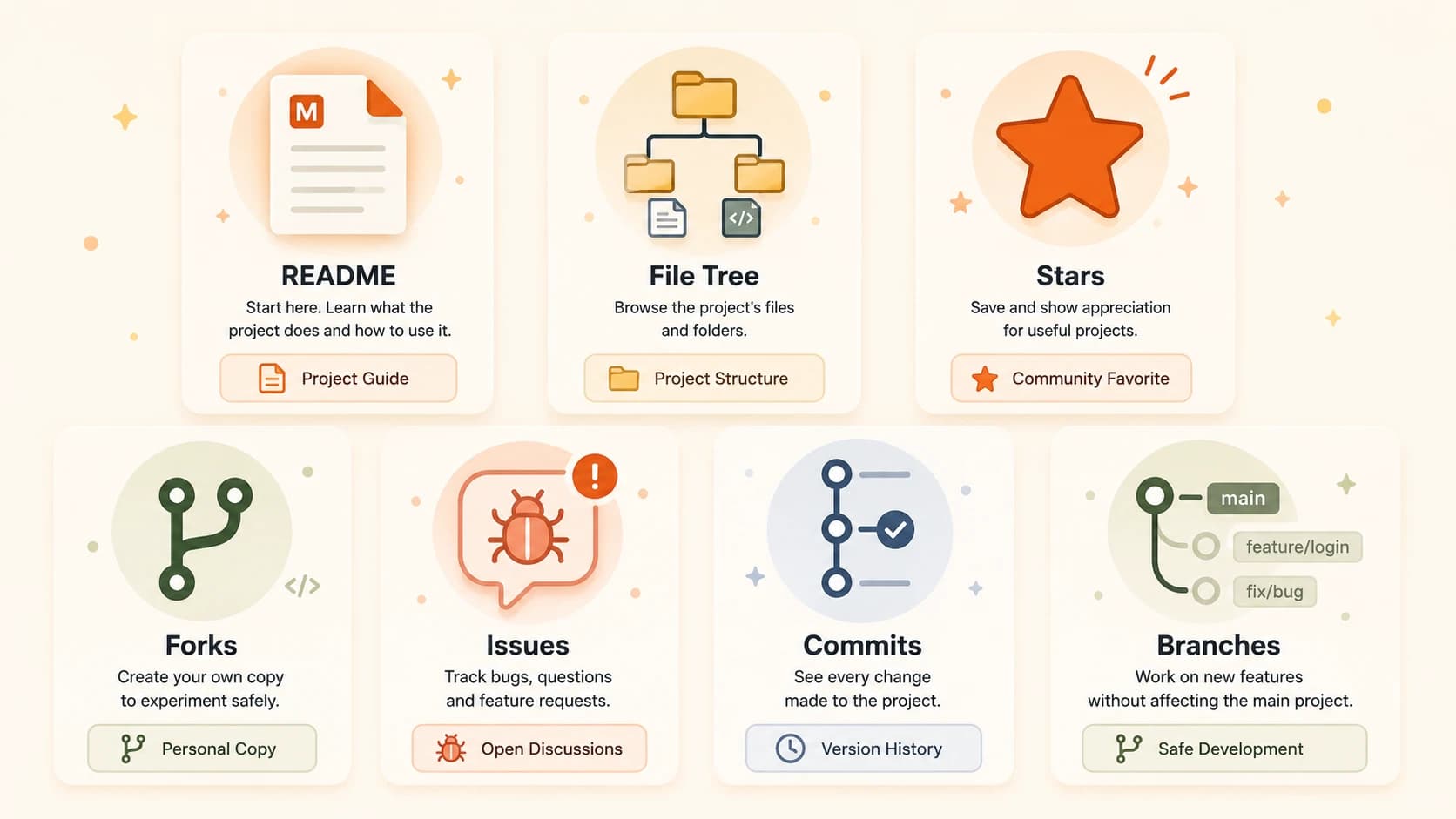
A good README tells you four things: what the project does, who it's for, how to install it, and how to use it. The anthropic-sdk-python repository is a good example, within the first 20 lines it shows you the exact pip install command and a working code sample.
Most larger READMEs include a table of contents near the top. Use it. Scrolling through 200 lines of documentation to find the installation instructions is not required.
If a repo has no README, or the README just says "TODO," treat it as a warning sign for anything you plan to depend on.
The File Tree: You Don't Have to Read All of It
Below the repo name and above the README, you'll see a list of files and folders. This is the file tree, the project's entire folder structure.
It can look intimidating. It isn't, once you know what to ignore.
Most repos follow a loose convention:
src/or the project's main folder, the actual codetests/, automated tests (ignore these for now)README.md, you've read this.github/, internal GitHub configuration (ignore)requirements.txtorpackage.json, lists the project's dependencies
You can click any file to read it directly in the browser. If you want to search through the entire codebase, press . (the period key) while viewing any repo — it opens a lightweight VS Code editor in your browser without downloading anything. See the GitHub web editor docs for more.
Stars and Forks: What Do They Actually Tell You?
At the top right of every repository page, you'll see two numbers: stars and forks.
Stars work like bookmarks with a social layer. When someone finds a project useful or interesting, they star it. A repo with 50,000 stars has been bookmarked by 50,000 developers. That's a strong signal the project is widely used and therefore widely tested. A repo with 12 stars might be excellent or abandoned. Stars alone don't tell you which.
Forks are copies. When a developer wants to modify a project without affecting the original, they fork it, GitHub creates their own copy under their account. A high fork count usually means the project is used as a starting template. It's generally a positive signal.
For most AI libraries, a star count over a few thousand means you're looking at a reasonably established tool. For anything you plan to use in a real project, don't stop at stars, check the commits and issues too.
Issues: Is the Project Actively Maintained?
The Issues tab is one of the most underused sections for beginners, and one of the most valuable.
Issues are public bug reports and feature requests. Anyone can open one. When you click the Issues tab on a repo, you see every known problem people have reported, every feature they've asked for, and the discussions around them.
Two things beginners often get wrong about issues:
First, a lot of open issues doesn't mean the project is broken. It usually means the project is actively used, people find it, use it, hit edge cases, and report them. A repo with zero issues is often abandoned, not perfect.
Second, the Issues tab is searchable. Before you spend three hours debugging a problem with a library, search its issues first. There's a good chance someone hit the same error and a maintainer already answered it.
Look for the label "good first issue" in any open-source repo you want to contribute to. Maintainers add this label to flag beginner-friendly fixes.
Commits: Is This Project Still Alive?
The Commits page shows the full history of every change ever made to the project, who made it, when, and what the message said.
You don't need to read them in detail. But the most recent commit date at a glance tells you something important: is this project actively maintained?
A project with commits from last week is alive. A project whose last commit was three years ago might still work fine, but nobody is patching bugs or updating it for new dependencies. If you're going to depend on a library in a real project, check that someone is still showing up.
Click the commit count near the top of the file tree (it looks like "1,247 commits") to open the full history. The most recent commit will be at the top. Read the message, it often tells you what just changed. "Fix: handle rate limit errors" is the kind of thing worth knowing before you start building.
Branches: Stable vs. Work in Progress
You learned about what branches are and how to create one in lesson 04.05. On a repo you're evaluating, branches signal one simple thing: is this code stable?
The main or master branch is the official, stable version. This is what you should clone or install from unless the README says otherwise.
Other branches, named things like feature/new-auth, dev, or experimental, are works in progress. They may be unstable, half-finished, or experimental. Don't use them for real projects unless you know what you're doing.
A project with many active branches usually means an active development team. That's a healthy sign. Before you start building with any library you find here, make sure your project has a .gitignore file set up — so you never accidentally push secrets to your own repo.
Navigating GitHub repos is a skill you'll use every week as an AI developer. If you're working through the Getting Started path, this is one of those habits worth building early.
Your Task
Navigate three sections of a real repo
Go to github.com/anthropics/anthropic-sdk-python
Find and complete these three tasks:
- Open the README and find the line that shows how to install the SDK (it contains
pip install). - Click the Issues tab and find one open issue, read the title and one comment.
- Click Commits and find the most recent commit, read its message.
You've just done what developers do every time they evaluate a new library.
Star the repo if you find it useful, the star button is top-right.
Done? You've completed Lesson 04.08.
FAQ