How to Read Deployment Logs and Fix a Failed Build
A failed deployment log looks scary until you know where to look. Learn to find the real error fast, read what it means, and fix it calmly, every time.

You push your code, switch tabs, and come back to a red "Failed" badge where a green "Ready" one should be. The log underneath it is a wall of text, hundreds of lines, and none of it looks like your code. Your stomach drops a little.
Here's the thing worth knowing before you read another word: this happens to every developer, repeatedly, for their entire career. It happened to you in Module 04, when Git threw errors that looked scarier than they were, and it's happening again here for the same reason, a small thing broke and the tool is telling you exactly what, in a format that looks intimidating until you know where to look.
In this lesson, you'll learn how to read a failed deployment log without panicking: where the useful part actually lives, what a real error message looks like, and how to turn it into a specific fix. By the end, you'll be able to open any failed build and find the actual problem in under a minute.
Key Takeaways
- The useful part of a deployment log is almost always near the bottom, not the top
- Look for the word "Error," "Failed," or a red-highlighted line, that's your starting point
- The last error line is often just a wrapper; the real cause is usually a few lines above it
- Most beginner deploy failures fall into three categories: missing dependency, missing environment variable, or a local file path that doesn't exist on the server
- Fixing a failed deployment uses the exact same commit-and-push loop you already know, just with one broken line corrected first
Scroll to the bottom first
Deployment logs are long on purpose. Every dependency your project installs, every build step your framework runs, gets its own line, and a small project can easily generate two or three hundred lines before anything goes wrong. If you start reading from the top, you'll spend five minutes wading through lines that all say things worked, right up until the one that says they didn't.
Skip that. Scroll straight to the bottom of the log first. Most platforms, including Vercel and Render, print the failure summary as the very last thing that happens, and they highlight it, usually in red, sometimes next to the word "Error" or "Failed" in plain text. That red or explicitly-labeled line is where you start reading, not the top of the log.
If your project skips this step and just fails silently with a status banner and no obvious red text, check for a short failure summary near the top of the deployment page itself. Some platforms surface the short version there before you even expand the full log. Vercel's own build troubleshooting docs describe this same pattern: scroll for the red section, and don't trust the very last line on its own.
A useful habit: read the last 20 to 30 lines first, every time. If nothing there makes sense, scroll upward from there, not from line one. On Vercel, the full log lives under the "Building" section of a deployment's detail page, documented here if your dashboard layout ever looks unfamiliar.
A real example: the missing module
Here's what this looks like with an actual mistake. Say you're editing main.py and you misspell an import at the top:
import antropic
Instead of the correct:
import anthropic
You commit, push, and the deployment platform starts installing dependencies and building your project exactly like every time before. Then it stops, and the log ends with something close to this:
Traceback (most recent call last):
  File "main.py", line 3, in <module>
    import antropic
ModuleNotFoundError: No module named 'antropic'
Error: Build failed
Read that from the bottom up, the way you now know to. "Build failed" tells you something broke, but not what. One line above it, ModuleNotFoundError: No module named 'antropic' tells you exactly what: Python went looking for a package called antropic and it doesn't exist, because it's misspelled. The traceback above that even names the exact file and line number where the bad import lives.
This is the whole method in one example. The error doesn't just complain, it names the specific thing that's wrong, in this case a package name, and that name points straight back to your typo. You don't need to guess. You read the message, and it tells you where to look.
I still catch myself, after plenty of these, wanting to reread the whole log top to bottom out of habit before I remember the fix is already sitting in the last five lines. That instinct doesn't fully go away, it just gets faster to override.
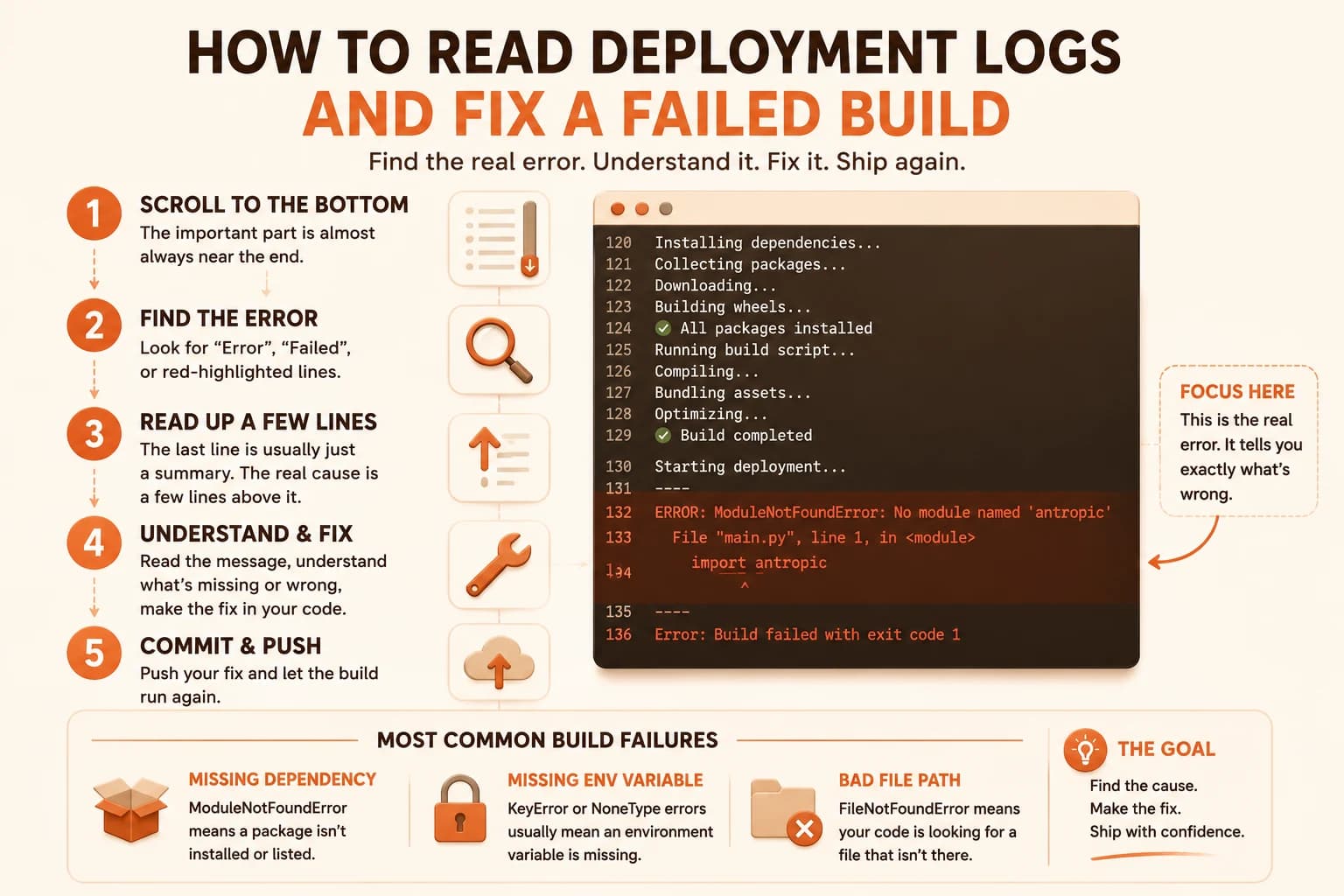
The usual suspects
Most beginner deployment failures cluster into a small handful of causes, and once you've seen each one, you'll recognize it instantly the next time it shows up in a log.
A missing dependency is the most common. Your code imports a package that isn't listed in requirements.txt or package.json, so it works perfectly on your machine, where you already installed it once, and fails the moment a fresh server tries to build your project from scratch. The fix is almost always adding one line to that file.
A missing environment variable is the second. Your app crashes on startup because it's trying to read a key, like an API key, that was never set on the hosting platform, even though it works locally from your .env file. You set these up back in lesson 09.08, and the pattern in the log looks different from a build failure, it usually shows up as a crash right after the app starts, not during installation.
A leftover local file path is the third and sneakiest. Your code references a file using a path that only exists on your laptop, something like an absolute path to your own Desktop folder, and it simply isn't there on the server. The log will usually name the exact path it couldn't find, which is your clue to make the path relative or check the file into the repo properly.
The loop
Once you can read the log, fixing a failed deployment is short. Read the error, find the exact line or file it names, fix that one specific thing, don't rewrite anything else while you're in there. Then commit and push again, exactly like you did the first time.
The auto-deploy loop you set up in lesson 09.07 handles the rest automatically, your platform picks up the new push and starts a fresh build without you doing anything else. Watch the new log the same way, scroll to the bottom, look for red. If it's clean, you're done. If it isn't, repeat the same steps with whatever new line it names.
This loop, read, fix, push, watch, is the one you'll use for every real deployment failure from here on, including ones with error messages you've never seen before. The specific error text will change every time. Knowing how to read deployment logs, not memorizing every possible error, is the actual skill, and it doesn't change from project to project.
Ready to keep building? The Getting Started path has the rest of the sequence waiting.
Break your deployment on purpose, then fix it
In your backend project from lesson 09.04, intentionally introduce a small typo, misspell an import at the top of main.py, like import fastap instead of import fastapi.
Commit and push this change:
git add main.py
git commit -m "test: intentional typo"
git push
Watch the deployment fail on Render. Open the deployment logs and find the error message, it should clearly name the missing or misspelled module.
Fix the typo, commit, and push again. Confirm the next deployment succeeds.
You just practiced the exact debugging loop you'll use for real errors later.
Done? You've completed Lesson 09.10.
FAQ