PowerShell vs Terminal: Which One Should You Use?
Confused why your terminal looks different from tutorials? Learn the difference between PowerShell, Mac Terminal, and Git Bash, and which one to use.
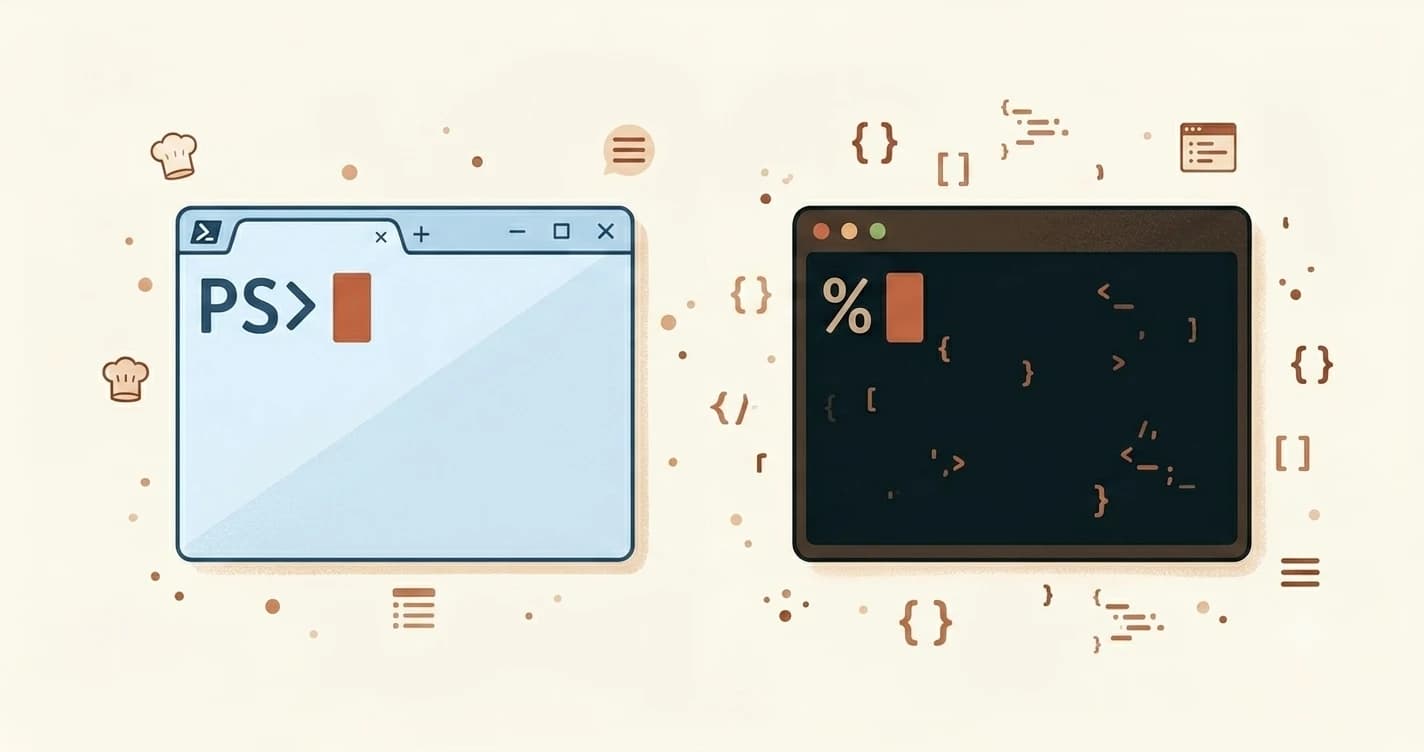
In this lesson, you'll find out why your terminal looks different from the one in the tutorial, and know exactly which terminal to use for the rest of this course. If you haven't opened a terminal yet, start with the previous lesson on what the terminal is first.
Key Takeaways
- Mac and Linux use a terminal running zsh or bash, the default in most online tutorials
- Windows users have PowerShell by default, which works for most things but differs from Mac terminals in a few important ways
- Git Bash is the recommended terminal for Windows users in this course, it behaves like a Mac terminal and you'll install it in Module 03 anyway
- For today's task, PowerShell works fine, you don't need to install anything yet
Why Does My Terminal Look Different from the Tutorial?
You copy a command from a tutorial, press Enter, and get an error. Or the terminal prompt looks nothing like the one in the screenshot.
This is one of the most common beginner experiences on Windows, and it's almost never your fault.
Here is what is happening: most tutorials, YouTube videos, and AI coding guides are written by developers using a Mac or Linux machine. Their terminal runs a shell called zsh (pronounced "zee-shell") or bash. On Windows, your terminal runs PowerShell by default. They look different, and a handful of commands work differently between them.
The result: you type exactly what the tutorial says, and Windows gives you an error because it doesn't understand the command in the same way.
This isn't a problem with your computer. It's a dialect difference. And once you know about it, it stops being mysterious.
PowerShell, Mac Terminal, and Git Bash: What's the Difference?
Here's a plain comparison of the three terminals you will encounter in this course:
| Terminal | Platform | Installed by default? | Works with most tutorials? |
|---|---|---|---|
| Terminal (zsh/bash) | Mac / Linux | Yes | Yes, tutorials assume this |
| PowerShell | Windows | Yes | Mostly, a few commands differ |
| Git Bash | Windows (optional) | No, install with Git | Yes, behaves like Mac Terminal |
Terminal (Mac/Linux): On a Mac, you open an app called "Terminal" and it runs a shell called zsh. Linux users have the same. Commands like ls, cd, mkdir, pwd, and cat work exactly as tutorials describe. This is the default environment most tutorials are written for.
PowerShell: Windows ships with PowerShell. It is modern, powerful, and works for the vast majority of tasks in this course. Some commands are identical to Mac (ls, cd, pwd). A few others differ, for example, touch to create a new file doesn't exist in PowerShell (you use New-Item instead). For this reason, you'll occasionally need to translate a command when following a Mac-based tutorial.
Git Bash: This is a shell that comes bundled with Git for Windows. It gives you a bash-compatible terminal on Windows, meaning commands from Mac tutorials work as-is. If you've ever seen a Windows developer with a terminal that looks suspiciously like a Mac one, they're probably running Git Bash.
If you see zsh or bash in a tutorial and you're on Windows, Git Bash speaks that language. You won't need to translate commands.
Which One Should You Use?
Short answer: it depends which OS you're on.
Mac or Linux users: you're already set. Open your Terminal app and you're ready to follow every lesson in this course without modification. No additional setup needed.
Windows users: we recommend Git Bash for every Windows learner in this course. Here is why it's the right call:
- You'll install Git in Module 03, and Git Bash comes bundled with it automatically
- Every terminal command in this course works in Git Bash without translation
- It looks and behaves like the terminals you'll see in tutorials and documentation
You don't need to install Git Bash right now. For this lesson's task, PowerShell works perfectly. Just open PowerShell and follow the steps below.
Once you reach Module 03 and install Git, Git Bash will be available as an option. From that point on, use Git Bash as your default.
Your Task
Identify your terminal and run your first command
Open your terminal, from the previous lesson, you already know how to do this.
Type exactly this and press Enter:
pwd
You should see the full path to your current folder:
- Windows (PowerShell): something like
C:\Users\YourName - Mac/Linux: something like
/Users/yourname
If you see a path printed on the screen, your terminal is working correctly. That's your current location on the file system.
Windows users: if pwd does not work in PowerShell, try opening Git Bash instead. If you haven't installed it yet, it will be set up in Module 03, come back to this task once that's done.
Done? You've completed Lesson 02.02.
Want structured guidance through everything? The Getting Started path walks you through the full Launchpad sequence from zero.
FAQ