The 10 Terminal Commands You'll Use 90% of the Time
Learn the 10 most essential terminal commands for beginners: pwd, ls, cd, mkdir, touch, cp, mv, rm, cat, and clear, with syntax, examples, and common mistakes.
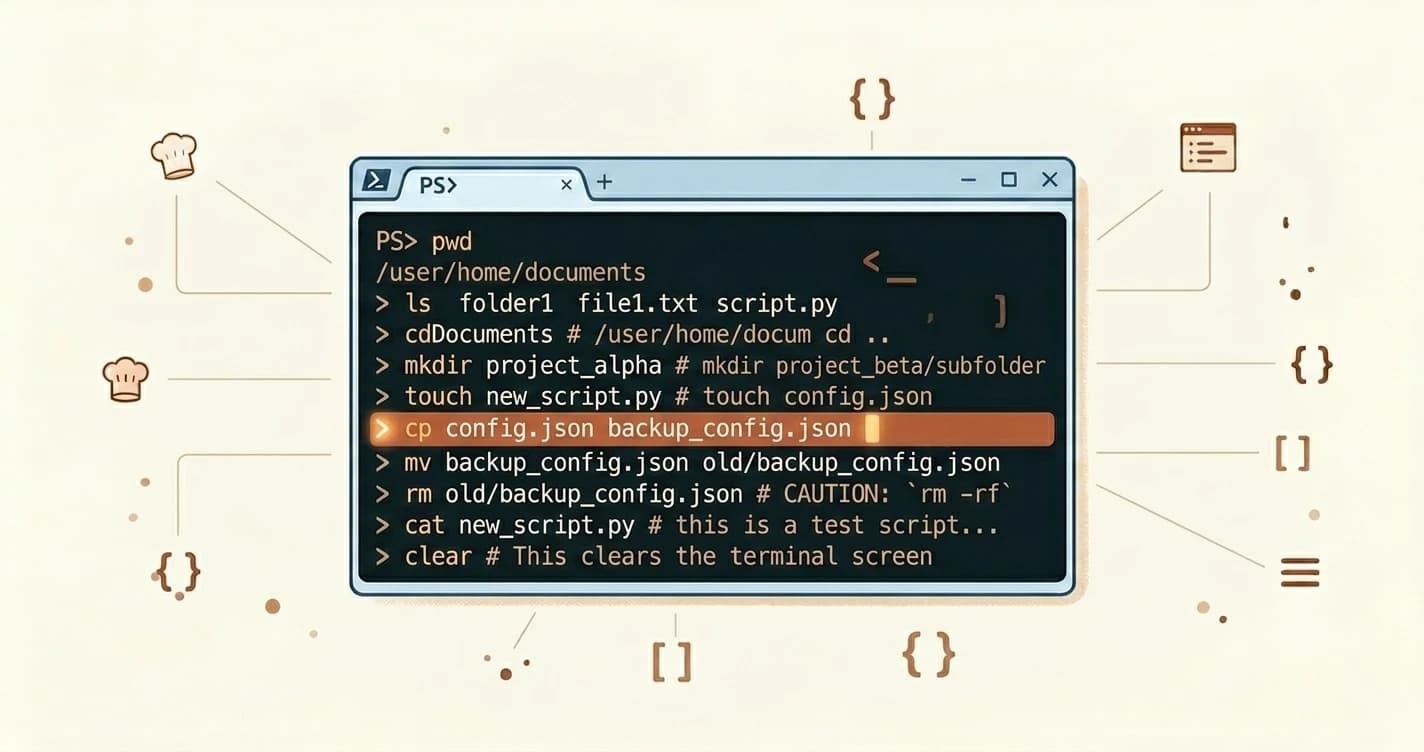
Ten commands. That's all you need for 90% of what developers actually do in the terminal. These are the basic terminal commands for beginners — in this lesson, you'll learn what each one does, see it in action, and know the one mistake beginners make with it.
Key Takeaways
pwdshows you where you currently are in your file system, always run it first when you're lostrmdeletes files permanently with no Recycle Bin, there's no undols,cd, andpwdare used together constantly, think of them as your GPS- Windows PowerShell uses
New-Iteminstead oftouch, andclsinstead ofclearin CMD (thoughclearworks in PowerShell)- You don't need to memorize the syntax, bookmark this page and look it up as you go
Quick reference
Here's the full list at a glance. The sections below cover each one in detail.
| Command | What it does | Windows note |
|---|---|---|
pwd | Show current folder path | Same in PowerShell |
ls | List files and folders | dir in CMD; ls in PowerShell |
cd | Move into a folder | Same on all platforms |
mkdir | Create a new folder | Same on all platforms |
touch | Create an empty file | Use New-Item in PowerShell |
cp | Copy a file | Same on all platforms |
mv | Move or rename a file | Same on all platforms |
rm | Delete a file permanently | Same on all platforms |
cat | Print file contents to screen | Same on all platforms |
clear | Clear the terminal screen | cls in CMD; clear in PowerShell |
Before you type anything
Two things will save you from most beginner errors before they happen.
First: every command runs inside a folder. You're always "somewhere" in your file system, even when the terminal looks blank. That's why "no such file or directory" is the most common beginner error — you're looking for a file in the wrong place. When a command does fail, reading the error message usually tells you exactly which of these two mistakes you made.
Second: file and folder names are case-sensitive on Mac and Linux. Notes.txt and notes.txt are different files. Windows is more forgiving, but get into the habit of matching case exactly.
If you're on Windows and a command gives you an error, make sure you're using PowerShell or Git Bash, not the old Command Prompt. Most commands here work in all three, but CMD has a few quirks.
Now, the which terminal to use on your OS lesson covers this in more depth. For now: open your terminal and let's go.
How do you navigate folders in the terminal?
These three commands are almost always used together. pwd tells you where you are, ls shows what's around you, cd moves you somewhere else. Think of them as your file system GPS.
pwd, print working directory
What it does: Shows the full path to the folder you're currently in.
pwd
Example output:
/Users/yourname/projects
Run pwd whenever you're lost. It's always the first thing to check.
ls, list files and folders
What it does: Lists everything inside your current folder.
ls
Example output:
my-app notes.txt README.md
On Windows CMD, the equivalent is dir. In PowerShell and Git Bash, ls works fine.
Common mistake: Expecting to see hidden files (names starting with .). Add the -a flag to see them: ls -a.
cd, change directory
What it does: Moves you into a different folder.
cd folder-name
Example, moving into a project:
cd my-app
Example, going up one level:
cd ..
Two dots means "the folder above this one." One dot means "this folder." You'll use .. constantly.
Common mistake: Folder names with spaces break cd unless you wrap them in quotes: cd "My Projects".
Pro tip: You don't have to type the full folder name. Type the first few letters and press Tab — the terminal fills in the rest. This is one of those things that immediately makes the terminal feel less scary.
How do you create files and folders in the terminal?
mkdir, make a new folder
What it does: Creates a new empty folder.
mkdir folder-name
Example:
mkdir my-project
That's it. Navigate into it with cd my-project.
Common mistake: Spaces in the folder name without quotes: mkdir my project creates two folders named my and project. Use hyphens instead: mkdir my-project.
touch, create a new empty file
What it does: Creates a new empty file, or updates the timestamp of an existing one.
touch filename.txt
Example:
touch notes.txt
Windows PowerShell: touch doesn't exist. Use New-Item notes.txt instead. Git Bash on Windows supports touch like Mac and Linux.
Common mistake: Running touch in Windows PowerShell, you'll get an error. Switch to New-Item, or install Git Bash.
This is how you create files without opening a code editor. When you're setting up a project, you'll run touch for config files, .env files, and READMEs constantly.
Moving and copying things
cp, copy a file or folder
What it does: Copies a file from one location to another. The original stays put.
cp source.txt destination.txt
Example, copy into a subfolder:
cp notes.txt backup/notes.txt
Common mistake: Copying without realizing you'll overwrite an existing file at the destination. The terminal won't warn you, it just overwrites.
mv, move or rename a file
What it does: Moves a file to a new location, or renames it if you keep it in the same folder.
mv old-name.txt new-name.txt
Example, rename:
mv notes.txt final-notes.txt
Example, move to a folder:
mv notes.txt archive/notes.txt
This one surprises people: mv is how you rename files in the terminal. There's no separate rename command.
Common mistake: Moving a file into a folder that doesn't exist yet. Create the folder first with mkdir, then move.
How do you delete files safely from the terminal?
rm, remove a file
What it does: Deletes a file permanently.
rm filename.txt
Example:
rm old-notes.txt
There's no Recycle Bin here. Deleted is deleted. One wrong rm command won't destroy your hard drive — it only removes exactly what you name. But it won't ask for confirmation either.
To delete a folder and everything inside it, add the -r flag (recursive):
rm -r my-folder
rm -r deletes the folder and all its contents in one go. Double-check the folder name before you run it.
Common mistake: Running rm my-folder on a folder without -r, you'll get an error: "is a directory." Add -r.
cat, print file contents
What it does: Prints the contents of a file directly in the terminal.
cat filename.txt
Example:
cat notes.txt
Output:
This is what's in notes.txt.
Useful for quickly checking what's inside a file without opening a code editor. For longer files, the output scrolls past fast, use less instead (but that's beyond this lesson).
Common mistake: Running cat on an image or binary file. You'll get a screen full of garbled characters. It won't break anything, just looks alarming.
One more: clear the screen
clear, clear the terminal
What it does: Wipes the terminal screen so you have a clean slate. Your commands still ran, this just clears the visual clutter.
clear
On Windows CMD, the equivalent is cls. In PowerShell and Git Bash, clear works fine.
Your Task
Create a folder, create a file, then delete it
In your terminal, run these commands one at a time:
mkdir my-test-folder
cd my-test-folder
touch notes.txt
(Windows PowerShell: use New-Item notes.txt instead)
ls
cd ..
rm -r my-test-folder
You created a folder, navigated into it, made a file, listed it, went back up one level, and deleted the whole thing, entirely from the keyboard. That's the core workflow you'll repeat hundreds of times as a developer.
Done? You've completed Lesson 02.03.
Working through the full path? Head back to the Getting Started path to see where you are.
FAQ