Environment Variables in Production: Keep API Keys Safe
Learn how environment variables work in production so your API keys stay safe on a live server without ever touching GitHub.

Your app works perfectly on your laptop. You push it to Render, open the live URL, and it crashes with an error mentioning a key you know you set. Except you set it in .env, on your machine, and .env never left your machine, on purpose. If that crash shows up in your deployment log, knowing how to read what it's telling you turns a scary wall of text into one specific missing value.
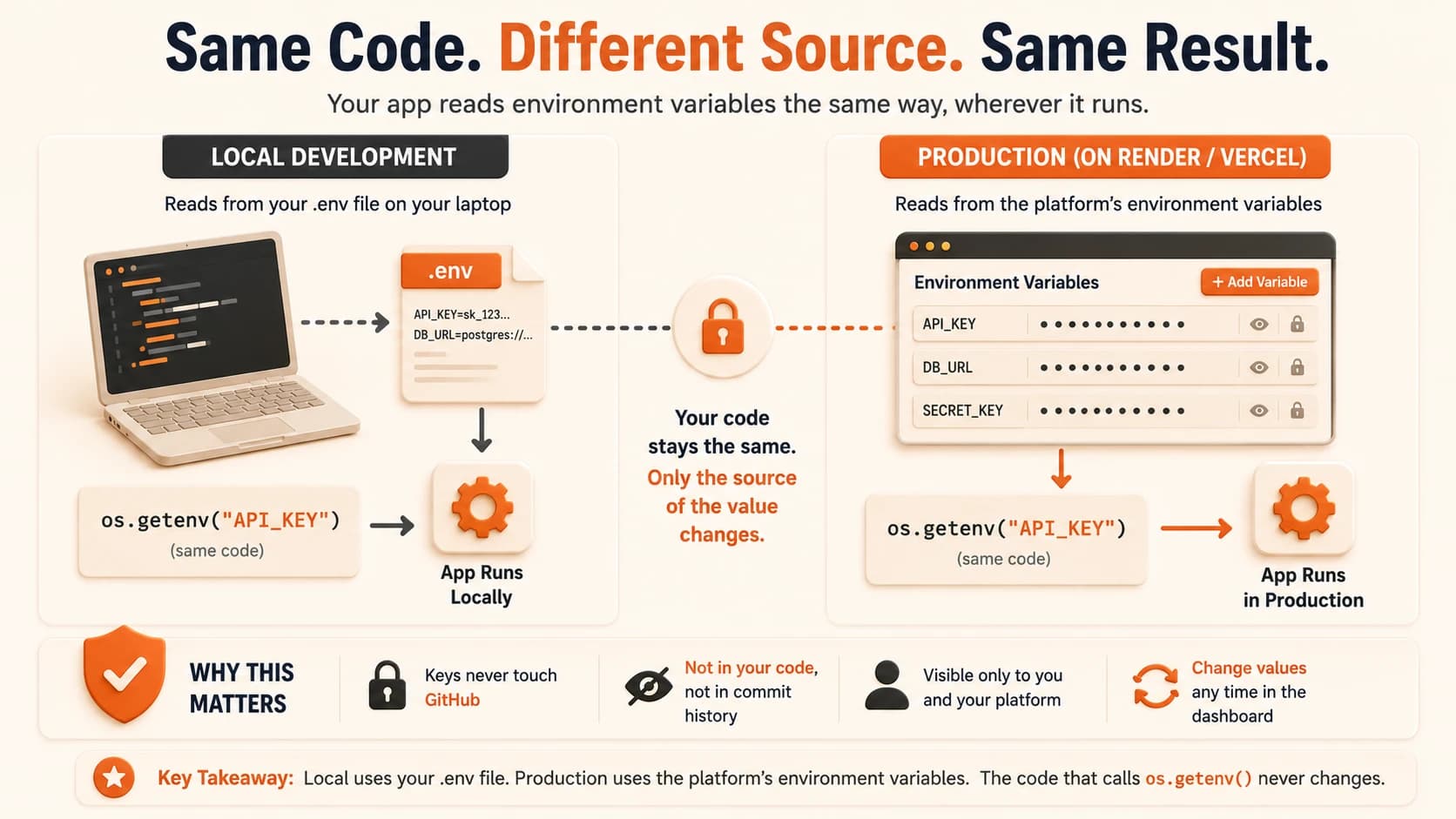
A platform's environment variables panel, a separate secure settings screen in your hosting dashboard, is where that same key needs to go for a live server. This is the same idea as the environment variables you set up back in Module 02, just stored somewhere different. Your code still calls os.getenv("ANTHROPIC_API_KEY") exactly like it does locally. The value just comes from a different, more secure place once your app is live.
Key Takeaways
- Every deployment platform has its own environment variables panel, separate from your GitHub repo, where you paste secret values directly
- The platform injects those values into your running server at startup, so
os.getenv()works identically in local and production code- On Vercel, a changed environment variable only applies to your next deployment, not the one already live
- On Render, a missing environment variable causes the exact "works locally, crashes live" pattern this lesson opens with
- The key never touches GitHub, never appears in your code, and stays visible only to you and the platform holding it
The Problem: Your .env File Never Left Your Laptop
In the .gitignore lesson, you were taught to never commit .env to GitHub. That was correct. It's the reason your API key hasn't leaked to a public repo, and it should stay that way forever.
But that same correct choice creates a gap once you deploy. Render or Vercel now runs your code on a computer you've never touched, and that computer has no .env file, because you never gave it one, and you never should.
I've watched this exact mismatch trip up my own first deploy. The app worked every single time I tested it, then failed the moment it hit a real server, and nothing in the code itself was actually broken. Skip understanding this gap and your first deploy crashes with an authentication error that looks like a bug, when really, the server just doesn't know the key exists yet.
This isn't a flaw in the plan. It's the other half of it, and this lesson closes it safely.
How Do Environment Variables Work in Production?
Every hosting platform has its own environment variables panel inside its dashboard. You paste secret values directly into that panel, entirely separate from your GitHub repository. The platform then injects those values into your server's environment the moment it starts up.
Your code doesn't know or care where the value came from. os.getenv("ANTHROPIC_API_KEY") runs exactly the same way it did with your local .env setup, whether it's reading from a file on your laptop or a dashboard entry on Render. That's precisely why the code never needs to change between local and live.
On Vercel specifically, adding or editing an environment variable only affects your next deployment. If you edit one and refresh your already-live site expecting it to update instantly, it won't, you need to trigger a new deployment first. Vercel's own documentation states this plainly: changes never apply to deployments that already exist, only to new ones.
Skip this distinction and you'll spend twenty minutes convinced you saved the wrong value, when really, the value was correct and your site simply hadn't rebuilt yet.
Adding a Key on Render (or Vercel)
Here's the general shape of the process, since the exact screen looks slightly different depending on your platform:
- Open your project's dashboard and find the "Environment" section (Render) or "Environment Variables" under Settings (Vercel).
- Click to add a new variable, and enter a key, like
ANTHROPIC_API_KEY, and its value, your actual API key. - Save. Render gives you a choice to redeploy immediately or on your next push, Vercel applies the change starting with your next deployment.
- Once the new deployment finishes, visit your live URL and confirm the feature that depends on that key now works.
Render's own documentation covers the exact same three save options in more depth, worth a read if you want to see every choice available beyond what this lesson covers.
Why This Is Safe
The same protection .gitignore gave you locally now extends all the way to production. Your key never touches GitHub, because it was never in a file Git tracks. It never appears anywhere in your code, because your code only ever calls os.getenv() and asks for a name, not a value. And it's visible only to you and the platform holding it, the same way your local .env file was visible only to you and your own machine.
Skip this model and it's easy to assume a live server is somehow less private than your laptop. It isn't, as long as the key goes through the platform's environment panel and never through a committed file.
The next time you redeploy, this variable gets injected during the build step, the same "Building..." pause you've already watched happen on both Vercel and Render.
This is the last piece of the deployment picture the Getting Started path covers, security carried all the way from your terminal to a server anyone can visit.
Add your API key as a production environment variable
Go to your Render dashboard (or Vercel, if your project is there) for the backend you deployed in lesson 09.04.
Find "Environment" in the project settings.
Add a new environment variable: key = ANTHROPIC_API_KEY, value = your actual key, the same one from your local .env file in Module 05.
Save, and let the platform redeploy if prompted.
If your deployed app calls the Claude API anywhere, confirm it now works live, without a .env file existing anywhere on the server.
Done? You've completed Lesson 09.08.
FAQ