How to Read Terminal Error Messages for Beginners
Learn how to read terminal error messages. Covers command not found, permission denied, no such file, and Python SyntaxError, with exact fixes for each.
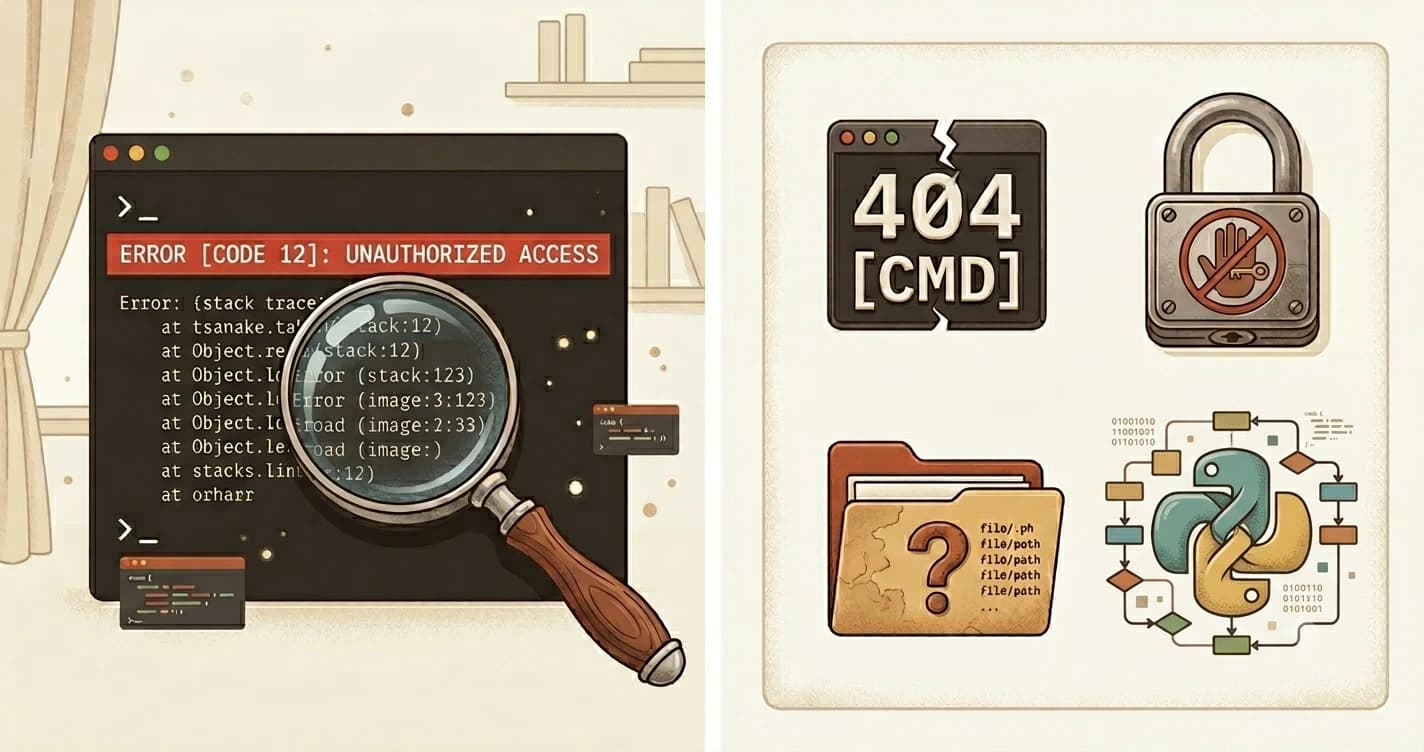
You ran a command. A red wall of text appeared. You closed the terminal.
That's the most normal reaction in the world, and this lesson is going to change it. By the end, you'll know how to read any terminal error, identify what went wrong, and apply the fix. The terminal isn't yelling at you. It's telling you exactly what to do.
This is the final lesson of Module 02. It builds on everything from terminal basics through environment variables (lesson 02.06).
Key Takeaways
- "command not found" means a typo or the tool isn't installed, not that you broke something
- "permission denied" means your account needs elevated access, use
sudoon Mac/Linux or Run as Administrator on Windows- "no such file or directory" means the path is wrong, check your location with
pwdand your spelling- Python errors include a line number, go directly to that line and look for the issue
- For any unfamiliar error: read the last line first, copy it into a search or AI chat, apply the fix
Why Does the Terminal Show Error Messages?
Most apps give you vague errors. "Something went wrong." "An unexpected error occurred." The terminal is the opposite.
When a command fails, the terminal prints exactly what it couldn't do and why. There's no tone to it. It's not frustrated or disappointed. It's just a very literal piece of software reporting a fact.
Unlike a GUI app that says "Something went wrong," the terminal tells you exactly what went wrong. That's a feature, not a flaw.
Every terminal error follows the same pattern: a type, a cause, and a fix. Once you see that pattern, any error becomes readable, even ones you've never seen before.
This lesson covers the four types you'll encounter most in this course.
"command not found" (or "is not recognized")
This is the most common error beginners hit, and it almost always has a simple cause.
# Mac / Linux
zsh: command not found: pytohn

# Windows PowerShell
'pytohn' is not recognized as an internal or external command, operable
program or batch file.
What it means: Your shell searched for a program called pytohn and found nothing. The program either doesn't exist, isn't installed, or isn't where the shell is looking.
How to fix it:
- Check for a typo. Read the command you typed. Compare it letter by letter.
pytohnispythonwith two letters swapped, that's all it takes. - Check if the tool is installed. If the spelling is correct and the error persists, the tool may not be installed. Go back to the relevant install lesson.
- PATH issue. If it's installed but the error still appears, the tool's location isn't in your PATH. This is covered in Module 03.
If you copied a command from a tutorial that starts with $, like $ pip install anthropic, remove the $ before running it. That symbol is the prompt indicator in the tutorial, not part of the command. Running it with $ causes a "command not found" error that looks completely unrelated.
"permission denied"
# Mac / Linux
bash: /etc/hosts: Permission denied

# Windows PowerShell
Access to the path 'C:\Windows\System32\...' is denied.
What it means: You're trying to read, write, or run something your user account isn't allowed to touch. Usually this is a system file or a folder that requires administrator access.
How to fix it:
- Mac / Linux: Prefix the command with
sudo. For example:sudo nano /etc/hosts. You'll be prompted for your password. - Windows: Close the terminal. Right-click on PowerShell or Windows Terminal and select Run as Administrator. Re-run the command.
Use sudo deliberately, not reflexively. It gives you root-level access, the ability to change system files. It's safe for the tasks in this course, but don't get into the habit of prefixing every command with it. Only use it when you're confident the command needs elevated access.
"no such file or directory"
cd: no such file or directory: my-projct
What it means: The path you typed doesn't exist. The file or folder either isn't there, isn't where you think it is, or has a different name.
Three checks in order:
- Run
pwd. This prints your current location. Are you in the folder you think you're in? - Run
ls. This lists everything in your current folder. Is the file actually there? - Check the spelling exactly. In the example above,
my-projctis missing ane. One character is all it takes.
Capitalization matters on Mac and Linux. My-Folder and my-folder are two completely different directories. Windows is case-insensitive, so this only catches people when they switch operating systems.
If the path structure is the issue, not the spelling, review absolute vs relative paths from lesson 02.04.
What Do Python Errors Mean? SyntaxError and IndentationError Explained
When you run a Python file and something is wrong with the code itself, Python gives you a traceback, a detailed error report that includes the file name, the line number, and the type of problem.
 File "app.py", line 5
 print("hello"
 ^
SyntaxError: '(' was never closed
What it means: Python found a problem at line 5 of app.py. A parenthesis was opened but never closed.
Two steps:
- Read the last line first.
SyntaxError: '(' was never closedtells you the type of problem. - Go to the line number. Open
app.py, jump to line 5, and look for the issue.
The line number is the gift. You don't have to search the whole file, Python is pointing you directly at the problem.
Two common Python error types:
- SyntaxError, a typo in the code itself: missing colon, unclosed bracket, misspelled keyword
- IndentationError, Python's indentation rules were violated: mixed tabs and spaces, or wrong indent level
Python requires consistent indentation. Use 4 spaces per indent level, never tabs mixed with spaces. Most code editors handle this automatically. If yours doesn't, look for a "show whitespace" or "convert tabs to spaces" setting.
What Do You Do When You See an Error You Don't Recognize?
You will eventually hit an error that isn't in this lesson. Here's how to handle it:
- Read the last line of the error. That's almost always the summary, the "what went wrong" in plain terms.
- Identify the type. Is it about a command? A path? A permission? A code problem?
- Copy the exact error text and search for it. Paste it into Google, Stack Overflow, or an AI chat. Error messages are precise, searching the exact text almost always finds the answer.
- Apply the fix and rerun. Sometimes fixing one error reveals the next one. That's progress, not failure.
Senior developers do this every day. The skill isn't knowing every error by heart, it's knowing how to read what the terminal is telling you and find the answer.
The reason to learn this process isn't to memorize errors — it's to stop freezing when you see one. Once you know the four types, any new error is just a variation on something you already know.
Your Task
Trigger and decode an error on purpose
In your terminal, type this intentionally wrong command and press Enter:
pytohn --version
You should see something like:
# Mac / Linux
zsh: command not found: pytohn

# Windows
'pytohn' is not recognized as an internal or external command
Now answer these two questions before reading on:
- Which of the four error types is this?
- What is the fix?
Answer: It's a "command not found" error. The fix is correcting the typo: python --version. The terminal told you exactly what was wrong, the command name.
Done? You've completed Lesson 02.07.
FAQ