How to Install Claude Code CLI (Step-by-Step Guide)
Learn how to install Claude Code CLI on Mac, Windows, or Linux in under two minutes. Step-by-step beginner guide with install, auth setup, and verification.
In this lesson, you'll install Claude Code, the AI coding tool that lives in your terminal and helps you build projects from the inside out. By the end, you'll have it installed, verified, and ready to use. The install takes under two minutes.
Key Takeaways
- Claude Code is a command-line tool, install it once, use it in any project folder
- The native installer (recommended in 2026) requires no extra dependencies, not even Node.js
- The first time you run
claude, a browser tab opens for authentication, that's expected- Once authenticated, Claude Code works anywhere, just type
claudefrom any project directory
What Is Claude Code (and How It Differs from Cursor)
Claude Code is an AI coding assistant that runs inside your terminal. You navigate to any project folder, type claude, and start a conversation about your code. It can read your files, write new ones, run commands, and work across your entire project, not just the file you have open.
If you completed Lesson 03.02, you already have Cursor installed. Claude Code isn't a replacement. They serve different moments.
Claude Code vs Cursor at a glance
| Claude Code | Cursor | |
|---|---|---|
| What it is | Terminal-based AI agent | AI-first code editor (GUI) |
| Best for | Working inside an existing project from the terminal | Writing and editing code with visual context |
| Works inside | Any terminal, VS Code's, your system terminal, anywhere | The Cursor editor only |
Most developers end up using both. Cursor when they're writing and editing; Claude Code when they want to hand a bigger task to an agent and let it run. For the fuller tour of where Claude Code fits among a dozen other AI coding tools, see the Module 08 ecosystem overview.
What You Need Before Installing
Three things, and you likely have all of them already:
- An Anthropic account with API access, the free account you created in Lesson 03.06 and the API key from Lesson 03.07 cover this. Your $5 free credit is enough for weeks of beginner use.
- A terminal, VS Code's built-in terminal works fine. Open it with
Ctrl+``(Windows/Linux) orCmd+``(Mac). - Nothing else, with the native installer, you do not need Node.js.
The free Claude.ai chat plan does not include Claude Code access. You need API access, either a Pro/Max subscription or an API key with credits. The $5 credit from signup covers getting started without spending a penny.
How to Install Claude Code
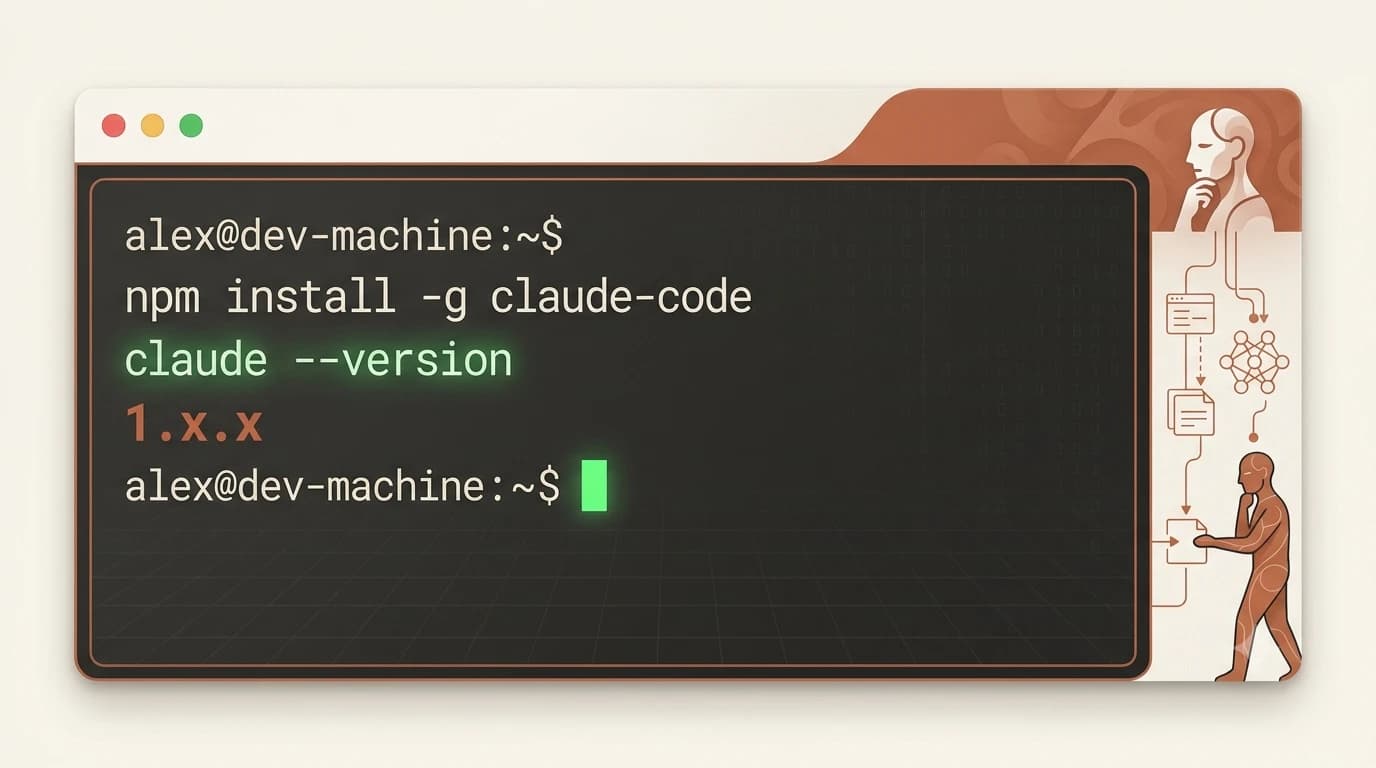
Open your terminal and run the command for your operating system.
Mac or Linux:
curl -fsSL https://claude.ai/install.sh | bash
Windows (PowerShell):
irm https://claude.ai/install.ps1 | iex
Wait for the install to finish, usually under 30 seconds. Then verify it worked:
claude --version
You should see a version number like 1.x.x. If you do, Claude Code is installed.
Now run Claude Code for the first time:
claude
A browser tab will open asking you to log in with your Anthropic account. This is normal, it's authenticating your API access. Log in, approve the connection, and return to your terminal. You're in.
Honestly, the whole process takes under two minutes. Fewer steps than most app installs.
Claude Code is open source and auto-updates in the background. You don't need to reinstall it when a new version ships. See the Claude Code GitHub repository or the official setup docs for advanced options.
Prefer npm? If you're comfortable with npm and want version pinning, you can also install via npm install -g @anthropic-ai/claude-code (requires Node.js 18+). The native installer is recommended for most beginners.
Your Task
Install Claude Code and confirm it works
Open your terminal and run the command for your operating system:
Mac or Linux:
curl -fsSL https://claude.ai/install.sh | bash
Windows (PowerShell):
irm https://claude.ai/install.ps1 | iex
Once it finishes, run:
claude --version
You should see a version number like 1.x.x. That means Claude Code is installed.
When you're ready, navigate to any project folder and type claude to start a session. A browser tab will open for authentication, log in with your Anthropic account, then return to the terminal.
(You'll need your API key ready, which you saved in Lesson 03.07.)
Done? You've completed Lesson 03.10. That's every tool in this module installed — now run the setup checklist to confirm all of them actually work before you start building.
Or explore the full Getting Started path to see where you are in the course.
FAQ