How to Install VS Code: Beginner Setup in 3 Steps
How to install VS Code for beginners in 3 steps: download, install, and add Prettier. Your code editor will be set up and ready to use in under 5 minutes.
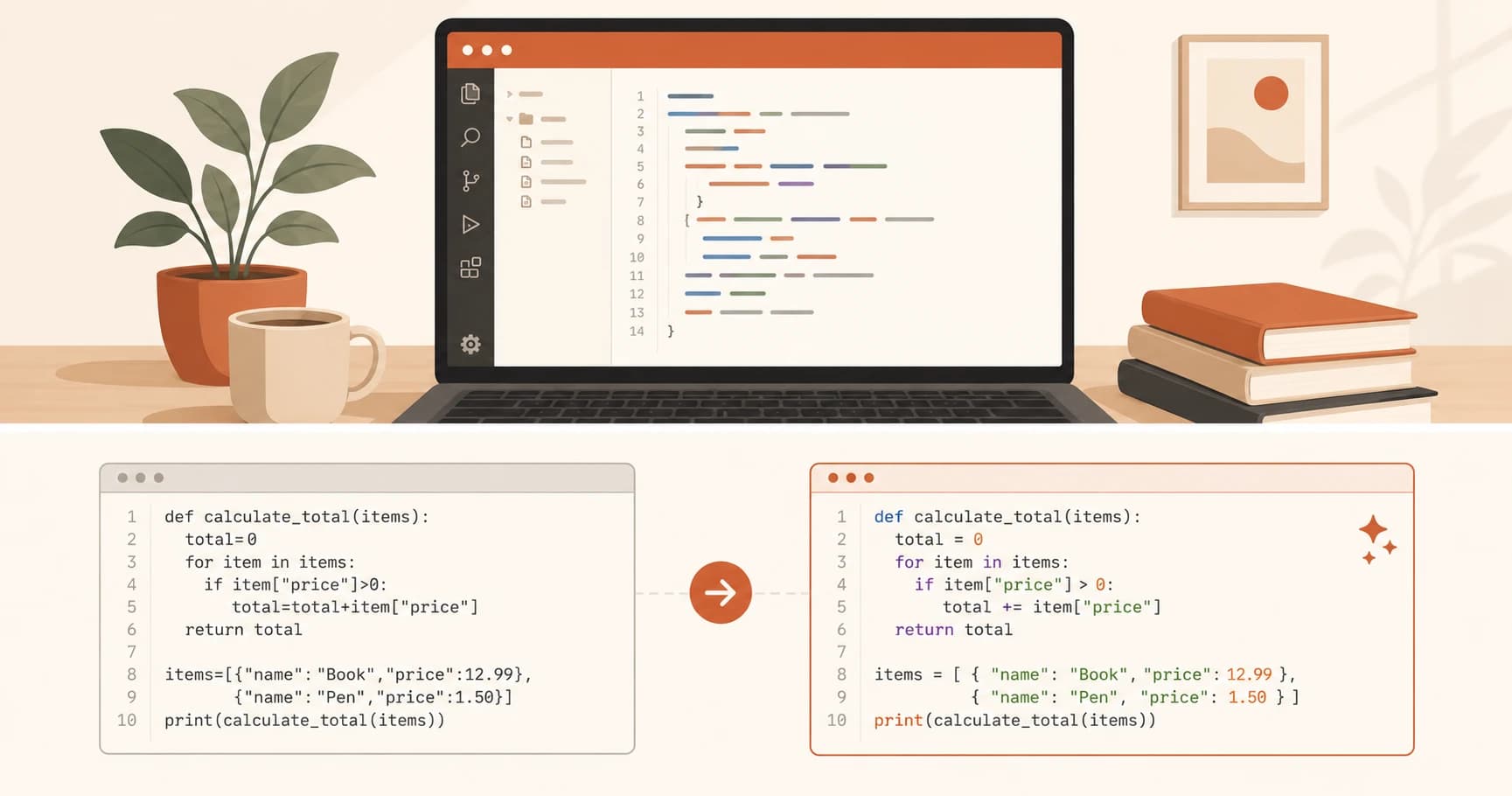
In this lesson, you'll install VS Code, the free code editor used by millions of developers worldwide. By the end, you'll have it running on your computer, a folder open inside it, and your first extension installed.
Key Takeaways
- VS Code is free, works on Windows, Mac, and Linux, and takes about 2 minutes to install
- It understands the code you type: highlights mistakes, autocompletes commands, and flags errors
- Prettier is the one extension every beginner should install right away, it keeps your code tidy automatically
- Three things to do in this lesson: install VS Code, open a folder, install Prettier
VS Code is Google Docs for your code
If you've ever tried opening a code file in Notepad, you've seen what code looks like without a proper editor, a wall of plain text with no visual help at all.
VS Code is the opposite. It's a free application built specifically for writing code, and it understands what you're typing. Write a Python variable and it highlights it in one color. Write a function and it highlights that differently. Make a typo in a common command and it puts a red squiggle underneath, just like spell-check in a word processor.
The simplest way to think about it: VS Code is to code what Google Docs is to writing. It's a place to create, edit, and organize your work, and it actively helps you do it better.
It was built by Microsoft and released for free in 2015. About three out of four professional developers use it as their primary editor. You'll use it throughout this course.
You'll also see Cursor recommended in AI coding tutorials. That's a VS Code-based editor with a built-in AI assistant, it's the very next lesson. Start here first.
How to install VS Code for beginners
Installing VS Code takes about two minutes. No account required, nothing to configure, nothing to pay for.
Download VS Code
Go to code.visualstudio.com. The large blue download button in the center of the page automatically shows the right version for your operating system. Click it.
Run the installer
Open the file you just downloaded and follow the installer. On Windows, leave all the default options as they are, they're fine. On Mac, drag VS Code into your Applications folder when prompted.
Open a folder
Launch VS Code. Click File → Open Folder and choose any folder on your computer, your Desktop works fine. This is how VS Code works: you always open a folder, not just a single file. That folder becomes your workspace, and the full sidebar and file explorer appear.
On Mac, you may see a warning: "VS Code cannot be opened because the developer cannot be verified." This is normal for apps downloaded outside the App Store. Go to System Settings → Privacy and Security and click Open Anyway.
Your first extension: Prettier
VS Code works on its own, but extensions make it smarter. There are over 50,000 extensions in the marketplace: tools for every language, workflow, and use case imaginable.
You need exactly one right now: Prettier.
Prettier is a code formatter. Every time you save a file, it automatically fixes your spacing, indentation, and line lengths. You write the code; Prettier keeps it readable. Start with this one. Add others as you need them.
Here's how to install it:
- Click the Extensions icon in the left sidebar. It looks like four squares, with one slightly separated
- In the search box, type
Prettier - Code formatter - Click the blue Install button next to the result published by Prettier
Prettier is now installed and will run silently every time you save a file.
If Prettier doesn't seem to be formatting automatically, press Ctrl+Shift+P (Windows) or Cmd+Shift+P (Mac) to open the command palette. Type Format Document and press Enter. That runs Prettier on demand.
You'll install Node.js in a later lesson, it's the runtime that powers most AI CLI tools. For now, VS Code and Prettier are all you need.
Your Task
Install VS Code and your first extension
Download VS Code from code.visualstudio.com. Install it.
Open VS Code, click the Extensions icon in the left sidebar (the four-squares icon), search for Prettier - Code formatter, and install it.
Then open any text file on your computer inside VS Code using File → Open File.
That's it, your code editor is ready.
Done? You've completed Lesson 03.01.
FAQ