How to use Cursor AI editor for beginners (2026 guide)
Cursor has three AI modes, Chat, Inline, and Agent, and most beginners mix them up. This guide explains each one clearly so you know exactly what to use.
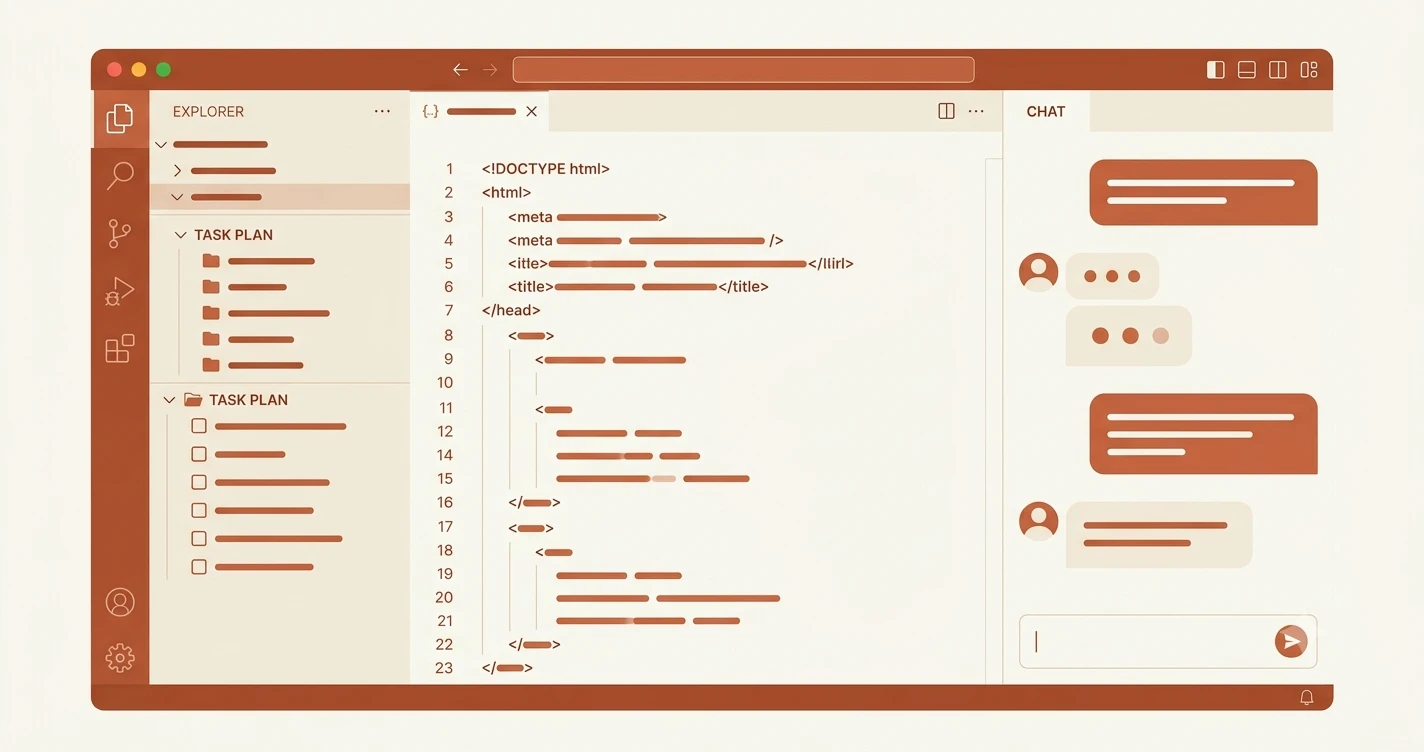
You just installed VS Code. Then someone told you Cursor is better, so you downloaded and installed it. Now you're staring at something that looks almost identical to VS Code, but with an AI panel you're not sure how to use.
Cursor is an AI-first code editor built on top of VS Code — it looks identical, runs the same extensions, and adds one thing VS Code doesn't have: AI that reads your entire project and can act on it, not just answer questions about it.
That's the exact moment this lesson is for. Cursor AI editor gives beginners three distinct ways to work with AI, and knowing which one to use changes everything. By the end, you'll know what each mode does, when to reach for it, and how to try all three in under ten minutes.
Key Takeaways
- Cursor is built on VS Code; switching is instant, and all your extensions still work
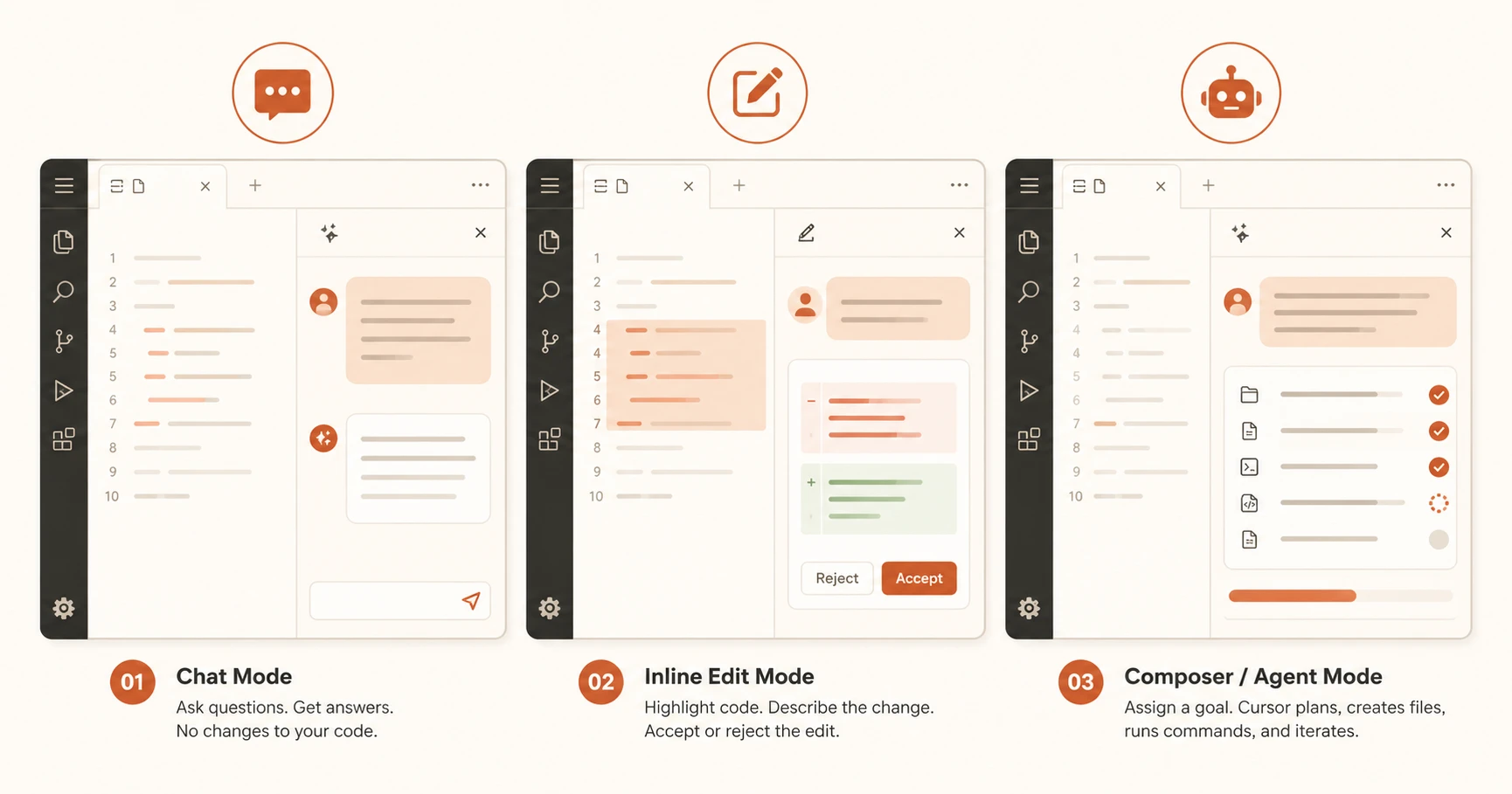
- There are three distinct AI modes: Chat (ask questions), Inline (change a block), and Composer/Agent (assign a goal)
- The free tier gives you enough to learn; you can stretch it further by connecting your own API key
- Agent mode is powerful but makes mistakes — treat it like a fast junior developer, not a magic button
The three Cursor modes at a glance
| Mode | Shortcut | What it does | When to use it |
|---|---|---|---|
| Chat | Ctrl+L | Ask questions — no code changes | Understanding code, learning, debugging |
| Inline edit | Ctrl+K | Rewrite a highlighted selection | Targeted changes to a specific block |
| Composer / Agent | Ctrl+I | Assign a goal — Cursor plans and acts | Building new features, creating files |
What makes Cursor different from VS Code
If you've done the previous lesson on VS Code, you already have a head start. Cursor is built directly on top of VS Code — same layout, same keyboard shortcuts, same extensions. The difference is that AI is woven into the editor itself, not bolted on as a plugin.
When you first open Cursor, it offers to import your VS Code settings in one click. Your theme, extensions, and keybindings come with you.
Already have VS Code configured? Click "Import VS Code settings" on Cursor's welcome screen. Your whole setup transfers instantly, nothing to reconfigure.
The real difference shows up when you start working. In VS Code, AI assistance is a sidebar tool. In Cursor, it reads your entire codebase and can act on it. That's what the three modes unlock.
Cursor isn't the only option here. If raw editor speed matters more to you than deep multi-file AI features, Zed, a faster Rust-built alternative, is worth trying too.
What is Cursor Chat mode and when should you use it?
Shortcut: Ctrl+L (Windows) or Cmd+L (Mac)
Chat is the simplest mode. Press Ctrl+L and a panel opens on the right where you can ask Cursor anything, about your code, about a concept, or about what to build next.
Think of it as having a senior developer sitting next to you. You ask a question, it answers. It can see your open files and your whole project, so the answers are relevant to what you're actually building, not generic explanations from the internet.
Good questions to start with:
- "What does this function do?"
- "Why is this code throwing an error?"
- "What's the difference between a list and a dictionary in Python?"
Chat doesn't change your code. It only answers. That's the point, it's a safe place to ask anything without worrying about breaking something.
What does Cursor's Inline edit do differently from Chat?
Shortcut: Ctrl+K (Windows) or Cmd+K (Mac)
Inline edit is surgical. You highlight a block of code, one line, ten lines, a whole function, then press Ctrl+K and type what you want changed. Cursor rewrites just that selection.
This is the mode to use when you know which part of the code needs to change and you want to describe the change in plain English.
Examples:
- Highlight a function, press Ctrl+K, type "Add a comment explaining what this does"
- Highlight a loop, type "Rewrite this to be more readable"
- Highlight an error message, type "Make this error message more helpful"
The key difference from Chat: Inline edit changes your code. Cursor will show you a diff (a before/after view) and ask you to accept or reject the change. You always stay in control.
Chat can tell you what's wrong. Inline edit fixes it in place — which is faster than reading an explanation and making the change yourself.
What is Cursor Agent mode and how does it work?
Shortcut: Ctrl+I (Windows) or Cmd+I (Mac)
This is the one that makes Cursor genuinely different from anything else. Composer, especially in Agent mode, lets you give Cursor a goal rather than an instruction.
Instead of saying "edit this function," you say "build a Python script that reads a CSV file and prints the top five rows." Cursor figures out what files to create, writes the code, checks for errors, and iterates until it works.
Here's what Agent mode actually does behind the scenes:
- Reads your entire codebase to understand the project context
- Creates new files if needed
- Runs terminal commands to check for errors
- Fixes problems it introduces, without you pointing them out
This is the powerful one. Beginners sometimes describe it as magic. It's not, it's more like a very fast junior developer. It works best when you give it clear goals and check what it produces.
Before any Agent session, commit your code with Git. Agent mode sometimes deletes and recreates files as it works. A commit gives you a safe checkpoint to roll back to if something goes wrong.
You don't need to understand the code it writes to get started. But you should read through what it produces and test it, the same way you'd review work from any developer, junior or not.
Pricing — what you actually get for free
Cursor's free tier gives you a two-week trial with full access to all features, including Agent mode with the fastest AI models. After that, the free tier limits you to 50 fast requests per month.
That sounds low — and when I first read it, I thought the same thing. Here's how to stretch it:
Connect your own API key. Cursor lets you add an API key from Anthropic, OpenAI, or other providers directly in Settings. The models powering Cursor, like Claude and GPT-4o, are available through these providers at a fraction of the per-request cost. DeepSeek's API, in particular, costs fractions of a cent per request and works well for most coding tasks.
For heavy users — people coding every day — the Pro plan is $20/month and removes request limits entirely. You can find the full breakdown on Cursor's pricing page.
If you're just starting out, the free trial is plenty of time to decide if Cursor is worth it. When you're ready to keep going, the Getting Started path has everything you need next.
How to install Cursor from the terminal
If you already have a package manager installed, this is faster than downloading from the browser. Pick the one that matches your setup:
Windows — winget (built into Windows 10/11):
winget install Cursor.Cursor
Windows — Chocolatey:
choco install cursor
Mac — Homebrew:
brew install --cask cursor
If none of those apply, download directly from cursor.com and run the installer — it takes about 60 seconds.
Not sure if winget is available? Open PowerShell and type winget --version. If you see a version number, you have it. If not, go to the Microsoft Store and install "App Installer" — that adds winget for free.
Your Task
Install Cursor and try all three modes
Download Cursor from cursor.com. Install it.
Open any folder or file in Cursor.
Try Chat: Press Ctrl+L (Windows) or Cmd+L (Mac). Type: "What is a variable in Python?"
Try Inline edit: Highlight any line of text, press Ctrl+K, type: "Add a comment explaining this."
Try Composer: Press Ctrl+I. Type: "Create a Python file that prints Hello World."
You've just used all three modes. Agent mode (Composer) is what you'll use most as you build.
Done? You've completed Lesson 03.02.
FAQ