How to Install Python for Beginners (Windows & Mac)
Learn how to install Python 3 on Windows or Mac in minutes. Covers the PATH checkbox trap, Python 2 vs 3 confusion, and how to confirm Python is working.
In this lesson, you'll install Python on your computer, the programming language that powers most AI tools, scripts, and APIs you'll use throughout this course. By the end, you'll have Python 3 installed and confirmed working in your terminal.
Key Takeaways
- Python 2 is dead. Always install Python 3, the current version is Python 3.12 or newer.
- Windows users must tick "Add Python to PATH" during installation or the terminal won't find Python.
- After installing, run
python --version(orpython3 --versionon Mac) to confirm it worked.
Why Python is the language of AI
You've probably seen Python mentioned everywhere in AI tutorials. That's not an accident.
Python became the default language for AI and machine learning because it's readable, widely supported, and has an enormous ecosystem of libraries, tools like NumPy, Pandas, and the Hugging Face transformers library that do the heavy lifting so you don't have to write everything from scratch.
You don't need to know Python deeply to get started. But you do need it installed, because nearly every AI tool, API script, and automation you'll build in this course runs on Python. If you haven't installed Node.js yet, do that first, then come back here.
Python 2 vs Python 3 — the one thing you need to know
Here's where beginners get tripped up.
There are two major versions of Python: Python 2 and Python 3. Python 2 is retired. It was officially retired in 2020 and no longer receives updates, security patches, or support from the community. If you install Python 2, scripts written for Python 3 will break, and you'll spend hours confused about why.
Install Python 3. Always. The current stable release is Python 3.12.x, that's the one you want.
Python 2 vs Python 3 at a glance
| Python 2 | Python 3 | |
|---|---|---|
| Status | Retired (2020) | Active — install this |
print syntax | print "hello" | print("hello") |
| AI library support | None | Full |
| Should you install it? | No | Yes |
If you search online and see a tutorial using print "hello" (without parentheses), that's Python 2 syntax. Modern Python 3 uses print("hello"). It's a small difference that signals how old the content is.
How to install Python on Windows
Windows is where most beginners run into trouble, specifically because of one checkbox during installation that's easy to miss. I've watched more beginners hit this wall than any other install problem — it's almost always this one checkbox.
Step 1: Download Python
Go to python.org/downloads. You'll see a large yellow button that says "Download Python 3.x.x", click it. This downloads the Windows installer.
Step 2: Run the installer, and tick the PATH checkbox
This is the critical moment. When the installer opens, you'll see a screen with two options at the bottom:
- Install Now
- Customize installation
Before you click either one, look at the bottom of that screen for a checkbox that says "Add Python to PATH". Tick it.
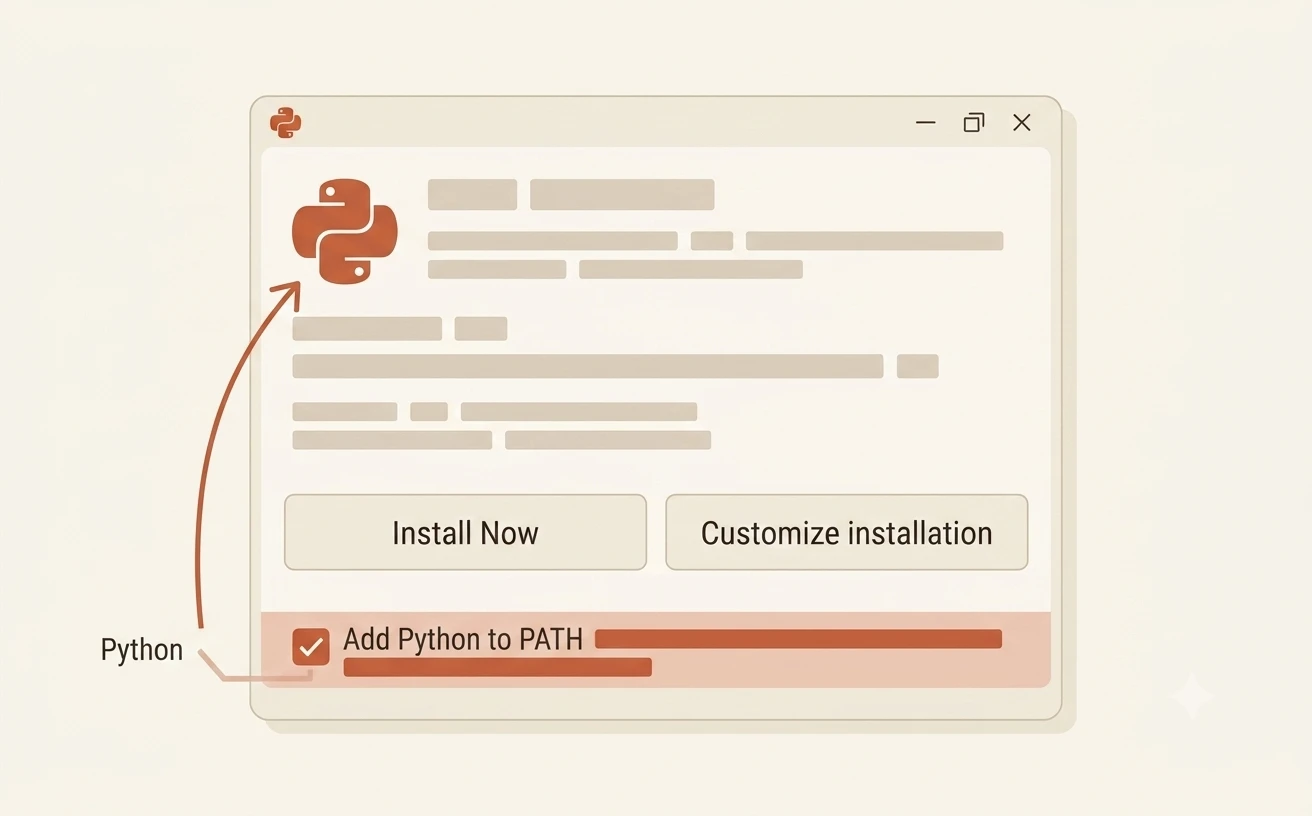
If you skip this checkbox, your terminal won't know where Python is installed. You'll type python and get an error saying the command isn't found. The fix is to reinstall, so get it right the first time.
Once you've ticked the checkbox, click Install Now. The installer handles everything else.
How to install Python on Mac
Mac installation is more straightforward, no PATH trap to worry about.
Go to python.org/downloads and click the yellow download button. This gives you a .pkg installer file.
Open it and follow the prompts. Click Continue, agree to the license, and click Install. That's it.
One thing to know: older Macs come with Python 2 pre-installed. After you install Python 3, your terminal may still respond to python with Python 2. Don't worry about this, just use python3 instead of python when running commands, and you'll always be on Python 3.
Confirming Python is installed
Once installation is complete, open your terminal and run:
python --version
On Mac, try:
python3 --version
You should see something like:
Python 3.12.3
If you see a version number starting with 3, you're done. Python is installed and working.
If you see Python 2.x.x instead of Python 3.x.x, your terminal is still pointing to the old Python 2 installation. On Mac, use python3 --version, that will show the Python 3 you just installed. On Windows, reinstall Python 3 and make sure the PATH checkbox is ticked.
What's next — Python for AI
Installing Python is just the beginning. In Module 04 — Python for AI, you'll learn how to actually use it: variables, functions, making API calls, reading JSON responses, and eventually sending your first request to Claude's API. Everything you just installed is the foundation for that.
If the idea of learning a programming language sounds like more than you signed up for, read why Python matters for AI and how little of it you actually need first — the honest answer is that reading it matters far more than writing it.
New to the course? Start with the Getting Started path to see where this lesson fits.
Your Task
Install Python via terminal (Windows)
Open your terminal and run:
winget install Python.Python.3
winget is built into Windows 10 and Windows 11 — no extra setup needed. Wait for it to finish, then run:
python --version
You should see: Python 3.x.x. If you do, you're done.
Install Python via terminal (Mac)
Mac uses Homebrew as its package manager. If you have it installed, run:
brew install python3
Once it finishes, confirm with:
python3 --version
You should see: Python 3.x.x. If you don't have Homebrew yet, install it first by running:
/bin/bash -c "$(curl -fsSL https://raw.githubusercontent.com/Homebrew/install/HEAD/install.sh)"
Then re-run brew install python3.
Done? You've completed Lesson 03.04.
FAQ