JavaScript Basics for Beginners: Variables to fetch()
JavaScript basics for beginners: what variables, functions, console.log, and fetch() actually do, and how each one brings a static page to life.
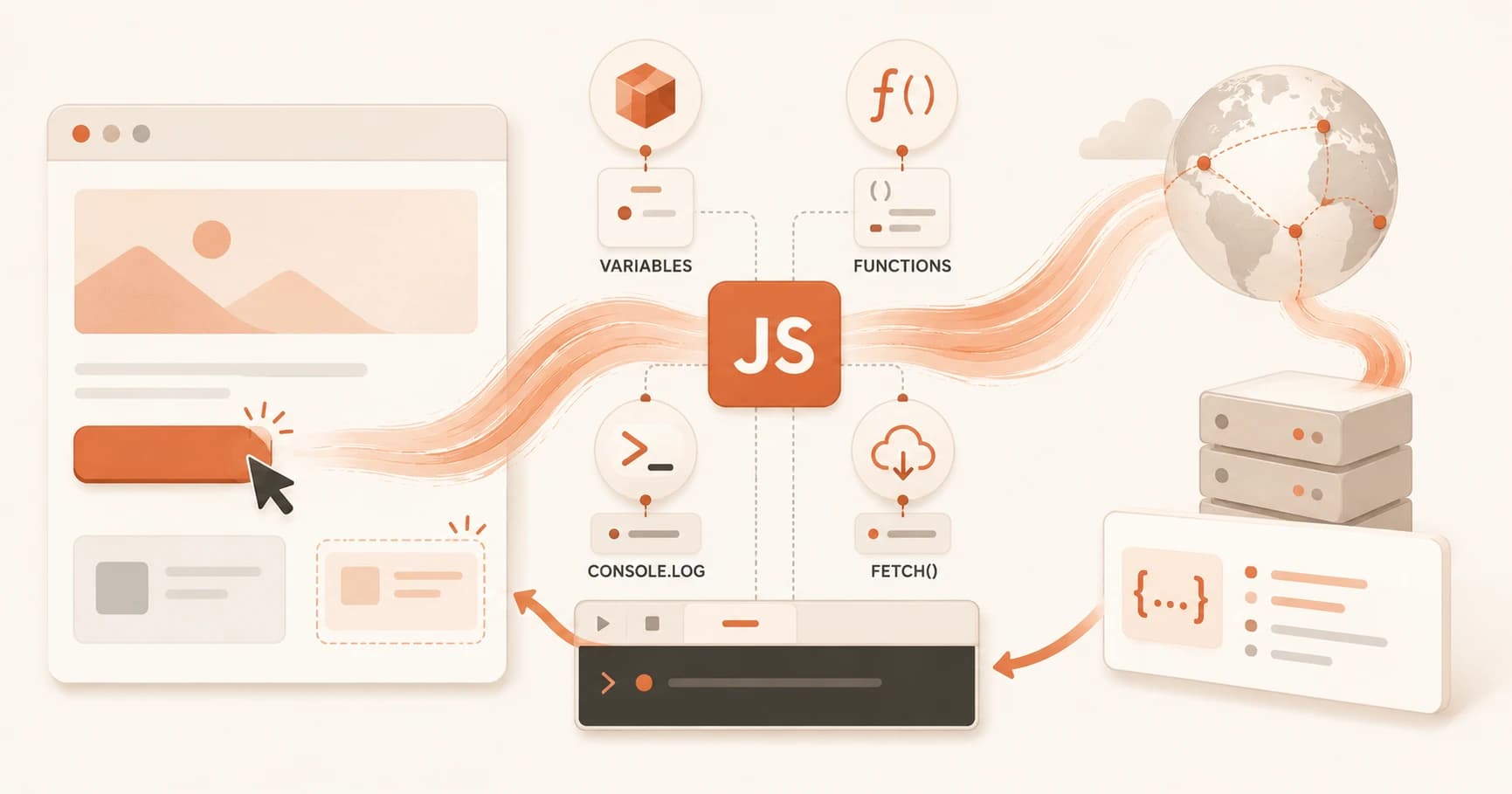
You finish the little index.html from lesson 06.01. The button looks great now that you've styled it with CSS. You click it, and nothing happens. No message, no error, no change on the screen. The page just sits there doing nothing, and you start to wonder what you did wrong.
You didn't do anything wrong. The button has structure from HTML and looks from CSS, but nothing has told it what to do yet. That missing layer is JavaScript. JavaScript is what turns a static page into one that reacts, updates, and fetches new information while you use it. By the end of this lesson you'll recognize the four things you meet first in almost every piece of JavaScript: variables, functions, console.log(), and fetch().
Key Takeaways
- JavaScript is the behaviour layer of a webpage: HTML is structure, CSS is style, JavaScript is what makes things happen.
- Variables hold values (
letfor values that change,constfor values that don't); functions are reusable blocks of instructions.- If you've seen Python, you already know these ideas: JavaScript is the same concepts wearing different syntax.
console.log()prints a value to the browser's hidden developer console, and it's the tool you'll use most for checking whether your code ran.fetch()is how a page asks another service on the internet for data, which is the bridge to every API you'll ever call.
What Is JavaScript?
JavaScript is a programming language that runs inside your web browser and makes pages interactive: it responds to clicks, changes what's on screen, and loads new data without a full page reload. If HTML is the frame and rooms of a house and CSS is the paint and furniture, JavaScript is the electricity and plumbing, the parts that actually turn on when you flip a switch.
That button you clicked is a good example. HTML defined the button. CSS made it clay-colored with white text, exactly like you did when you styled it with a CSS class. But making the click do something, show a message, save an entry, load a result, is JavaScript's job and nothing else's. It's the third of the three languages that make up every webpage, and it's the one that separates a poster from a machine.
This matters more than it looks. Every AI product you use with a chat box, a dashboard, or a live result is running JavaScript to send what you typed and show what came back. You don't need to write it fluently to build with AI, but when an AI tool generates a frontend for you, JavaScript is the layer deciding what happens on every click, and being unable to read it means being unable to tell why a button does nothing.
Variables and Functions: You Already Know These
Here's the good news if you worked through the Python lessons in Module 05: JavaScript's two most basic building blocks are the same ideas you already met, just wearing different clothes.
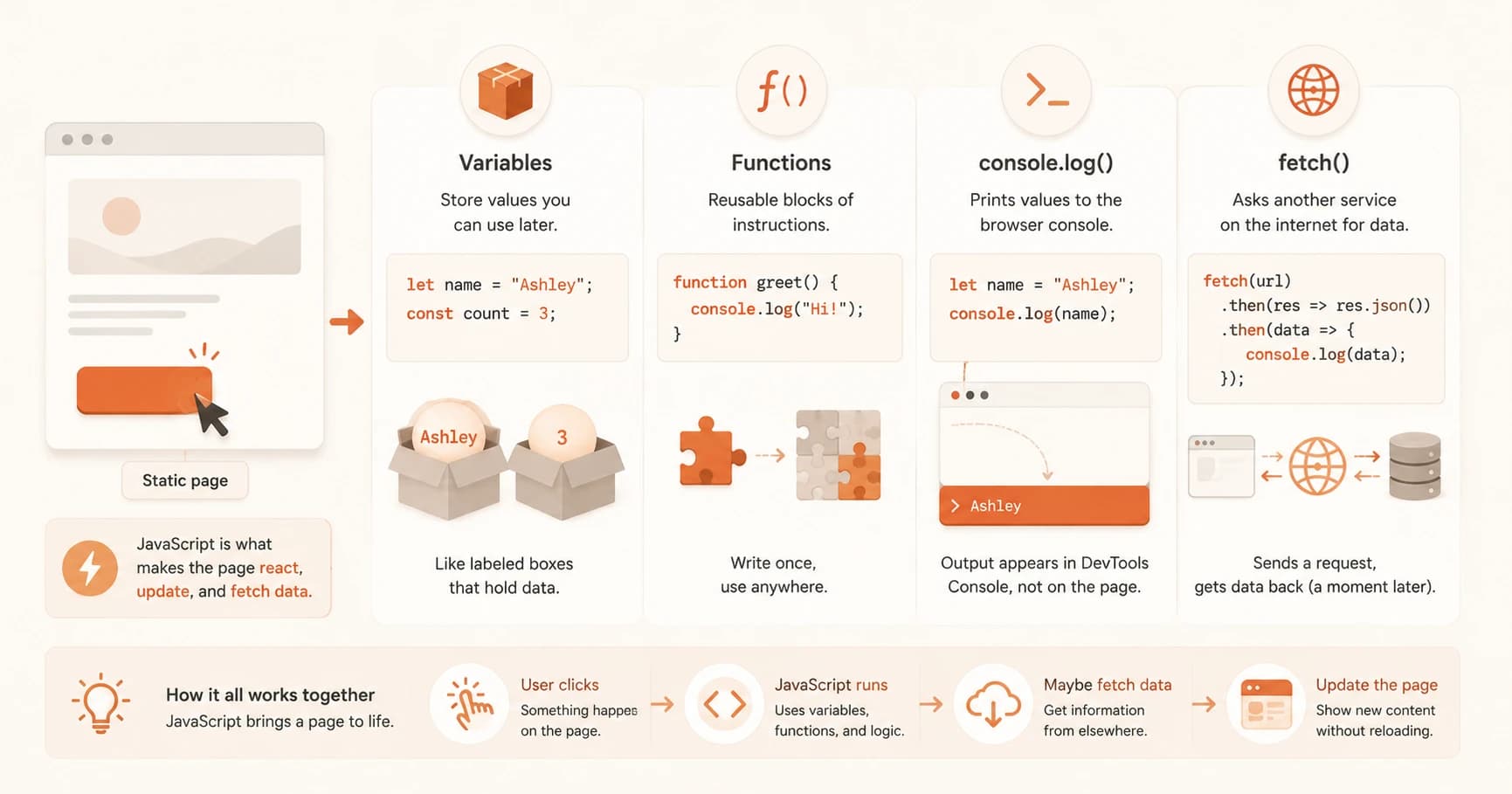
A variable is a named box that holds a value for later. In JavaScript you create one with let or const:
let message = "Hello";
const pi = 3.14;
Use let when the value will change and const when it won't. A function is a reusable block of instructions you can run whenever you want, the same recipe idea as Python's def:
function greet() {
  console.log("Hi there");
}
The concepts map almost one to one; only the punctuation is different. Where Python uses indentation to group code, JavaScript uses curly braces { }. Where Python needs no keyword to make a variable, JavaScript wants let or const in front.
Python vs JavaScript at a glance
| Python | JavaScript | |
|---|---|---|
| Make a variable | message = "Hello" | let message = "Hello"; |
| Define a function | def greet(): | function greet() { } |
| Group code with | Indentation | Curly braces { } |
| Print a value | print(...) | console.log(...) |
If you're coming straight from Python, you already understand variables and functions. You're not learning them again, you're just translating them. That's the same idea you saw in Python with new syntax, which is a far smaller job than starting from zero.
Skip this and JavaScript looks like an alien language full of braces and semicolons. Recognize the Python underneath and most code you open becomes readable in an afternoon. The details of let versus const are laid out in the MDN guide to grammar and types when you want the full picture.
console.log(): Your Window Into Running Code
console.log() prints a value to the browser's developer console so you can see what your code is doing. It's the direct equivalent of Python's print(), and it's the single most-used tool for checking whether code ran and what a value actually holds.
let name = "Ashley";
console.log(name);
console.log("Page loaded");
The catch that stops nearly every beginner: this output does not appear on the webpage. It goes to a separate panel called the console, which is hidden until you open it. People write their first console.log, refresh the page, see nothing, and assume their code is broken when it ran perfectly. The message was sitting in a window they didn't know existed.
If a console.log seems to do nothing, you're almost certainly looking in the wrong place. It never prints to the visible page. Open your browser's developer tools (press F12, or right-click and choose Inspect), then click the Console tab. Your output is there.
You'll lean on this constantly. I've been writing code for years and I still drop a console.log("got here") into a file before anything clever, just to confirm the section even runs, then check a variable's value the same way. It isn't a beginner crutch you outgrow, it's how working developers pin down what their code is actually doing. That's why it's worth building the habit now, and the MDN reference on console.log covers the fuller set of tricks once the basics click.
fetch(): How a Page Asks for Data
fetch() is how JavaScript reaches out to another service on the internet and asks for data. When a weather widget shows today's forecast or a page loads your profile, fetch() is usually what went and got it. This is the bridge to every API you'll ever use, which is why it's the concept that connects this lesson to everything ahead.
Here's the shape of a fetch call. Don't worry about memorizing it, just learn to recognize it:
fetch("https://api.example.com/data")
  .then(response => response.json())
  .then(data => console.log(data));
In plain words: go get the data from that address, turn the response into usable JavaScript, then do something with it, here just logging it. The .then() parts exist because the data doesn't arrive instantly. fetch goes off across the internet and comes back a moment later, so .then() says "once it's back, do this." That's genuinely all you need right now.
You don't need to understand promises or async code yet to read a fetch call. Just know it goes and gets data from somewhere else and hands it back a beat later. The full mechanics come next, when you learn what an API actually is and how requests and responses work.
This is the exact pattern behind every AI feature with a live result. Your app calls fetch (or a close cousin of it) to send your prompt somewhere and get an answer back. The MDN guide to using fetch is the reference to keep once you're ready to go deeper, but recognizing the shape is enough to move forward on the Getting Started path.
Add a console.log and confirm it in DevTools
Open the index.html file you created in lesson 06.01. Inside the <script> block, add this line:
console.log('Page loaded');
Save the file and open (or refresh) it in your browser. Nothing will change on the page itself, that's expected.
Now open the developer tools: right-click anywhere on the page and choose Inspect, then click the Console tab. Refresh the page one more time and confirm you see the text Page loaded appear in the console.
That's the exact move developers make to check code is running before debugging anything more complex. You just used the most common debugging tool in JavaScript.
You've completed Lesson 06.04.
FAQ