What Is Zed? The Fast, Rust-Built AI Code Editor Explained
Zed is a Rust-built, AI-native code editor made for speed. Learn how its AI panel and inline assist work, and see the honest trade-offs before you switch.
You open a file that's been slow to scroll for weeks. You click, and there's that half-second lag before the cursor catches up. Now imagine that same click landing instantly, every time, even in a file with ten thousand lines. That's the entire pitch behind Zed.
Zed is a code editor built from scratch in Rust, a programming language known for producing fast, memory-efficient software, rather than a VS Code fork, designed around one goal: speed, with an AI assistant panel built into the editor itself instead of bolted on as an extension. If you just finished the terminal-based Claude Code lesson, this is the visual counterpart: same AI-assisted coding idea, different interface.
Key Takeaways
- Zed is written in Rust and renders using your GPU, so it starts almost instantly and stays responsive in large files
- Its AI panel lets you ask questions about your code and request multi-file changes, and shows you a diff before anything is applied
- Inline assist lets you select code, describe a change in plain English, and get an edit proposed right at your cursor
- You can choose which model powers Zed's AI, including Claude and GPT-4
- The honest trade-off: a younger project with a smaller extension ecosystem than VS Code forks like Cursor
What is Zed, actually?
Most popular AI editors, including Cursor and its three AI modes, are built on top of VS Code's open-source core. Zed isn't. It's a separate editor, written in Rust, that talks directly to your GPU to render text and interface elements the way a video game renders frames.
That's not a trivia fact. It's the reason Zed feels different the moment you open it.
Startup takes a fraction of a second. Scrolling through a huge log file or a generated data dump doesn't stutter. If you've ever waited for an editor to "catch up" while typing fast, that's the specific problem Zed was built to remove.
Skip understanding this distinction and Zed's AI features will feel like just another chat sidebar. Understand it, and you'll know why people who switch talk about the editor itself before they talk about the AI at all.
The AI panel: ask, request, review
Zed's AI panel sits alongside your code, not in a separate window. You can ask it a question about your codebase and get an answer that references actual files and line numbers, or ask it to make a change across multiple files at once.
Here's the part that matters most for a beginner: Zed shows you a diff, a side-by-side view of exactly what it wants to change, before anything touches your files. You review it, then accept or reject.
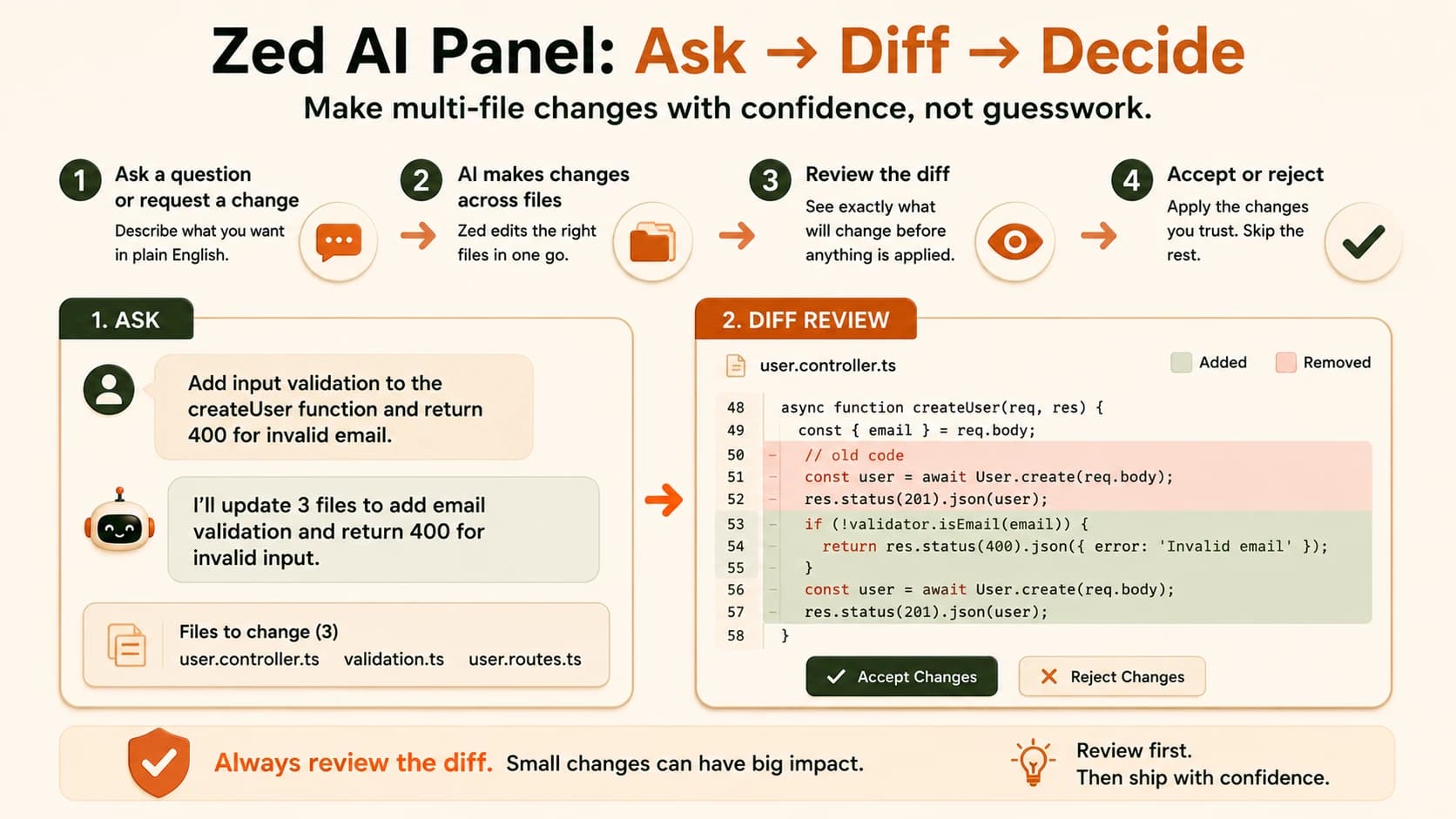
Skipping the diff review is how small AI edits turn into confusing bugs three files later. Always read what changed before you accept it, even when it looks obviously right.
If you skip this step entirely and just accept everything without reading it, you're back to the same risk every AI coding tool carries: a change that looks plausible but breaks something the AI didn't have full context on.
Inline assist: edit right where you're working
Inline assist is Zed's other core AI interaction, and it's the one you'll use constantly. Select a few lines of code, trigger inline assist, and type what you want in plain English: "add a docstring explaining what this function does," for example. Zed proposes an edit right there at your cursor, and you review it before accepting.
The difference from the AI panel is scope. The panel is for bigger questions and multi-file changes. Inline assist is for small, local edits, the kind you'd otherwise do by hand in thirty seconds, except now you're describing it instead of typing it out.
Miss this distinction and you'll end up opening the full AI panel for a one-line fix, which is slower than just using inline assist directly.
Built-in real-time collaboration
One more feature worth knowing about, even if you won't touch it as a solo beginner: Zed has real-time multiplayer collaboration built into the editor itself. Multiple people can open and edit the same file at the same time, see each other's cursors, and talk through changes live.
You won't need this for a solo project today. But once you're working with a team, or pairing with someone on a tricky bug, having this built into the editor instead of needing a separate screen-share tool is a real advantage. We've watched a debugging session drag on for an hour over a shared screen share where everyone could only watch one cursor move; the same fix takes minutes when two people can actually edit the file at once. File it away for later, because the day you need it, a bolted-on screen-share tool won't cut it.
Choose your own model
Zed doesn't lock you into one AI provider. You can pick which model powers your AI panel and inline assist, including Claude, GPT-4, and others, the same "bring your own model" pattern you've already seen with Cursor.
If you skip choosing deliberately and just use whatever's set by default, you might end up paying for a more expensive model than you need for simple edits, or using a weaker one for a task that needed real reasoning. Check your model setting before you start relying on Zed daily.
The honest trade-offs
Zed is a younger project than VS Code or Cursor, and that shows up in one concrete way: its extension marketplace is much smaller. If you depend on a specific niche VS Code extension, there's a real chance Zed doesn't have an equivalent yet.
If Zed's speed-first approach isn't quite the fit, the Windsurf AI editor is another VS Code fork worth trying next, built instead around an autonomous agent mode.
As of 2026, Zed ships stable builds for macOS, Linux, and Windows. Windows support arrived more recently than the other two. If you're on Windows, make sure any tutorial you're following is recent, since older guides claiming "Zed doesn't support Windows" are now out of date.
Skip checking this and you might install Zed expecting full extension parity with VS Code, then get frustrated when a tool you rely on isn't there yet. Check first, especially if your daily workflow depends on a specific plugin.
If you want a refresher on where this fits in your overall learning order, the Getting Started path lays out the full sequence.
Try Zed's inline assist on a real function
Download and install Zed from zed.dev.
Open any project folder. Your my-first-repo from Module 04 works well for this.
Open a file, select a few lines of code (or write a simple Python function first if the folder is empty), and trigger inline assist. Check Zed's current keybinding in its command palette, this changes between versions.
Type a request like "add a docstring explaining what this function does" and review the proposed change before accepting it.
Notice how quickly the editor itself opened and responded. That responsiveness is Zed's whole reason for existing.
Done? You've completed Lesson 08.02.
FAQ