How to Read HTML for Beginners: Tags & Nesting Guide
How to read HTML for beginners: what tags, attributes, and nesting are, plus a simple outside-in method to parse any real HTML file without panicking.
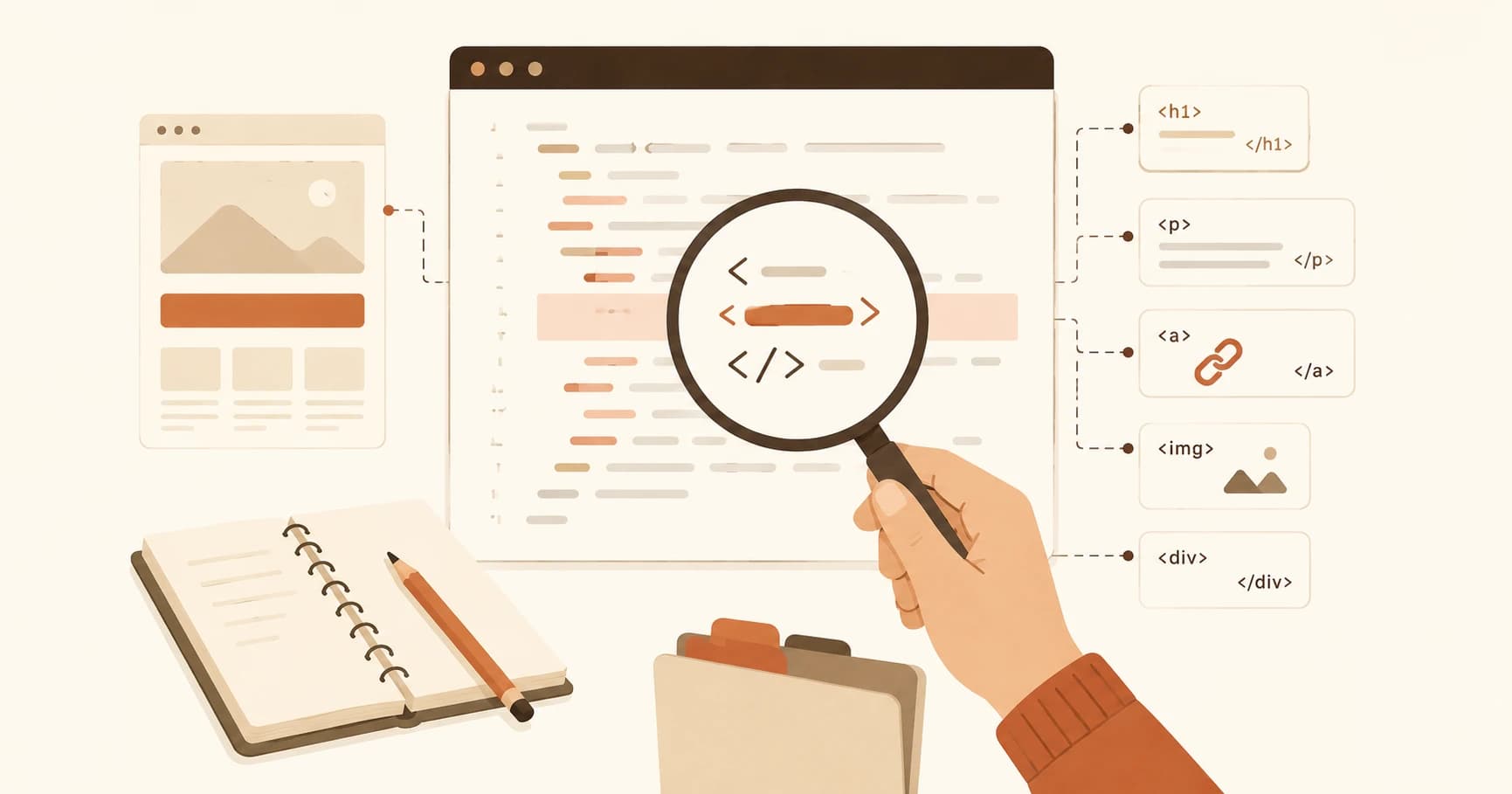
You right-click an AI-generated webpage, hit "View Page Source" to change one line of text, and up comes a wall of angle brackets, slashes, and quotation marks with no obvious beginning or end. The word you want to edit is in there somewhere, buried in code that all looks the same. You scroll, you squint, and you quietly close the tab.
Here's the reassuring part: you don't need to memorize anything to read HTML. It's intimidating because it's long, not because it's hard, and the actual rules fit on a napkin. Once you know what a tag is, what an attribute is, and what nesting means, you can point at any line of HTML and say what it does. By the end of this lesson you'll have a simple method for reading an HTML file from the outside in, without panicking.
Key Takeaways
- A tag is a label in angle brackets, like
<p>, that marks what a piece of content is.- Most tags come in pairs: an opening tag and a closing tag with a slash, like
<p>...</p>.- An attribute is extra detail added inside the opening tag, like
href="..."on a link.- Nesting means tags placed inside other tags, like boxes inside boxes.
- The skill isn't memorizing all 145 tags, it's reading from the outside in and ignoring what you don't need yet.
What a Tag Is in HTML
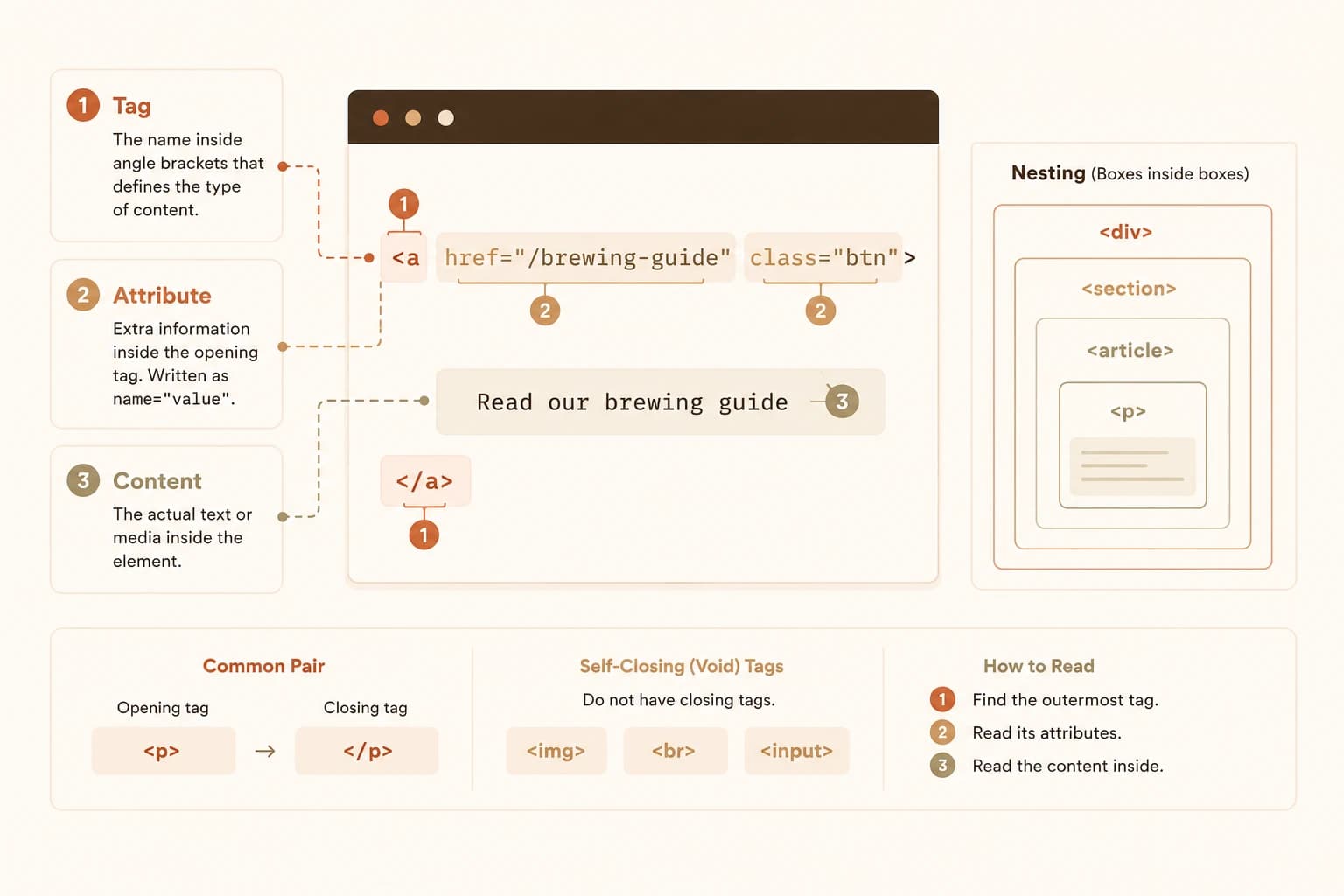
A tag is a keyword wrapped in angle brackets that labels a piece of content: <h1> marks a main heading, <p> marks a paragraph, <a> marks a link. Think of tags as labelled folders. The label tells you what kind of thing is inside without you having to read the contents first.
Most tags come in pairs. An opening tag like <p> says "a paragraph starts here," and a closing tag like </p> (note the slash) says "the paragraph ends here." Everything between them is the content of that tag.
<h1>Best Coffee in Town</h1>
<p>Read our brewing guide before you buy beans.</p>
The <h1> wraps a heading, the <p> wraps a sentence. That opening-and-closing pair is the single most common pattern in all of HTML, and once your eye locks onto it, the wall of code starts splitting into readable chunks. If you can't tell where a tag opens and closes, you can't tell where its content starts and ends, which is exactly how beginners end up editing the wrong line and breaking the layout. This connects directly to the three layers of a webpage from the last lesson: this is the structure layer up close.
What an Attribute Is in HTML
An attribute is extra information added inside an opening tag, written as a name="value" pair. If a tag is a labelled folder, an attribute is a sticky note on the front of it with an extra detail: where this link goes, which image to load, what to call this element.
<a href="/brewing-guide">full brewing guide</a>
<img src="/beans.jpg" alt="A bag of coffee beans">
The <a> tag makes a link, and its href attribute holds the destination: /brewing-guide. The <img> tag shows an image, and its src attribute holds the file to load while alt holds the description used by screen readers. The two attributes you'll meet most are href (link destinations) and src (image and script sources), followed closely by class and id, which are the hooks CSS uses to find things.
Attributes are where the real information lives. Miss the href on a link and you have no idea where that link points; miss the src on an image and you can't tell which file is broken. Reading HTML without reading attributes is like reading folder labels but never opening them. MDN's guide to basic HTML syntax breaks the tag-and-attribute anatomy down further once you want the full picture.
What Nesting Means
Nesting is when tags are placed inside other tags, like boxes inside boxes. A paragraph can sit inside an article, and a link can sit inside that paragraph. The outer tag contains the inner one, and that containment is what gives a page its structure.
<article>
  <h1>Best Coffee in Town</h1>
  <p>Read our <a href="/brewing-guide">full brewing guide</a> first.</p>
  <img src="/beans.jpg" alt="A bag of coffee beans">
</article>
Read that from the outside in. The <article> is the outermost box, holding everything. Inside it sit three things: a heading, a paragraph, and an image. Inside the paragraph, an <a> link is nested one level deeper. The indentation is a visual hint, deeper indentation means deeper nesting.
There's one rule that keeps nesting readable: the tag you opened most recently is the next one you close. Open <p>, then <a>, and you must close </a> before </p>. Get that order wrong and the browser starts guessing what you meant, which is how content ends up rendering in the wrong place or vanishing entirely.
That's the whole vocabulary. Here are the three pieces side by side:
The three parts of any HTML you'll read
| Part | What it looks like | What it tells you |
|---|---|---|
| Tag | <p>...</p> | What a piece of content is (heading, paragraph, link) |
| Attribute | href="/guide" | An extra detail about it (where a link goes, which image loads) |
| Nesting | tags inside tags | How the pieces are contained, outer wrapping inner |
How Do You Read an HTML File?
To read an HTML file, work from the outside in: find the outermost tag that wraps everything, then move one level inward at a time, and ignore any tag you don't need yet. You're not reading every line top to bottom like a paragraph. You're navigating a nested structure, the same way you'd click into a folder before worrying about the files inside it.
In practice, that's three moves:
- Find the outermost tag and its matching closing tag. That's your container.
- Step in one level and list what sits directly inside it, ignoring anything deeper.
- Go deeper only where you need to, into the one branch that holds what you're after.
When I open an unfamiliar page's source, I don't read a single line until I've found the outermost tag and its matching close. Everything else is noise until I know the shape of the container it all sits in. Skip that step and you end up reading left to right, drowning in tags that don't matter yet.
When a block of HTML looks overwhelming, find the outermost opening tag and its matching closing tag first. Everything you care about lives between those two lines. Collapse the rest in your head and go one level deeper only when you need to.
This is the whole skill, and it's why you don't need to memorize all 145 tags. You need to recognize the dozen common ones and know how to trace the nesting around anything unfamiliar. When you hit a tag you've never seen, you look it up, you don't panic. That single habit is what separates someone who reads AI-generated code confidently from someone who closes the tab, and it's one small step on the Getting Started path.
Semantic Tags: HTML That Describes Meaning
Some tags describe what a section means, not just that it exists. These are called semantic tags, and the common ones are <header> (the top of a page or section), <nav> (a navigation menu), <main> (the primary content), and <footer> (the bottom, usually links and legal text).
Compared to a generic <div>, which is just an unlabelled box, a semantic tag tells you what you're looking at before you read a single word inside it. That makes real websites far more readable than beginners expect: spot a <nav> and you already know that's the menu. Miss this and a real page's source looks like an endless stack of identical <div> boxes with no way to tell the header from the footer from the main content, which is exactly why so many beginners give up on reading real sites. It also helps screen readers and search engines understand the page, which is why W3Schools' semantic elements reference is worth a skim. Once you've got the tags down, the next step is seeing how those tags get styled with CSS.
View the source of a real website
Open any website in your browser. Right-click anywhere on the page and choose "View Page Source" (or press Ctrl+U on Windows, Cmd+Option+U on a Mac).
In the HTML that appears, press Ctrl+F (Cmd+F) and search for <h1 to find the main heading tag. Note the text sitting inside it.
Then search for <a href= and find one link tag. Note the URL inside the href attribute, and the visible text between the opening and closing tags.
You just found the two most common tags on the web inside a real, live page.
You've completed Lesson 06.02.
FAQ