What Is a .gitignore File? Keep API Keys Off GitHub
Learn what a .gitignore file does, which lines every AI project needs, and how to keep your API keys from ending up on GitHub.
12.8 million secrets were leaked to public GitHub repositories last year — that's from GitHub's own 2025 secret sprawl report. Most of them were pushed by developers who thought they'd be careful.
A .gitignore file is a plain text file that tells Git which files to completely ignore. They never appear in git status, never get staged, and never get committed. It is the single most important safety habit you can build before you start pushing code to GitHub.
Key Takeaways
- A
.gitignorefile tells Git to never track certain files. They become invisible to version control.- Every AI project needs at minimum four lines:
.env,node_modules/,__pycache__/, and.DS_Store- Create your
.gitignorebefore your first commit, not after. Files already committed stay in the history even if you add them to.gitignorelater.- If a key is ever accidentally pushed to a public repo, rotate it immediately — do not wait to clean the history first.
What a .gitignore file actually does
When you run git status, Git shows you every untracked or modified file in your project. Without a .gitignore, that list includes everything: your API keys stored in a .env file, thousands of dependency files in node_modules/, Python's compiled cache in __pycache__/. All of it.
A .gitignore file changes that. It is a simple list of filenames and folder patterns that Git agrees to pretend do not exist. Once a file matches a pattern in your .gitignore, it disappears from git status entirely. You cannot accidentally stage it or commit it.
The file lives in the root of your project, is named exactly .gitignore (dot, then gitignore, no other extension), and is itself committed to your repository. That is how Git knows to read it.
If you add a file to .gitignore but it still shows up in git status, the file was probably already committed before you added the rule. At that point, .gitignore cannot help. Git is already tracking it. You would need to run git rm --cached filename to stop tracking it, then commit that change.
The syntax is simple. Each line in .gitignore is either a filename, a folder name (ending in /), or a wildcard like *.log to match any file ending in .log. That is all there is to it.
The four lines every AI project needs
Here is the .gitignore you should create in every project. Do it before you write a single line of code and before you run git add for the first time.
.env
node_modules/
__pycache__/
.DS_Store
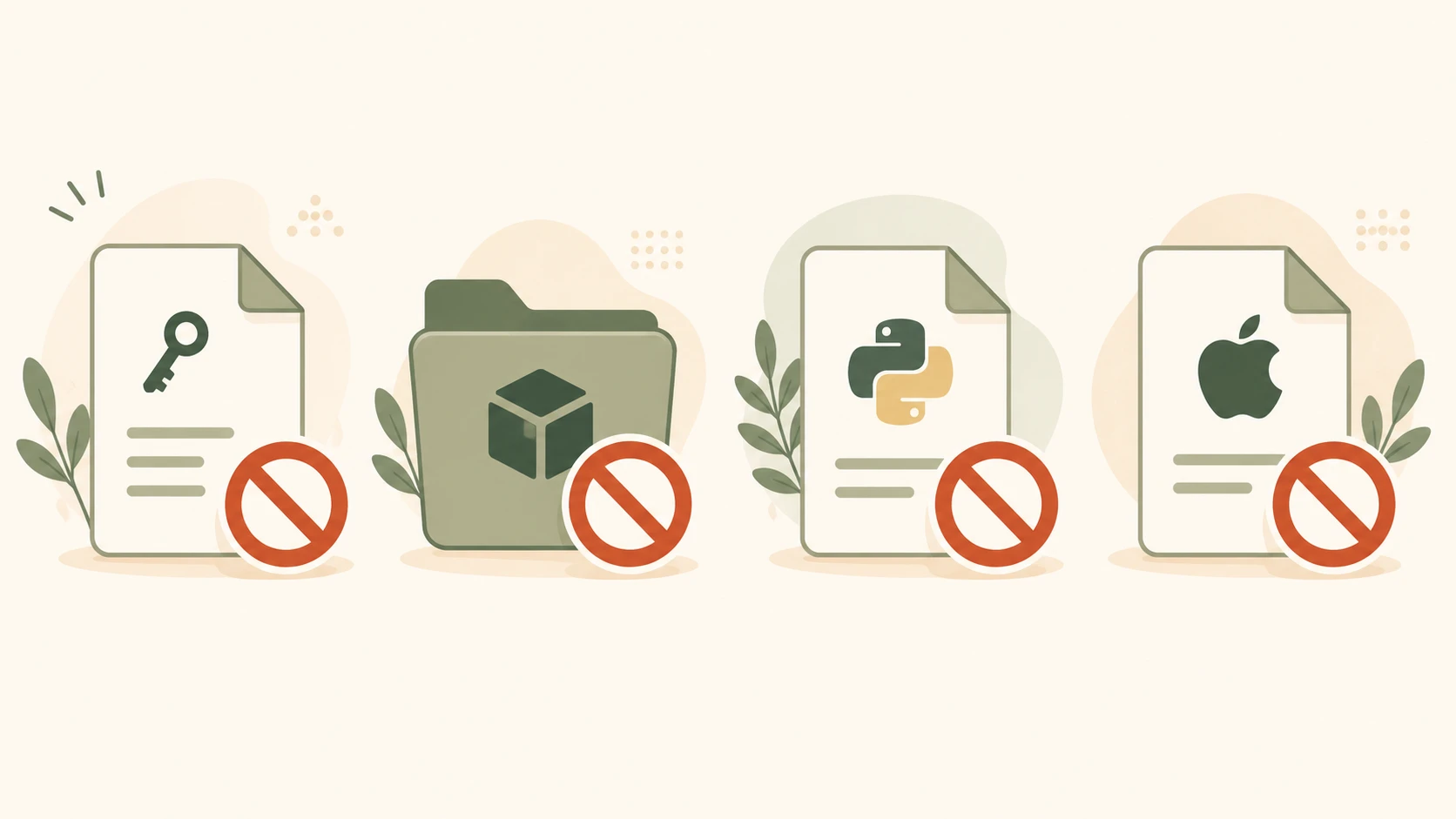
Here is what each one does and why it matters:
.env: This is the most critical line. Your .env file is where you store API keys, database passwords, and other secrets. It should never leave your machine. One push to a public repo, and automated bots can find and use your Anthropic or OpenAI key within minutes, sometimes running up hundreds of dollars in charges before you notice.
node_modules/: If you are using Node.js or JavaScript tools, this folder holds all your installed packages. It can contain tens of thousands of files and reach gigabytes in size. Nobody should be committing this. It gets recreated from package.json with a single npm install.
__pycache__/: Python creates this folder automatically when it compiles your scripts to bytecode. It is specific to your machine and has no place in version control. Every Python AI project generates one.
.DS_Store: macOS creates this invisible file in every folder you open in Finder. It stores display preferences for that folder. It is completely meaningless to anyone else and clutters your repository history.
Add .gitignore before your first commit. If you push code to GitHub first, then create .gitignore afterward, any secrets already in your history are still there, visible to anyone who knows where to look. Git history is permanent unless you take deliberate steps to rewrite it.
You can generate a more complete .gitignore for your specific stack at gitignore.io. Type in Python, Node, or whatever you are using and it generates the full file.
How to verify it is working
After you create your .gitignore and add the lines above, do this:
echo "SECRET=abc123" > .env
git status
Your .env file should not appear in the output. If git status lists it as an untracked file, something went wrong. Check that your .gitignore is in the same folder as your .git directory (the project root) and that the filename is spelled exactly .gitignore with no extra extension.
If it does not show up, you are good. Delete the test .env and create your real one.
One more thing: GitHub has a built-in secret scanning feature that detects common API key patterns and notifies the provider. This is genuinely useful — and I think it's one of the best things GitHub has shipped for beginners. But it is not fast enough to rely on as your only safety net. Bots scrape new commits within seconds. Your .gitignore is your first and most important line of defense.
Now commit your .gitignore file and push it:
git add .gitignore
git commit -m "add gitignore"
git push
This lesson follows the previous lesson on pull requests. The next lesson covers reading a GitHub repository, specifically what you are actually looking at when you land on someone else's project page.
If you want to understand how .env files work in more detail, the guide to creating a .env file from Module 03 covers it fully.
The protection this lesson teaches doesn't stop once your app goes live, either. Module 09 covers keeping the same keys safe in production, once your code is running somewhere other than your own machine.
Your Task
Add a .gitignore to your project
In your my-first-repo folder, create a file called .gitignore.
Mac/Linux:
touch .gitignore
Windows:
New-Item .gitignore
Open it in VS Code and add these lines:
.env
node_modules/
__pycache__/
.DS_Store
Save it. Now create a test .env file:
echo "SECRET=abc123" > .env
Run:
git status
Your .env file should not appear in the output. If it does not show, .gitignore is working.
Commit and push the .gitignore:
git add .gitignore
git commit -m "add gitignore"
git push
Done? You have completed Lesson 04.07.
FAQ