What Is a Pull Request on GitHub? A Beginner's Guide
Pull requests are how developers merge branches on GitHub. This guide explains what PRs are, why they're named that, and how to create your first one.
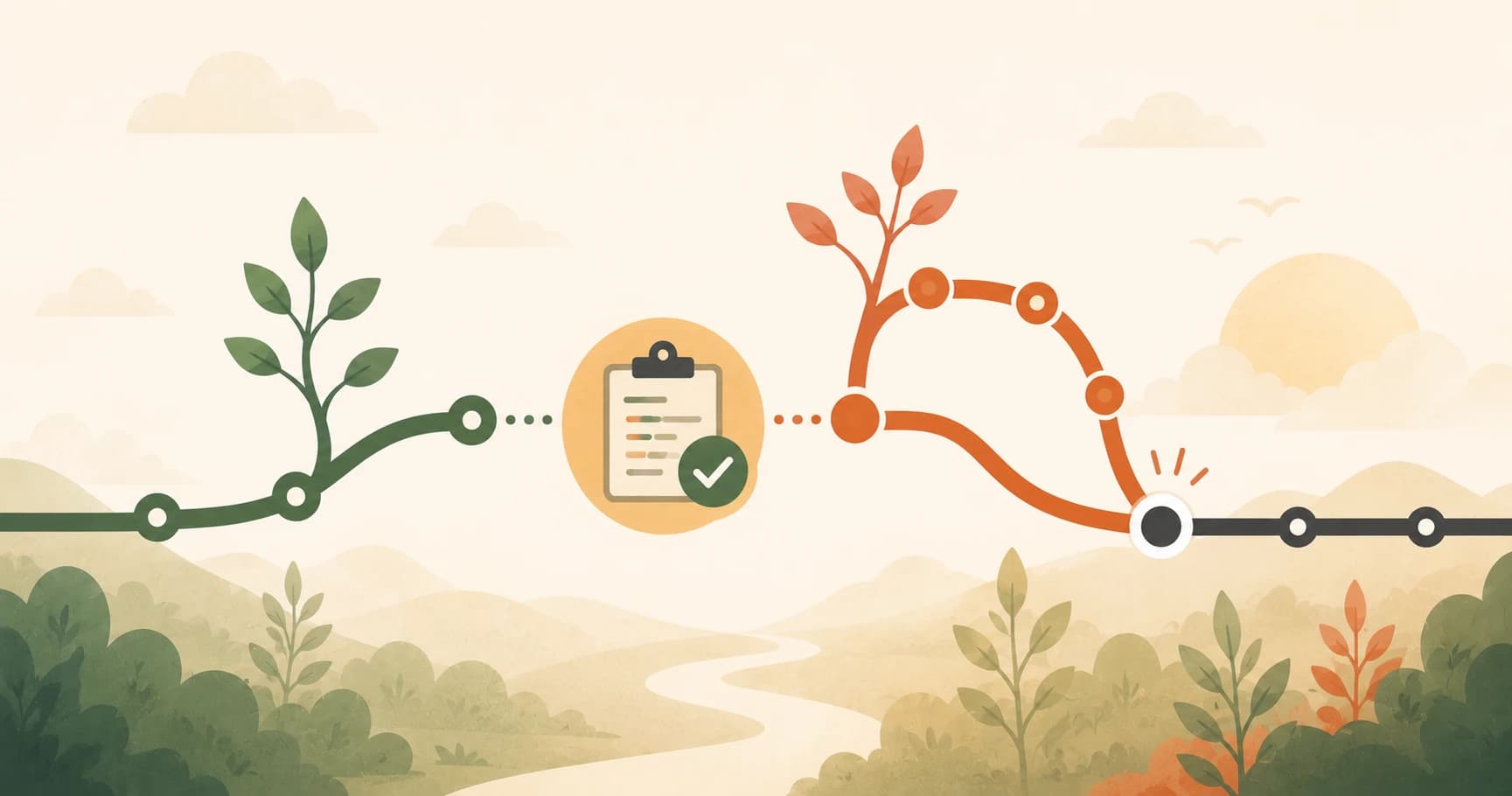
You just pushed a branch called experiment to GitHub (the branch you created in the previous lesson on git branches). The code is there, living on its own, separate from main. Getting it merged takes one more step: a pull request.
Key Takeaways
- A pull request is a formal proposal to merge one branch into another
- The name is confusing: "pull" is from the perspective of main, not yours
- Solo developers should use PRs too: they force a self-review before code becomes permanent
- GitHub calls them pull requests; GitLab calls them merge requests — same thing, different name
What a Pull Request Actually Is
A pull request (PR) is a proposal to merge one branch into another. That's it. You're saying: "Here are my changes, review them, and if they look good, bring them into main."
The reason the name trips people up is perspective. You just ran git push, so why are you "requesting a pull"? Because the name is from the receiving branch's point of view. You're asking main to pull your changes in. Once you see it that way, it makes sense.
GitHub calls them pull requests. GitLab calls them merge requests. Same workflow, different names. Merge request is arguably more descriptive, but pull request is what you'll see on GitHub.
The review step is the key value. Before your branch becomes part of main, anyone with access to the repo, including you, can look at the diff, leave comments, and ask questions. Nothing is permanent until you click merge.
How PRs Work on GitHub
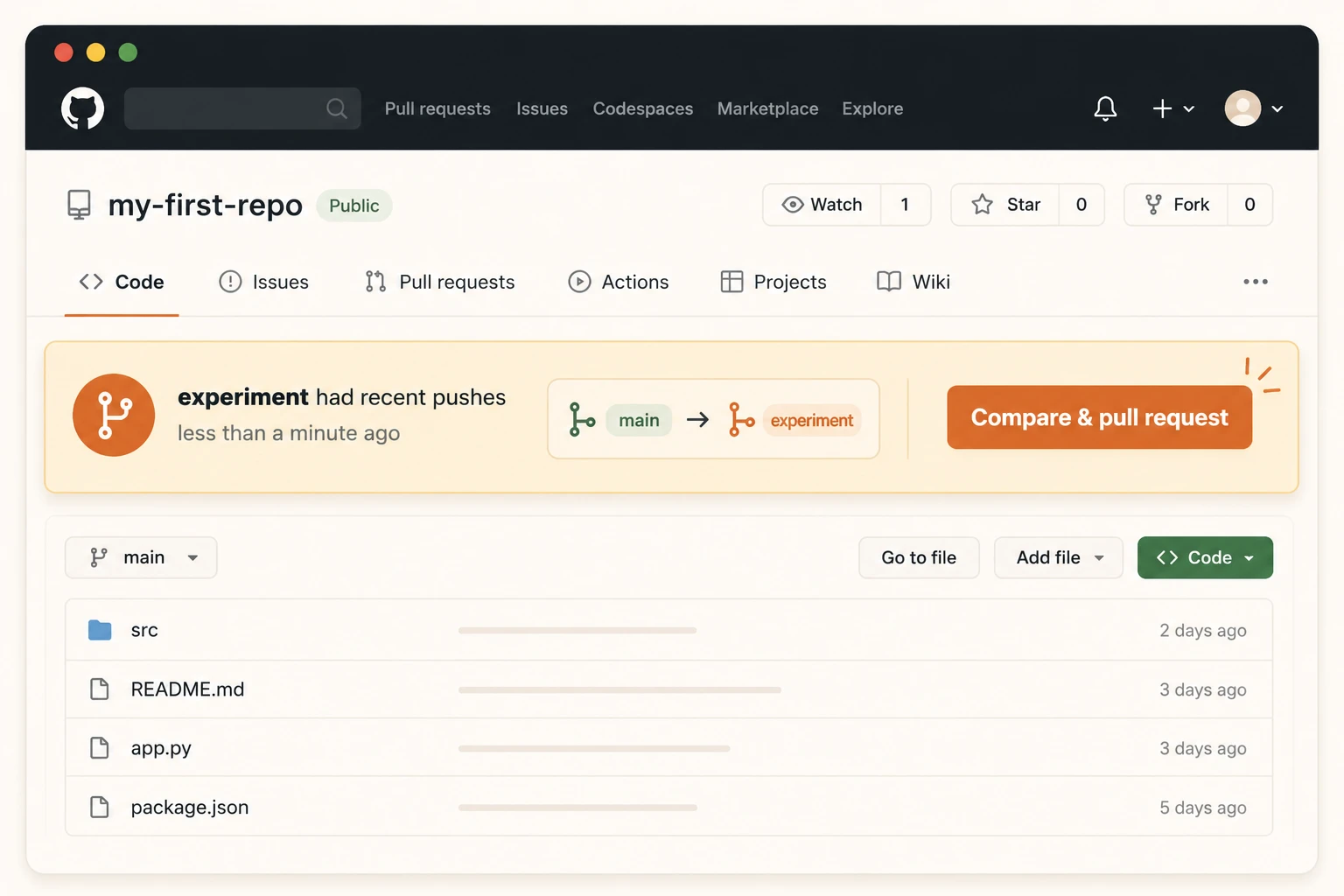
After you run git push origin experiment, go to your repo on GitHub. You'll see a yellow banner at the top: "experiment had recent pushes, Compare & pull request."
Click it. GitHub takes you to a form. The Title is a short description of what changed ("Test branch experiment" is fine for practice; "Add dark mode to settings page" is better in real projects). The Description is optional context about why you made the changes.
Click Create pull request. GitHub now shows you the PR page, a view of every commit and every line that changed. You can add comments on specific lines, or just scroll down and click Merge pull request when you're ready.
After the merge, GitHub offers to delete the branch. That's good hygiene. The work is in main now, so the experiment branch has done its job. Click Delete branch to keep things tidy.
Then update your local machine:
git checkout main
git pull
Your local main now has everything from the experiment branch.
Solo vs. Team: Both Are Valid
Here's something most tutorials skip — and I think it's genuinely useful to say out loud: you don't need a team to use pull requests.
If you're learning alone, you'll open PRs and merge them yourself. That is completely normal, and it's actually good practice. Writing a PR title and description, even when no one else will read it, forces you to explain your changes. That review step catches mistakes you'd miss if you just merged directly.
For teams, the PR becomes a checkpoint. A teammate reviews your diff before it touches main. They can catch bugs, ask "why did you change this?", or suggest a simpler approach. The branch keeps your work isolated right up until someone approves it.
One more thing worth knowing: in 2026, AI coding tools like GitHub Copilot and Claude Code open pull requests automatically. When an AI agent writes code, it submits it as a PR. Same workflow, same review step. The PR has become the universal unit of code change, whether a human or an AI wrote it.
This lesson is part of the Getting Started path, the complete beginner sequence for AI development.
Your Task
Open and merge your first pull request
Push your experiment branch to GitHub:
git push origin experiment
Go to your my-first-repo on github.com.
GitHub should show a banner: "experiment had recent pushes, Compare & pull request."
Click it. Add a title like "Test branch experiment" and click Create pull request.
On the next page, click Merge pull request, then Confirm merge.
Your branch is now merged into main. Switch back locally:
git checkout main
git pull
Your README.md now has the change you made on the experiment branch.
Done? You've completed Lesson 04.06.
FAQ