What Is Claude Code? Terminal AI Coding Explained
What is Claude Code? Anthropic's terminal-based AI coding assistant, explained: what it does, when to use it, and how it compares to other tools.

You open your browser to pick an AI coding tool and find ten tabs open, ten different opinions, and no idea which one to install first. That's normal. There are now a dozen credible options, and freezing on the choice is the most common way to waste an afternoon before you've written a single line.
Claude Code is a good place to start, and not because it's "the best" one. It's terminal-based, which means it needs no separate editor install: it just works inside the terminal you already set up in Module 02. I still reach for it first on most real projects, mostly out of habit, but that's exactly the kind of personal preference this module wants you to develop for yourself. This lesson explains what it actually is, when to reach for it, and where it's honest about its limits, so you can move on to the rest of Module 08 with one tool already making sense. If you haven't installed it yet, the full install walkthrough covers that step by step, this lesson focuses on what it is and when to use it.
Key Takeaways
- Claude Code is an AI coding assistant that lives in your terminal and reads, writes, and runs files in a real project
- It's built for tasks that span multiple files or need commands run, not just one line of autocomplete
- It requires an Anthropic API key or Claude subscription, there's no free-forever tier
- It has no built-in visual diff or file tree, some people will prefer a GUI tool covered later in this module
- Ten more tools are coming in this module, so this is a first stop, not the final answer
What Is Claude Code?
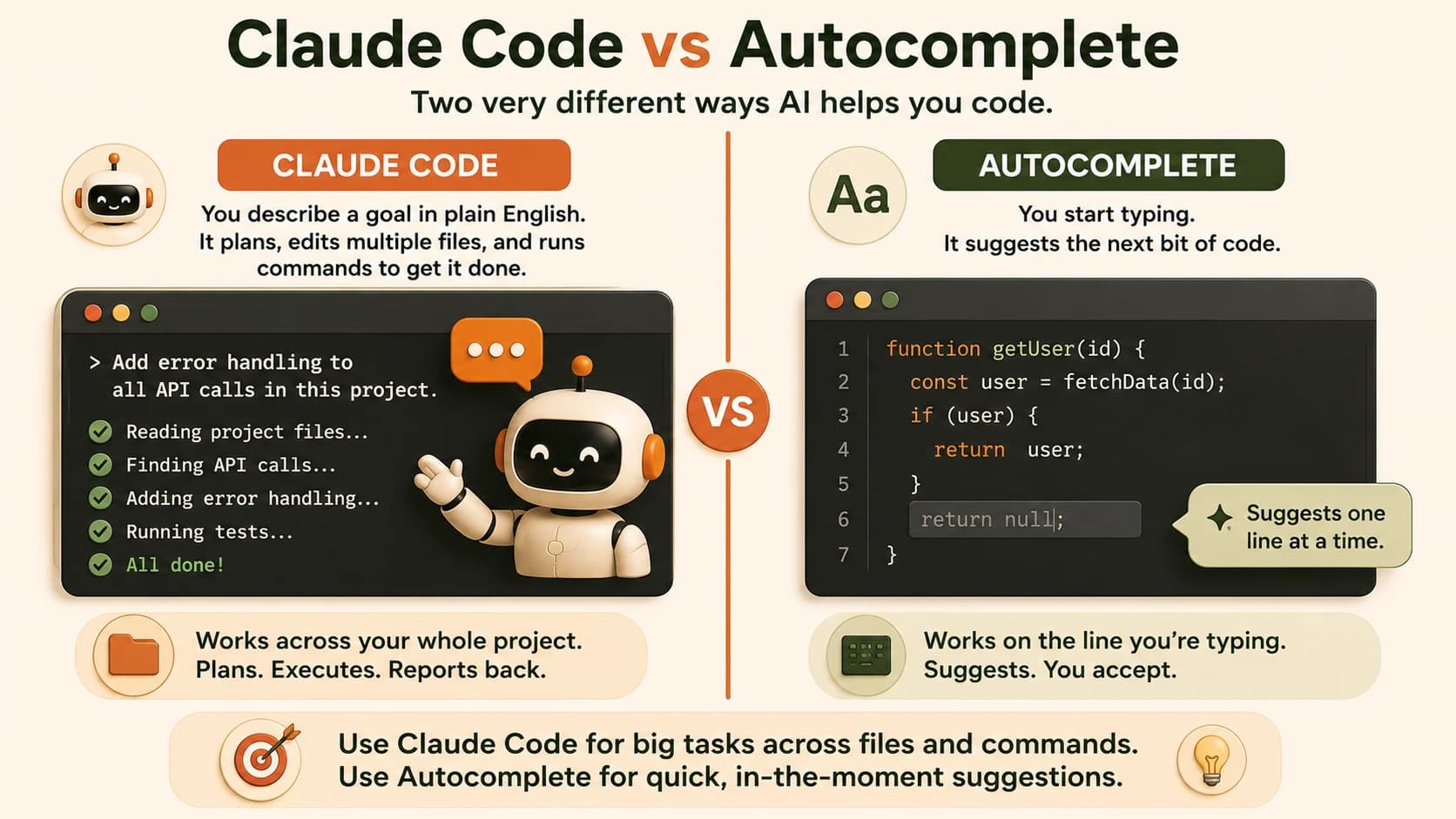
Claude Code is an AI coding assistant that runs directly inside your terminal. You describe what you want in plain English, and it reads your project's files, writes or edits code, and runs commands like tests or git operations, then tells you what it did.
It isn't a chat window sitting next to your editor. It's a tool you talk to that can actually take action on your files, closer to Anthropic's own description of an agent that reads your codebase and executes real development tasks. If you've already read about how it handles git workflows, that's the same idea in practice: describe the goal, it plans and executes the steps.
If skipping this concept sounds tempting because "AI will just figure it out," here's the real cost: without understanding what Claude Code actually does versus a plain chatbot, you'll ask it for things it isn't built for, or worse, trust changes to your files you never actually reviewed.
Not a Chat Window Bolted to an Editor
Autocomplete tools finish the line you're already typing. Claude Code works differently: you describe a goal, and it plans the steps to get there across as many files as the task needs.
Say you ask it to "add error handling to every API call in this project." An autocomplete tool can't do that, it only sees the line you're on. Claude Code can search your whole project, find each API call, make the edits, and report back what changed.
That distinction matters for a very practical reason: if you go into this module expecting every tool to behave like autocomplete, you'll be confused the first time you see how agents decide their next step play out inside your own project. Claude Code is genuinely agentic: it decides what to do next based on what it finds, not just what you typed a second ago.
When to Reach for Claude Code
Reach for it when a task spans multiple files, needs a command run (tests, a build, a git commit), or is easier to describe in English than to type out by hand. Think of it less like autocomplete and more like handing a task to a junior developer, you explain the goal, they figure out the steps, and you check the result.
Skip it, or at least don't rely on it alone, for tasks where you want to see every keystroke happen visually as you type: that's what the editor-based tools later in this module are built for, including Zed, a visual editor built for speed.
Pick the wrong tool for the job and you feel it fast. Use Claude Code for a one-line typo fix and you've overcomplicated a five-second edit. Avoid it for a genuine multi-file refactor and you'll spend an hour doing by hand what it could have planned in a minute.
The Honest Tradeoff
Claude Code has no built-in visual file tree or diff view by default: you see changes described in the terminal, not highlighted side by side in a GUI. Some people find that faster once they're used to it. Others genuinely prefer seeing everything laid out visually, which is a real reason to try Cursor later in this module before committing to one tool.
It also isn't free to use. It needs either an Anthropic API key with usage-based billing or a Claude subscription, the same account setup Module 03 and Module 05 already walked you through for your .env file. If budget is the deciding factor for you right now, Antigravity CLI later in this module covers a free-tier alternative worth trying alongside Claude Code.
If you already followed the API key setup in Module 05, you're one command away from trying Claude Code, you don't need a new account for it.
Skipping this tradeoff section and installing blind is how people end up surprised by either the terminal-only interface or an unexpected bill, neither of which should be a surprise by the time you finish this lesson. And if any of this still feels early, the Getting Started path is there to revisit the fundamentals before pushing further into Module 08.
Enough reading about Claude Code, time to actually run it.
Your Task
Have your first conversation with Claude Code
Already installed? Skip to the next paragraph. If not, install Claude Code first by following the setup instructions at claude.com/claude-code, that's a separate five-minute step on its own, not part of this task's timer.
Open your terminal and create a fresh folder to experiment in:
mkdir claude-code-test
cd claude-code-test
Run:
claude
Once it starts, type a simple request: "Create a file called hello.txt with the text 'Hello from Claude Code'."
Watch what happens, it should create the file and tell you what it did. Run cat hello.txt (or open the file in any text editor) to confirm the text is really there.
You just delegated a real coding task to Claude Code in plain English, right from your terminal.
Done? You've completed Lesson 08.01.
FAQ