HTML, CSS, JavaScript Explained for Beginners: Basics
HTML, CSS, and JavaScript explained for beginners: HTML builds a page's structure, CSS styles it, and JavaScript makes it respond to clicks and input.
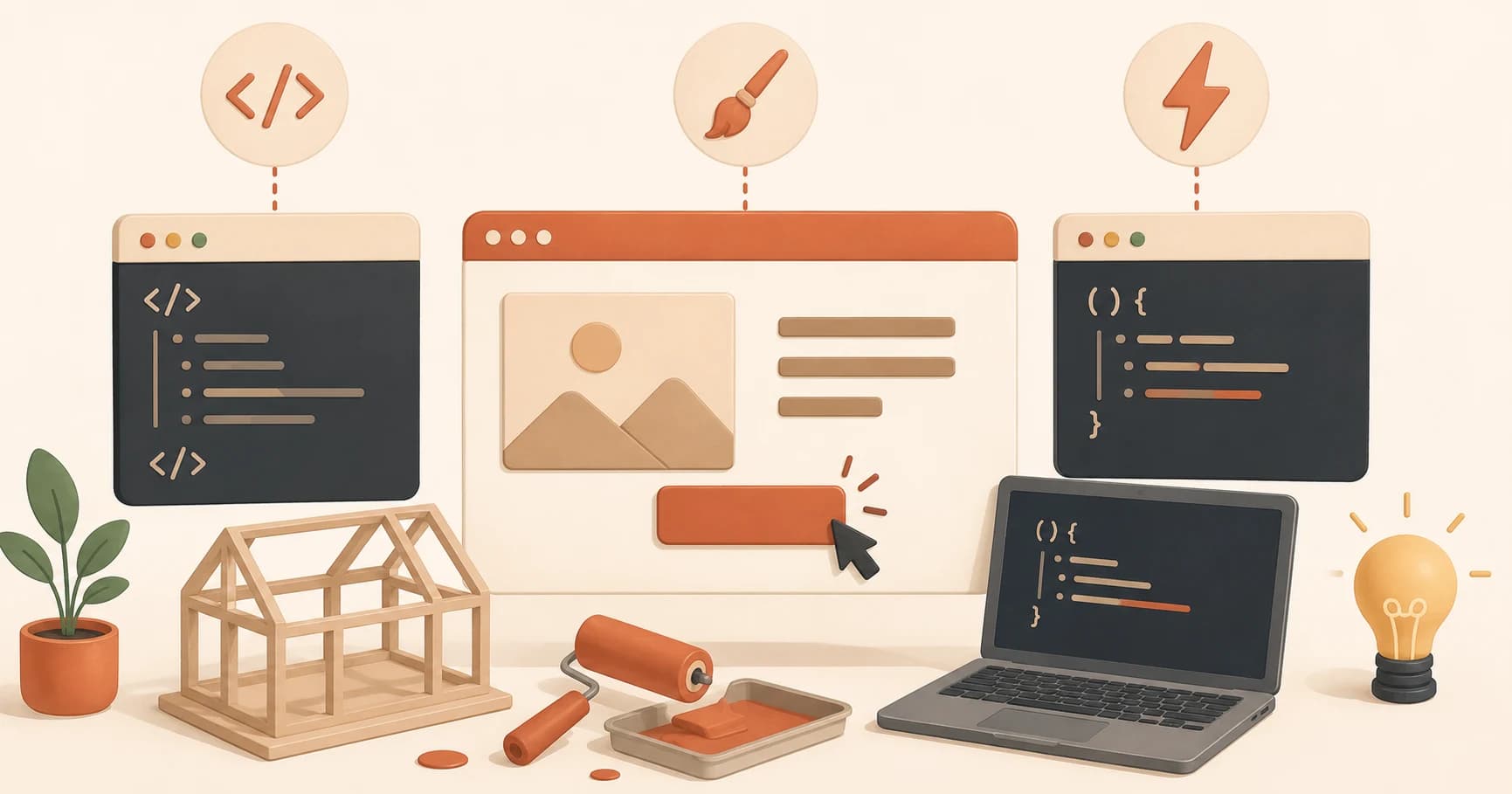
You open the code behind an AI-generated webpage, hoping to tweak one small thing, and you're staring at a wall of angle brackets, curly braces, and words like class and onclick all tangled together. Nothing tells you which part controls what. You don't know if the button that's broken is a structure problem, a style problem, or a behavior problem, so you don't know what to fix.
HTML, CSS, and JavaScript are the three separate languages behind every webpage you've ever used, and once you can tell them apart, that wall of code stops being scary. HTML builds the structure, CSS controls the look, and JavaScript makes things respond. By the end of this lesson, you'll be able to glance at any chunk of web code and know instantly which of the three you're looking at.
Key Takeaways
- HTML defines structure: headings, paragraphs, buttons, images, the raw content and layout of a page.
- CSS defines style: colors, fonts, spacing, how that structure actually looks.
- JavaScript defines behavior: what happens when you click, type, or scroll.
- A single element, like one button, is usually touched by all three at once.
- You don't need to master all three to recognize which layer a piece of code belongs to, that's the actual skill this lesson teaches.
The House Analogy for HTML, CSS, and JavaScript
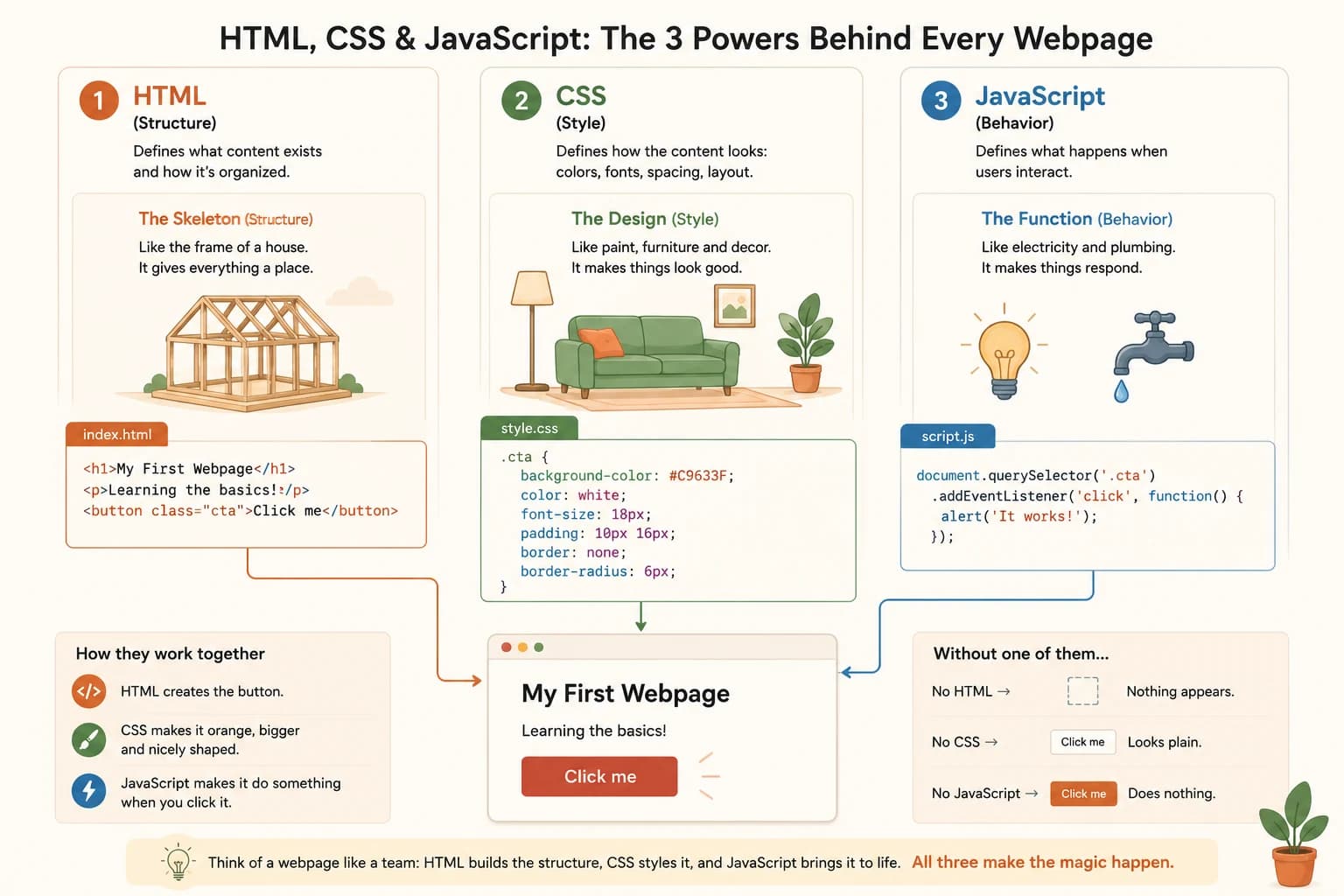
Think of a webpage like a house. HTML is the frame and the rooms: the walls that separate a kitchen from a bedroom, the doorway where the front door goes. Nothing is painted or wired yet, but the layout already exists.
CSS is the paint, the furniture, and the decor. Same house, same rooms, but now it looks like somewhere you'd actually want to be, with a color scheme and a style instead of bare drywall.
JavaScript is the electricity and the plumbing. It's the stuff that actually does something when you interact with it: flip a switch and a light turns on, turn a tap and water comes out. A house can exist without electricity, it just won't do much.
What Does HTML Actually Do? (Structure)
HTML (HyperText Markup Language) is the structure layer of a webpage: it defines what content exists and how it's organized, without saying anything about color, size, or behavior. It uses tags like <h1>, <p>, and <button> to mark out what each piece of content is: a heading, a paragraph, a clickable button.
Here's a heading and a button written in plain HTML:
<h1>My First Webpage</h1>
<button>Click me</button>
That code alone will already show up in a browser. It'll look plain, black text on a white background, default browser styling, but the heading and the button both exist and both work as far as HTML is concerned.
Skip HTML entirely and there's nothing for CSS to style or JavaScript to make interactive. It's the layer everything else depends on. MDN's HTML basics guide is the reference worth bookmarking once you start writing your own.
What Does CSS Actually Do? (Style)
CSS (Cascading Style Sheets) is the style layer of a webpage: it targets the structure HTML already created and tells the browser exactly how each piece should look, without changing what that content actually is. It controls things like color, size, spacing, and layout.
button {
  background-color: #C9633F;
  color: white;
  font-size: 18px;
}
That rule says: find every <button> on the page, and make it clay-colored with white text and larger font. Without it, that same button from the last section would still work, it would just look like a default gray browser button.
This is the exact failure people run into constantly: the page loads fine, the content is all there, but it looks like a plain text document instead of a designed website. Nine times out of ten, that means the CSS either has a typo or never got linked to the page at all. MDN's CSS basics guide covers every property you'll run into as a beginner.
What Does JavaScript Actually Do? (Behaviour)
JavaScript is the behavior layer of a webpage: it's what makes a page actually respond when someone clicks, types, or scrolls, instead of just sitting there as static structure and style. Unlike HTML and CSS, it's a real programming language with logic behind it, not just a set of style rules.
<button onclick="alert('Hello!')">Click me</button>
That onclick tells the browser: when someone clicks this button, run this bit of JavaScript. Click it, and a popup appears. Remove the onclick and the button still looks identical, it just won't do anything when clicked.
That's the other common beginner moment: a button is right there, styled and everything, and clicking it does absolutely nothing. That almost always means the JavaScript was never attached to it in the first place.
We won't pretend JavaScript is as easy as the other two. HTML and CSS mostly describe things, JavaScript actually involves logic, conditions, and functions, which is a bigger jump for most people starting from zero. That's exactly why JavaScript gets its own dedicated lesson later in this module, and why MDN's JavaScript basics guide is worth keeping open in a tab while you practice.
One Button, Three Layers
Here's the same button, one more time, with all three layers touching it at once:
<button class="cta" onclick="alert('Hello!')">Click me</button>

<style>
  .cta {
    background-color: #C9633F;
    color: white;
    font-size: 18px;
  }
</style>
HTML defines that this thing exists and is a button. CSS's .cta rule says it should be clay-colored with white, larger text. JavaScript's onclick says clicking it should trigger an alert. Three separate languages, one visible element, each one doing a completely different job.
That's the pattern behind everything you'll ever build or read on the web, whether it's your own first page or a production AI dashboard. Once you've set up your code editor from Module 03, you'll spend most of your time moving between exactly these three layers.
Why This Matters for AI Builders
Every AI product with a chat window, a dashboard, or any kind of interface is built from these same three layers underneath. You don't need to become a frontend developer to work with AI tools. You need to be able to look at a piece of code and instantly know: is this a structure thing, a style thing, or a behavior thing?
That single skill changes how you read AI-generated code, how you describe bugs, and how you know where to even start looking when something breaks. That's really the whole point of getting HTML, CSS, and JavaScript explained for beginners this way: not to make you a frontend developer, but to make the layers visible. The next lesson picks this up directly, showing you how to read a real block of HTML without panicking.
Create your first webpage with all three layers
Create a file called index.html in a new folder. Inside it, add a heading, a paragraph, and a button, all in one file, using inline HTML, a <style> block for CSS, and a <script> block for JavaScript.
Here's the structure to build toward:
   <h1>My First Webpage</h1>
   <p>I'm learning how HTML, CSS, and JavaScript fit together.</p>
   <button class="cta" onclick="alert('It works!')">Click me</button>

   <style>
     .cta {
       background-color: #C9633F;
       color: white;
       font-size: 18px;
     }
   </style>
Save the file, then open it by double-clicking it, it should open directly in your browser. Click the button and confirm the alert pops up.
You just used all three languages in one file.
You've completed Lesson 06.01.
FAQ