How to Read and Write Files in Python (Beginner's Guide)
How to read and write files in Python, explained for beginners. Learn the two file I/O patterns that appear in almost every AI pipeline.
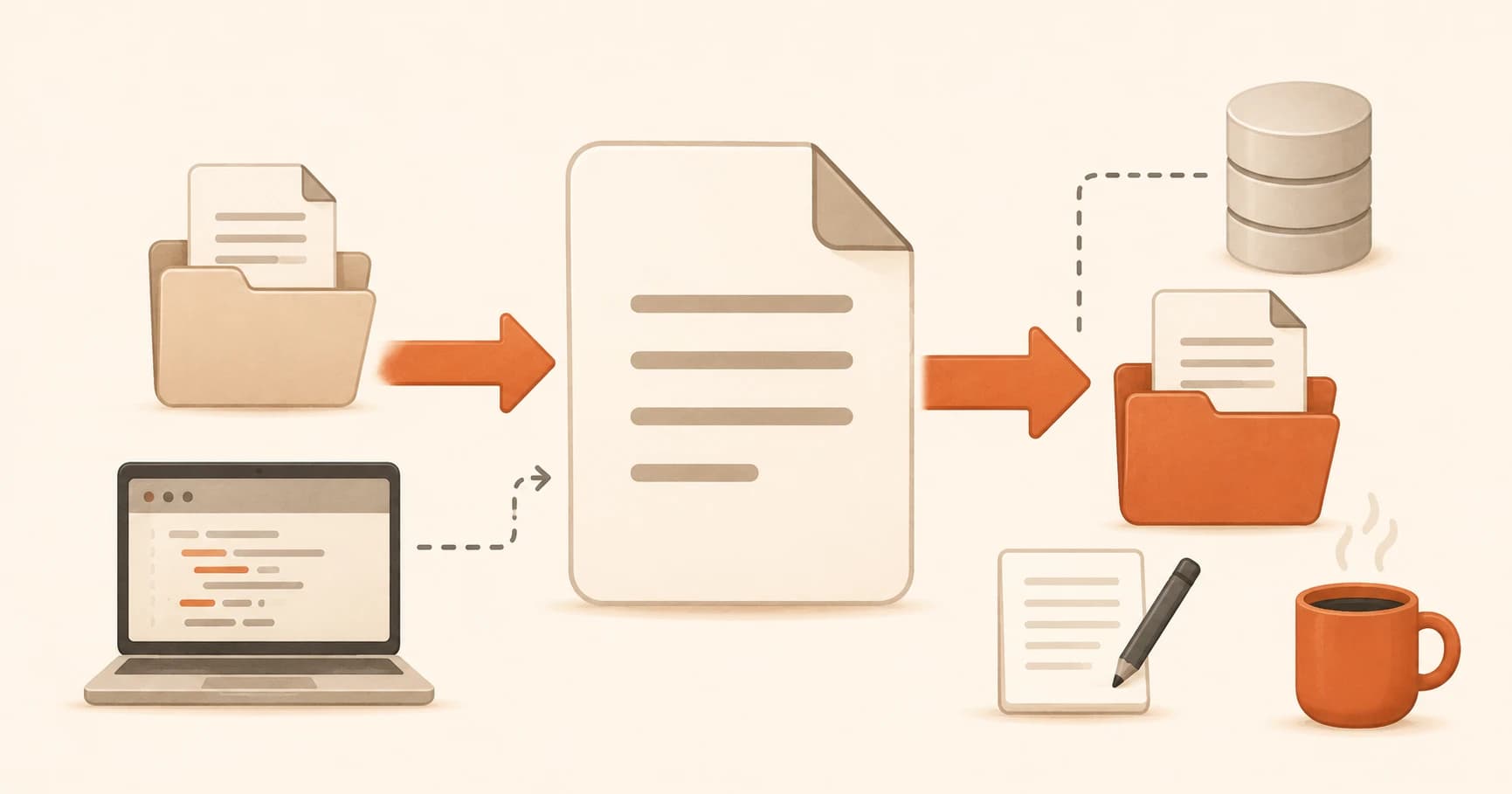
If you're learning how to read and write files in Python, here's the good news: once you can trace a loop, file operations are the next easiest pattern to recognize. Almost every AI tool that does something useful touches the filesystem somewhere. It reads a document to summarize it. It saves a generated output. It logs an API response for debugging later. Once you can recognize the two patterns that cover file handling, you can follow how any AI pipeline moves data in and out.
Key Takeaways
open("file.txt", "r")reads a file,open("file.txt", "w")writes one, the letter is the only thing that changes."w"mode erases the file's existing content before writing anything new, this is the most common data-loss bug in beginner scripts."a"mode appends to the end of a file without deleting what's already there, useful for logs.with open(...) as f:automatically closes the file when the block finishes, you never need to callf.close()yourself.- Read, process, write is the skeleton of most AI content pipelines, recognizing it means you can follow any variation of it.
Reading a file: the pattern you'll see constantly
with open("document.txt", "r") as f:
    content = f.read()
Here's every piece, decoded:
open(...)opens the file."document.txt"is the filename, relative to wherever the script runs."r"is the mode: read. The file must already exist, or this line throws an error.as fgives the open file a nickname,f, so the code below can refer to it.f.read()reads the entire file into a single string.contentnow holds everything that was in the file.
In an AI pipeline, this is how a document gets loaded before it's sent to Claude. A summarization script reads a text file, stores it in content, then passes that string as the user message in an API call. I've written this exact three-line block more times than I can count, it's the entry point for almost any script that processes existing text.
Writing to a file: same shape, one letter different
with open("output.txt", "w") as f:
    f.write(response_text)
The only structural change from reading is the mode: "w" instead of "r".
"w"means write. It creates the file if it doesn't exist, and overwrites it completely if it does.f.write(...)writes a string to the file.
In AI context, this is how you'd save Claude's response, write a generated article to disk, or export structured output for later use. Recognize "w" and you know: whatever was in that file before is gone, and what you're writing now takes its place.
"w" mode deletes first, writes second. Opening a file in "w" mode immediately erases its existing content, before your code writes a single character of the new content. If you needed to keep what was already there, use "a" instead. This silently overwrites files people meant to preserve, more often than any other beginner file bug.
The three modes, named
You'll see three letters over and over. That's the whole vocabulary:
| Mode | Name | Effect |
|---|---|---|
"r" | Read | File must already exist. Nothing is changed. |
"w" | Write | Creates the file if missing, overwrites if it exists. |
"a" | Append | Adds to the end of the file, existing content stays. |
Python file modes at a glance
That's it. Spot one of these three letters inside open(...) and you know exactly what the surrounding code is about to do to that file.
Why with is always there
with open(...) as f: does one extra thing beyond opening the file: it automatically closes the file the moment the indented block underneath finishes running.
This matters because a file left open can lose data or block other programs from reading it, a subtle bug that's annoying to track down. You don't need to remember to call f.close() yourself, with handles it even if something inside the block goes wrong. Whenever you see with open, you can trust the file is opened, used, and closed cleanly, no cleanup step to keep track of.
A full pipeline: read, process, write
# Load the document
with open("article.txt", "r") as f:
    article = f.read()

# Ask Claude to summarize it (API call here)
summary = ask_claude("Summarize this: " + article)

# Save the summary
with open("summary.txt", "w") as f:
    f.write(summary)
Three sections, three jobs: read a file in, do something with the content, write a file out. This is the skeleton underneath most AI content pipelines, whether they're summarizing PDFs, generating articles, or transforming data. Once you recognize this shape, you can follow any variation of it, even ones with extra steps wedged in the middle.
Name the pattern
Four real snippets. For each, work out what it's doing before checking the answer.
Block 1
with open("prompts.txt", "r") as f:
    template = f.read()
Reading. Loads the content of prompts.txt into template. The file must already exist, or this line fails.
Block 2
with open("log.txt", "a") as f:
    f.write("API called at 14:32\n")
Appending. Adds one line to log.txt without erasing anything already there. The \n at the end is a newline character, it starts a new line in the file rather than tacking text onto the last one.
Block 3
with open("response.txt", "w") as f:
    f.write(claude_output)
Writing. Saves claude_output to response.txt. If the file already existed, its previous content is gone the moment this line runs.
Block 4
with open("context.txt", "r") as f:
    lines = f.readlines()
Reading, but with a twist. Instead of one big string, readlines() returns a list where each item is one line from the file. Useful when a script needs to process a file line by line instead of all at once.
Every AI data pipeline reads files, transforms them, and writes results. You can now follow that entire flow, line by line, in any script you come across. That's the same skill you'll be building on for the rest of the Launchpad path.
Your Task
Trace a real file operation
Find any Python script that uses open(...) (a repo, a tutorial, an AI SDK example, any of them will do). Locate one open() call and answer three questions without running the code: which mode is it using, will it create/overwrite/preserve the file, and what does the surrounding code do with the result. Write your three answers down.
Done? You've completed Lesson 05.06.
FAQ