How to install Git for beginners (and what it actually does)
Learn what Git is and how to install it on Windows or Mac. Understand version control in plain English, then confirm your install with one terminal command.
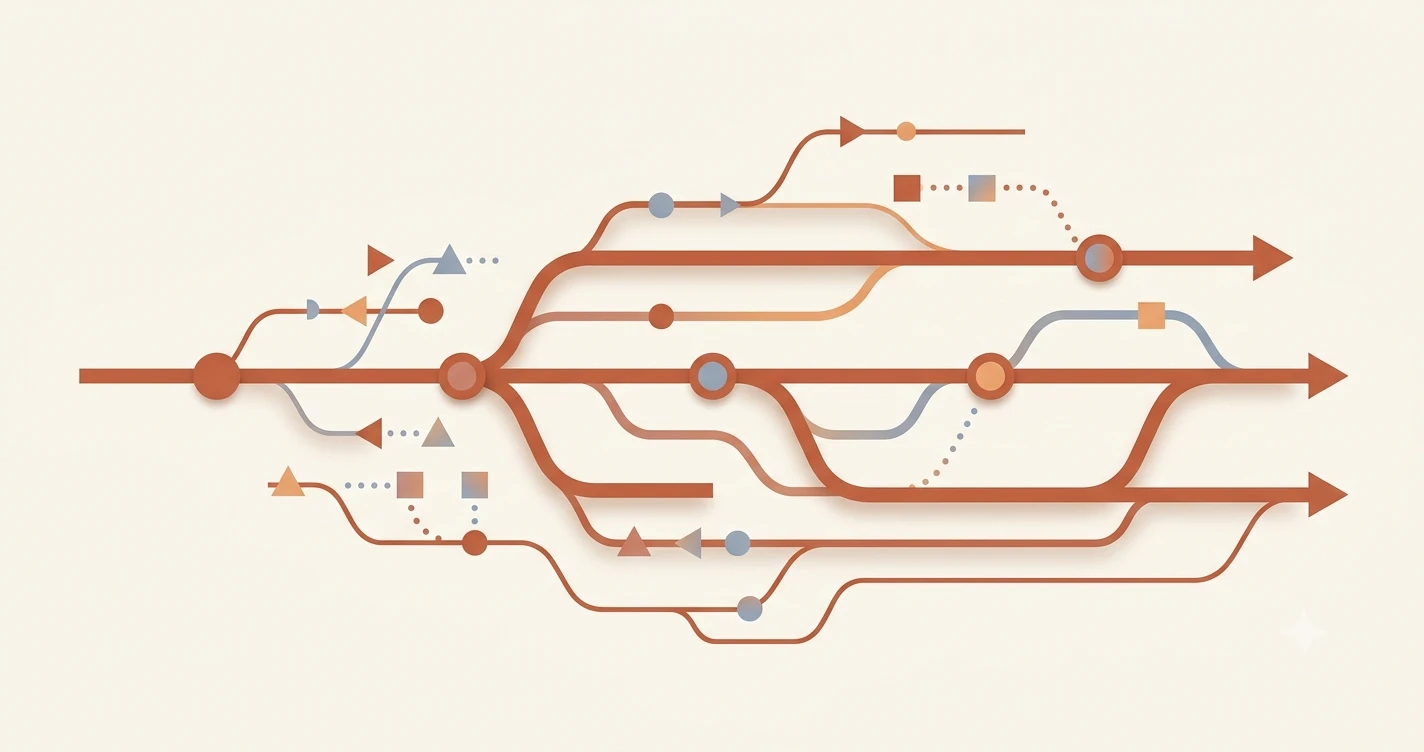
In this lesson, you'll learn what Git is and how to install it on your computer. By the end, you'll have Git running and understand why it's the first tool every developer installs, before they write a single line of code.
Key Takeaways
- Git is a version control system: it tracks every change you make to your files, so you can go back in time if something breaks
- Git and GitHub are not the same thing. Git is the tool on your computer; GitHub is a website
- On Windows, Git installs a bonus terminal called Git Bash — useful for all developer commands, not just Git
- After installing, run
git --versionin your terminal to confirm it worked
You've already done manual version control
Have you ever renamed a file something like this?
essay_final.docx
essay_final_v2.docx
essay_final_v2_FINAL.docx
essay_final_v2_REALLY_FINAL.docx
That is version control. You did it manually because you were scared of losing work, so you kept making copies, each one with a slightly more desperate filename.
Git does the same thing, but automatically, properly, and reversibly. You make changes, tell Git to save a snapshot, and Git records exactly what changed and when. You can go back to any snapshot at any point. No more desperate filenames.
Every developer uses Git. It is not optional. But it is also much simpler than most tutorials make it sound, especially at the install stage.
What Git actually does
Git tracks every change you make to the files in a project folder. Think of it as a time machine for your code. You can:
- Go back in time. Break something? Revert to yesterday's working version in seconds.
- Try risky experiments. Create a separate "branch" to test a new idea, without touching your working code. If the experiment fails, delete the branch. Your original code is untouched.
- Share code with others. When you're ready, push your work to a hosting service like GitHub so teammates can see it.
You don't need to understand commits or branches in depth right now. That comes in the next module. For this lesson, just focus on installing Git so the tool is ready when you need it.
If you haven't installed Python yet, the install Python lesson covers that step.
Git and GitHub are not the same thing. Git is the version control tool that runs on your computer. GitHub is a website where you can store and share code online. This lesson covers Git only, GitHub comes in Module 04.
How to install Git
On Windows
Go to git-scm.com/downloads and click Download for Windows.
Run the installer. You will see a long series of option screens, leave every setting at its default and keep clicking Next. The defaults are carefully chosen and correct for beginners.
When the install finishes, you will notice a new app on your computer called Git Bash. This is a terminal that comes bundled with Git.
Git Bash is just a terminal, think of it as a slightly upgraded version of Command Prompt. You can use it for all your Git commands. It also works for the other terminal commands you have been learning in this module.
To confirm Git installed, open Git Bash (or Command Prompt, or PowerShell, any terminal works) and run:
git --version
You should see something like:
git version 2.45.2.windows.1
On Mac
Mac often has Git pre-installed. Open your terminal and run:
git --version
If Git is already there, you will see a version number and you are done.
If you see a prompt asking you to install Xcode Command Line Tools, click Install, this is the easiest way to get Git on Mac. It takes a few minutes.
If neither worked, download the Mac installer from git-scm.com/downloads and run it normally.
Your Task
Install Git and confirm it works
Go to git-scm.com/downloads. Download the version for your operating system.
Install it. If you are on Windows, leave all installer settings at their defaults, the defaults are fine.
Open your terminal and run:
git --version
You should see something like:
git version 2.x.x
That's it, Git is installed. You will use it in Module 04 when we cover GitHub and your first real developer workflow.
Done? You've completed Lesson 03.05.
Ready to keep going? The Getting Started path has the full module sequence.
FAQ