Common Git Mistakes Beginners Make (And How to Fix Them)
Accidentally pushed an API key? Hit a merge conflict? These are the two most common Git mistakes beginners make. Here's how to detect, fix, and prevent both.
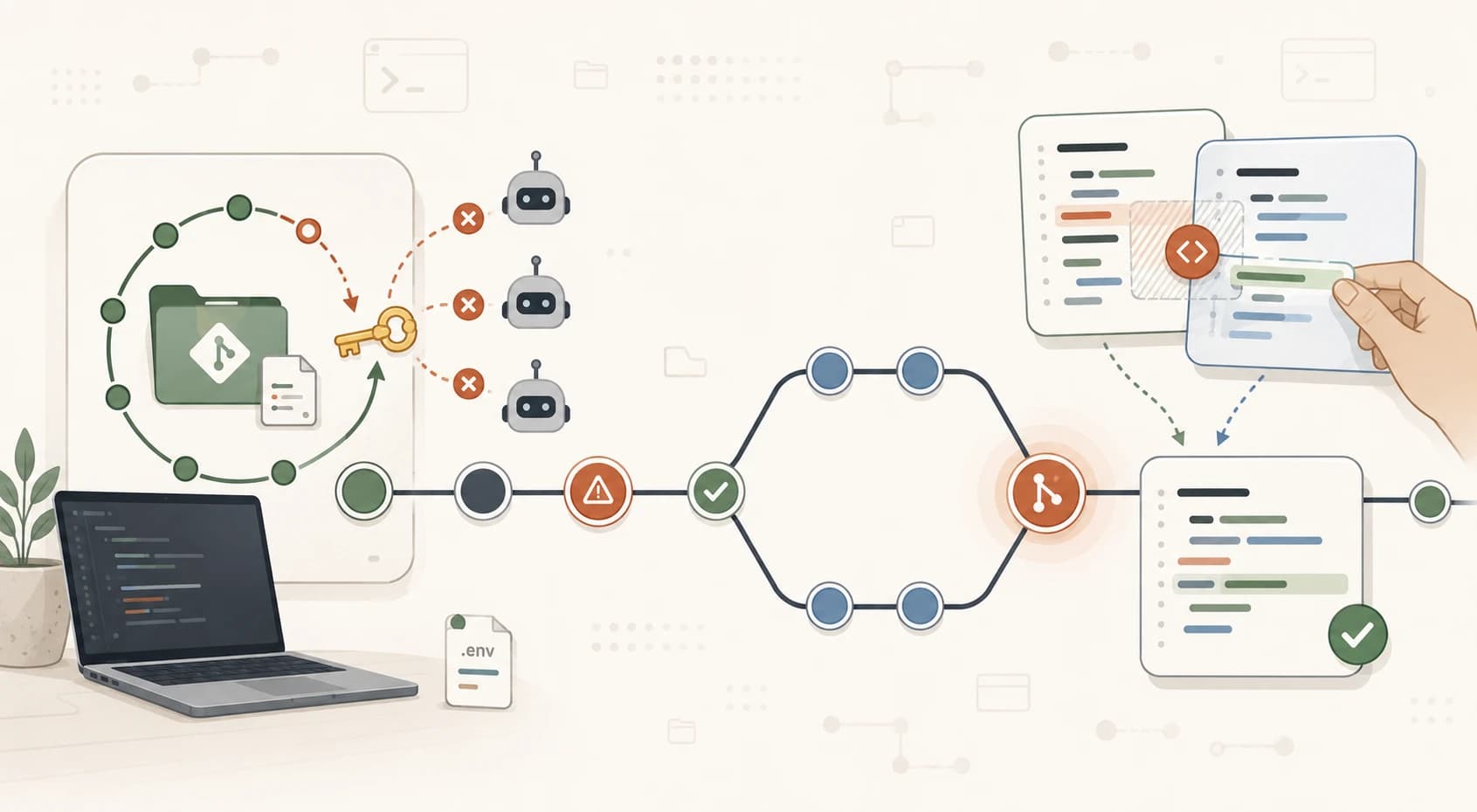
In this lesson, you'll learn about the two most common Git mistakes beginners make, and exactly how to handle both. By the end, you'll know how to detect secrets that may have been exposed and how to resolve a merge conflict without panicking.
Key Takeaways
- If you accidentally push an API key to GitHub, rotate it immediately, then clean the history
- Bots scan public repos for exposed secrets within minutes; assume the key was already seen
- Merge conflict markers aren't error messages, they're Git asking which version to keep
- Pulling frequently from the main branch prevents most merge conflicts before they happen
Mistake 1: Accidentally Pushing Secrets to GitHub
Here's what happens: you're building a project, you have an API key in a .env file, and somewhere along the way that file gets committed and pushed to a public GitHub repository.
Within minutes, sometimes seconds, automated bots that continuously scan public repos find the key and begin using it. This isn't theoretical. GitHub's own data shows millions of secrets are leaked to public repos every year.
The thing that catches most beginners: deleting the file and committing again does not fix the problem. Git stores the full history of every file ever committed. The key still exists in that earlier commit, and anyone who clones your repo gets the complete history.
How to detect it
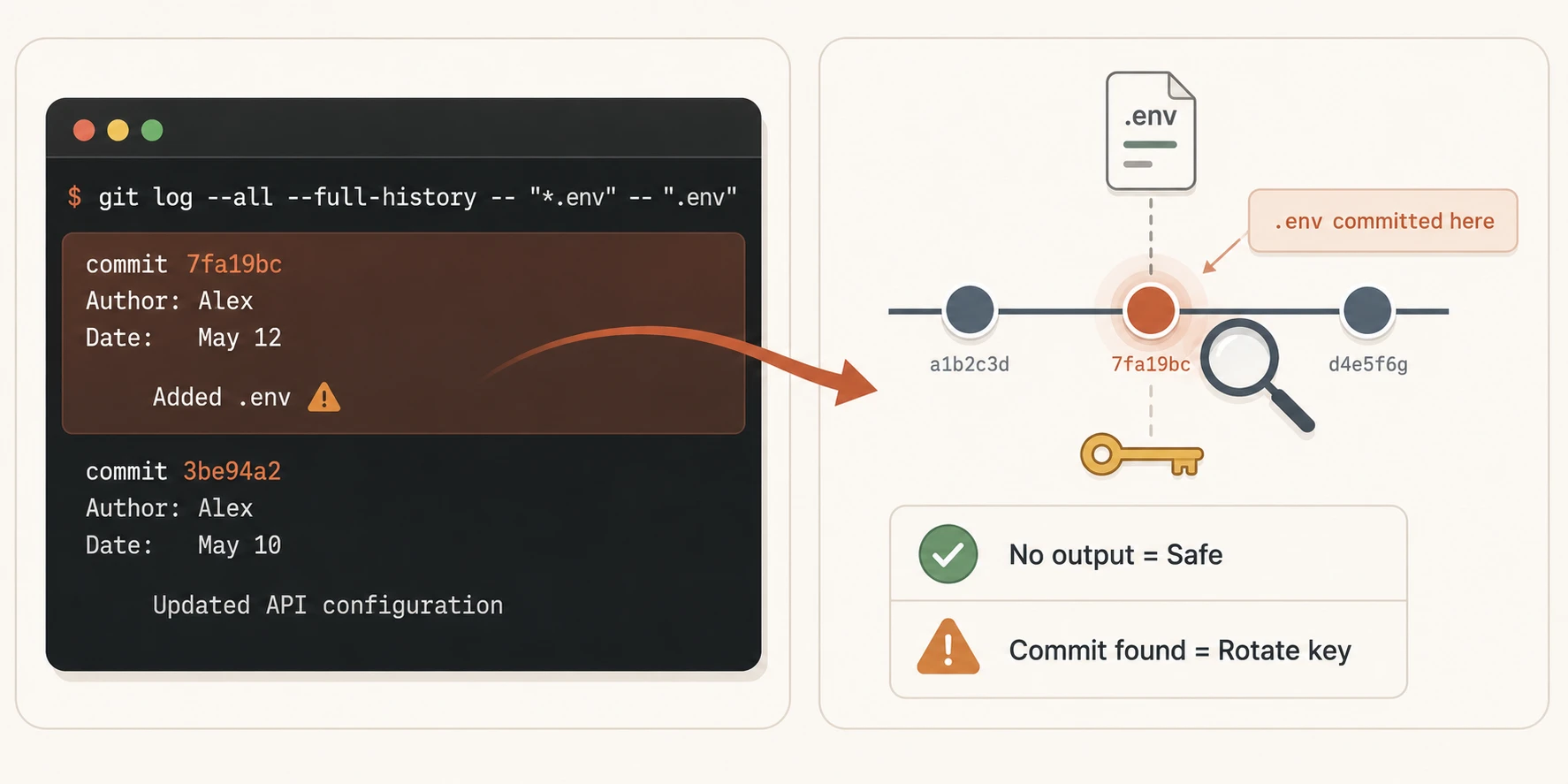
Before you panic, check whether your .env was ever committed in the first place. Run this from inside your project folder:
git log --all --full-history -- "*.env" -- ".env"
If nothing appears, your .env was never committed. You're fine.
If commits appear, the file was committed at some point. Move to the fix immediately.
The right order: rotate first, clean history second
This is the part most guides get wrong. People spend time learning git filter-repo while their exposed key is still active and being used. Don't do that.
Step 1: Go to wherever your key was issued (e.g., the Anthropic console) and revoke the exposed key. Generate a new one.
Step 2: Update your .env with the new key so your project still works.
Step 3: Now clean the history. Use git filter-repo to remove the file from every commit in your repo's history. GitHub's documentation on removing sensitive data from a repository walks through this process in detail.
I've seen experienced developers make this mistake. The key is just knowing the right order when it happens.
Assume the key was already seen. Even if you catch it within a minute, rotate it. The cost of rotating a key is five minutes. The cost of not rotating one can be much worse.
Prevention
The simplest prevention is covered in your .gitignore file: add .env to .gitignore before your very first commit. If the file is never tracked, it can never be pushed.
Mistake 2: Merge Conflicts
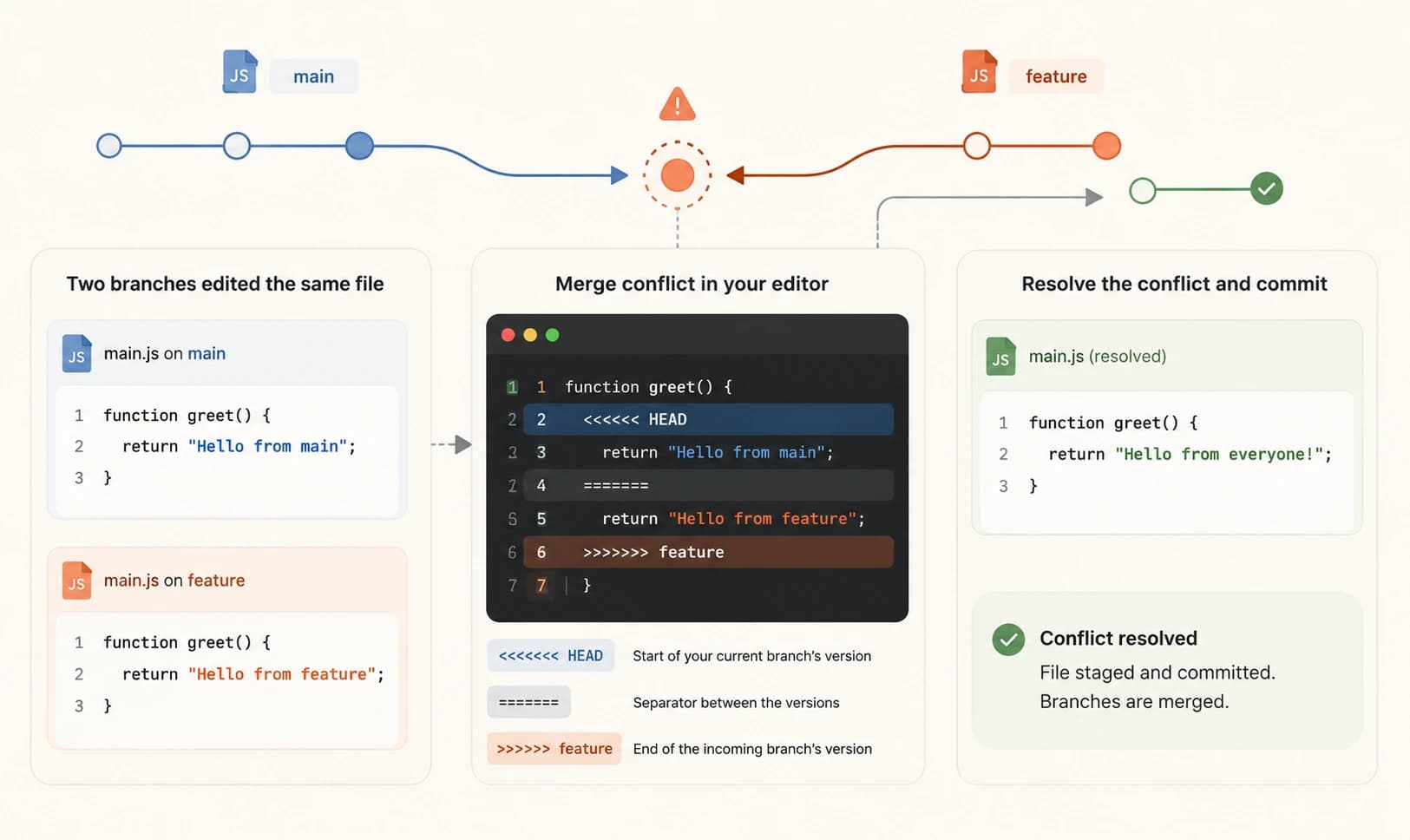
A merge conflict happens when two branches have changed the same lines of the same file differently, and Git can't automatically decide which version to keep. So it stops and asks you.
That's the key reframe: the markers Git adds to your file aren't error messages. They're questions. Git is saying: "I found two different versions of this code. Which one do you want?"
This happens most often when you and someone else (or you on two different machines) both edit the same file at the same time. It's normal. It's how Git protects you from silently overwriting each other's work.
What it looks like
When you open a conflicted file, you'll see something like this:
<<<<<<< HEAD
const greeting = "Hello from main branch";
=======
const greeting = "Hello from feature branch";
>>>>>>> feature/update-greeting
Here's what each section means:
<<<<<<< HEAD: start of YOUR current branch's version=======: the divider between the two versions>>>>>>> feature/update-greeting: end of the INCOMING branch's version (the one you're merging in)
Everything between <<<<<<< HEAD and ======= is what your branch had. Everything between ======= and >>>>>>> is what the other branch had.
How to fix it
- Open the conflicted file in your editor
- Decide which version to keep, or write a new version that combines both
- Delete all three marker lines (
<<<<<<<,=======,>>>>>>>) - Save the file
- Run
git add [filename] - Run
git committo complete the merge
That's it. No special commands needed once you understand what you're looking at.
If you open a conflicted file and feel completely lost, run git merge --abort to cancel the merge entirely and return your repo to its pre-merge state. Then take a breath, pull the latest changes, and try again.
For more context on how GitHub handles conflicts, see the GitHub documentation on merge conflicts.
Prevention
The most effective prevention is simple: pull before you push. Before you start working on a file, run git pull to get the latest version from main. The closer your branch stays to main, the less likely two people are editing the same lines.
Merge small and often rather than large and rarely.
Quick Check
You just pushed a .env file with an API key to a public GitHub repo. What do you do first?
In a merge conflict, what does the section between <<<<<<< HEAD and ======= contain?
What is the best way to prevent merge conflicts before they happen?
Your Task
Audit your repos for committed secrets
For every Git repository you've created so far, run this command from inside the project folder:
git log --all --full-history -- "*.env" -- ".env"
If nothing appears, your .env files were never committed. You're clear.
If any commits appear, your .env was committed at some point. Rotate any keys that were in it immediately (go to your Anthropic console and regenerate your API key), then use git filter-repo to remove the file from your history (see the GitHub documentation linked in the Mistake 1 section above).
All clear? Add a .gitignore to any repo that doesn't have one yet.
Done? You've completed Lesson 04.11.
You can also explore more structured learning through the Getting Started path, it picks up right where this module leaves off.
And if you're curious about what comes before Module 04, the previous lesson on using GitHub as a portfolio is worth revisiting before you move on.
FAQ