CSS Classes for Beginners: How to Change Color & Font
Learn what a CSS class is, how it differs from an id, and how to change color and font in a real CSS rule, explained simply for beginners.

You open an AI-generated project and find the button's styling: .btn { background-color: #2563eb; }. You want it in your own brand color, but you don't actually know what any of that means: what the dot is, what .btn points at, or which piece to touch to change the color.
That's what this lesson clears up. CSS is a set of instructions that says: find this thing on the page, then change how it looks. By the end you'll read a rule like that at a glance, know what a CSS class is, and change the color and font of any element with confidence.
Key Takeaways
- Every CSS rule has the same shape: a selector (what to find), a property (what to change), and a value (what to change it to).
- A class is a reusable label like
.ctayou can put on any number of elements to style them all at once.- A class styles many elements (written with a
.in CSS); an id styles exactly one (written with a#).- The three properties you'll see constantly are
color(text color),background-color(fill color), andfont-size.- CSS lives in one of three places: inline on the element, in a
<style>block, or in a separate.cssfile.
What Is a CSS Class?
A CSS class is a reusable label you attach to HTML elements so you can style all of them at once. You already know how to spot those elements from reading the HTML tags themselves; a class is just an extra label you hang on the ones you want to style. In your CSS you write the label with a dot in front of it, then list what should change inside curly braces. That's the whole idea: name a group, then describe how the group should look.
Every rule you'll ever read follows the same three-part shape. Here's one:
.cta {
  background-color: #C9633F;
  color: white;
}
The .cta is the selector: it says "find every element with the class cta." Inside the braces, background-color is a property (the thing being changed) and #C9633F is its value (what to change it to). Selector, property, value. Once your eye locks onto that pattern, every CSS block on earth becomes readable, even a 500-line AI-generated stylesheet.
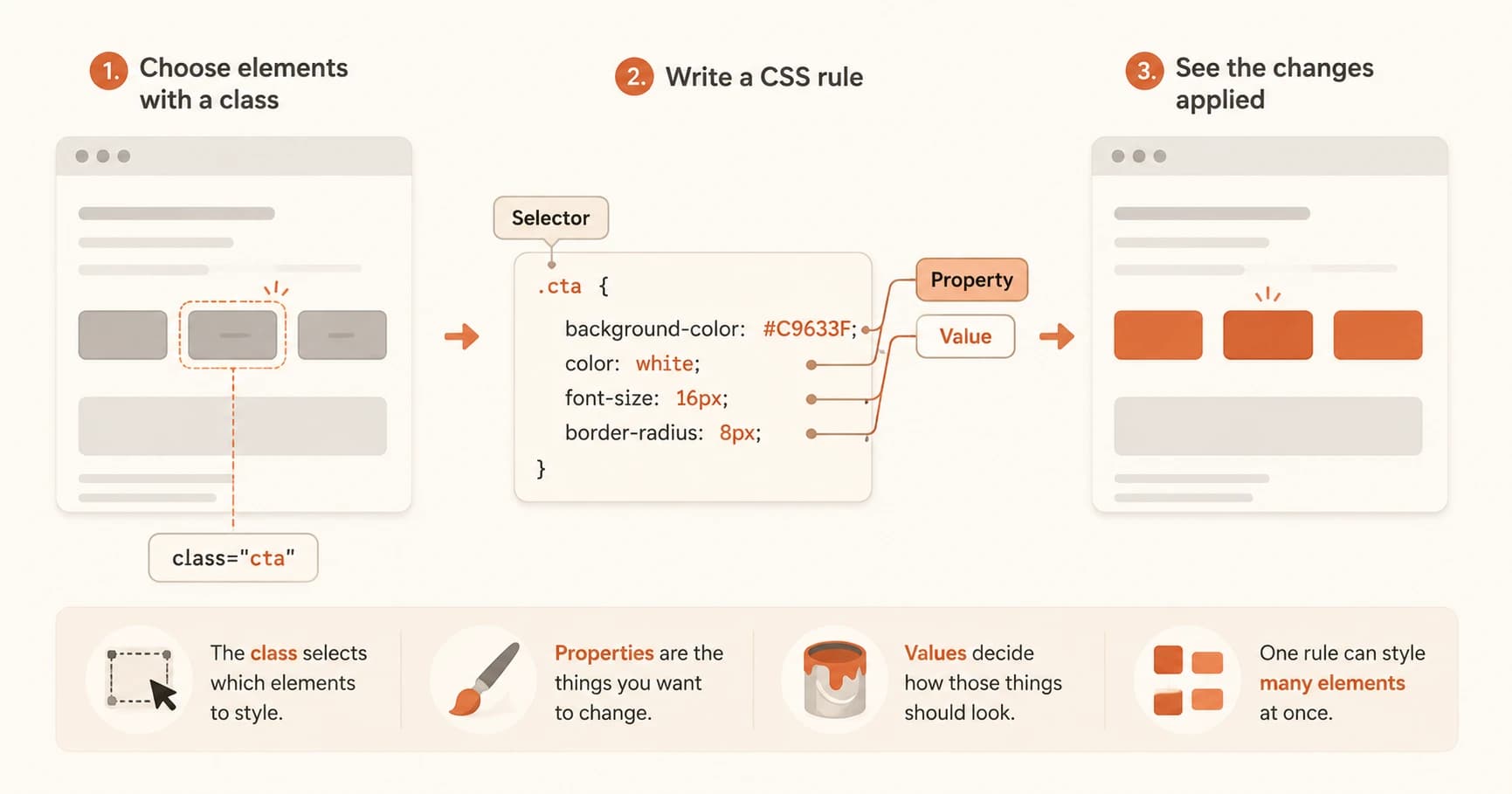
The class earns its keep through reuse. Think of a dress code: instead of walking up to each person individually, you say "everyone wearing a red badge, do this." You put class="cta" on your signup button, your pricing button, and your newsletter button, and all three pick up the same look from one rule. Style once, use everywhere.
When you meet an unfamiliar CSS rule, read the selector first. It tells you what is being styled before you worry about how. A selector starting with a dot is a class; one starting with a hash is an id.
Skip the class and you pay for it later. You'd copy the same color, padding, and font onto every button by hand, and the day you want a different shade you'd hunt through the file editing twenty separate spots instead of one. This is the paint layer of the three that make up a webpage, and classes are how you paint efficiently.
Class vs ID: One Badge or One Person
A class and an id do the same job, target an element so you can style it, but they answer two different questions. A class is "everyone wearing this badge." An id is "this one specific person by name." In CSS you write a class with a dot (.cta) and an id with a hash (#header).
The practical rule is simple: a class can go on any number of elements, an id is meant for exactly one. You'll have many buttons sharing .cta, but only one #main-header at the top of the page.
Class vs id at a glance
| Class | ID | |
|---|---|---|
| Written in CSS as | .cta (dot) | #header (hash) |
| Written in HTML as | class="cta" | id="header" |
| How many elements | Any number | Exactly one |
| Use it for | Reusable styles | A single, unique element |
I reach for a class by default and only use an id when something genuinely appears once, like the page header. Ids look tempting because they feel specific, but reuse an id on two elements and things quietly break. Styling gets unpredictable, and any JavaScript that grabs that id only ever finds the first one. When in doubt, use a class. You almost never lose by choosing the reusable option. The MDN guide to basic selectors lays out the full family once you want more than these two.
How Do You Change Color and Font in CSS?
To change color and font, you set three properties inside a rule: color for the text, background-color for the fill behind it, and font-size for how big the text is. Take that same button and read the rule line by line:
.cta {
  color: white;
  background-color: #C9633F;
  font-size: 18px;
}
color: white makes the button's text white. background-color: #C9633F fills the button with clay. font-size: 18px sets the text size to 18 pixels. Three lines, three visible changes. Colors can be written as names (white, red), as hex codes (#C9633F), or as rgb() values, and all three are common in code you'll read. MDN's reference on color values covers every format if you're ever unsure what one means.
Before any of this works, the CSS has to actually reach the page, and it lives in one of three homes. Inline styles sit right on the element (<button style="color: white;">). A <style> block goes in the page's <head>. An external .css file is linked in with a <link> tag and is what real projects use. You don't need to write all three, you just need to recognize them when you open a file and wonder where the styling is hiding.
Changed a color and nothing happened? It's almost always one of these four:
- Your browser cached the old file, so hard-refresh with Ctrl+Shift+R (Cmd+Shift+R on a Mac).
- The class in your CSS doesn't match the
classon the element. - An inline style or an id rule is overriding your class.
- A typo, like a missing
;, broke the whole rule.
You don't need to memorize every property. You need color, background-color, and font-size in your hands, plus the habit of reading the selector first, and you can already change how most things look. That's enough to start experimenting on the Getting Started path, and everything else you look up the moment you need it.
Style your button with a CSS class
Open the index.html file you created in lesson 06.01.
Add a class to your button so CSS can find it: <button class="cta">Click me</button>
In your <style> block, add a rule that targets that class:
.cta {
  background-color: #C9633F;
  color: white;
  font-size: 18px;
  padding: 10px 20px;
}
Refresh the page in your browser. Your button should now be clay-colored with white text and a larger font.
Now change one value, try a different background-color hex code, and refresh again to see the effect immediately. That instant feedback loop is exactly how CSS is learned.
You've completed Lesson 06.03.
FAQ