How to Clone a GitHub Repository in One Command
Learn git clone in under 5 minutes. This lesson covers what cloning actually downloads, how to find the repo URL, and why clone beats downloading a ZIP.
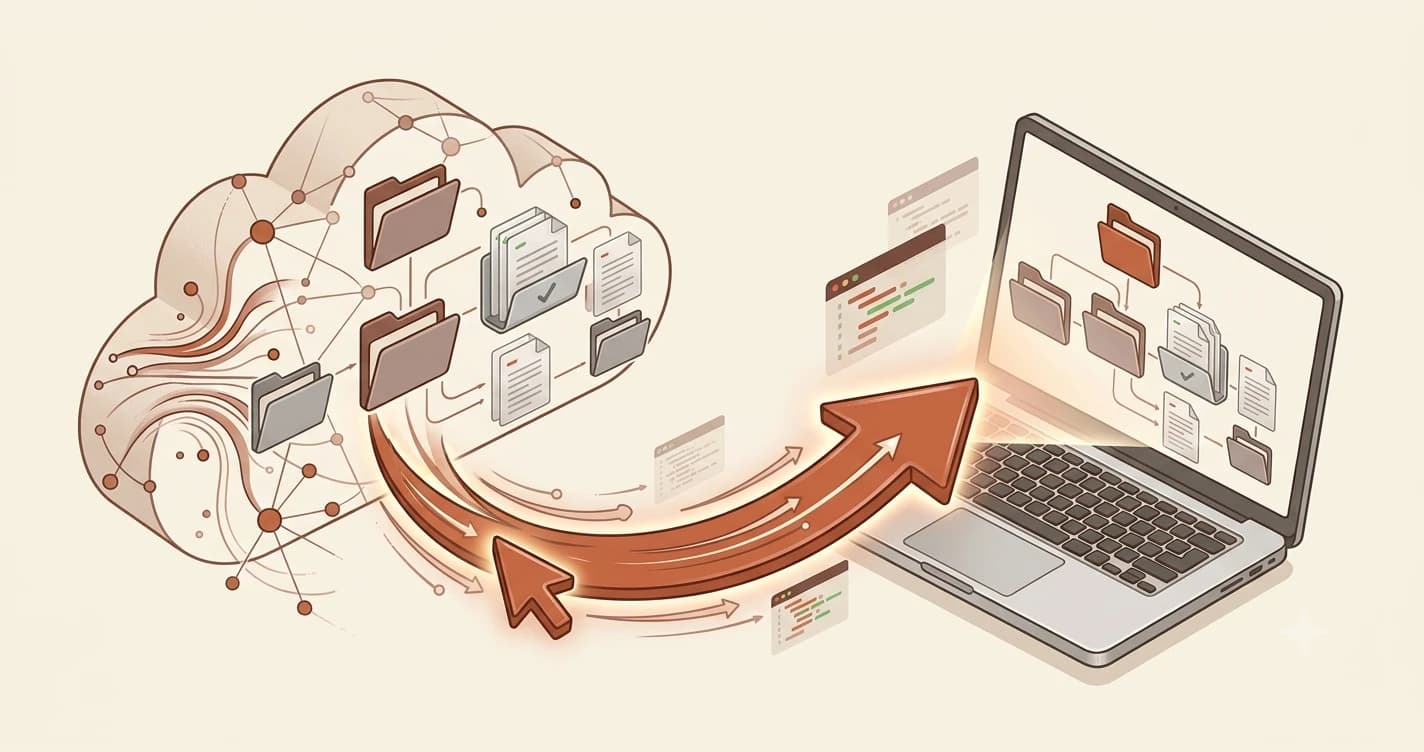
In this lesson, you'll learn how to clone a GitHub repository. By the end, you'll be able to download any public project on GitHub to your machine with a single command, and understand exactly what you're getting.
Key Takeaways
git clone [url]downloads a complete copy of a repository, including its full history- Cloning is different from downloading a ZIP. You keep a live connection to the original so you can pull updates later
- You don't need a GitHub account to clone a public repository
What cloning actually does
You've found an interesting AI project on GitHub. Maybe it's a starter template for building Claude-powered apps, or a script someone shared in a tutorial. You want to run it on your own machine.
There are two ways to get the code: download a ZIP file, or clone the repository. They look similar. You end up with a folder of files either way. But they're not the same.
Cloning downloads the complete repository: every file, every folder, and every commit ever made. It also preserves the connection back to the original. That means you can run git pull at any time to get the latest changes without downloading anything again.
A ZIP download is a frozen snapshot. You get the files as they are right now, no history, and no connection to the original. If the author pushes an update tomorrow, your ZIP never knows about it.
git clone vs Download ZIP
| git clone | Download ZIP |
|---|---|
| Full file history | No history, snapshot only |
| Live connection to remote (git pull works) | No remote connection |
| Run git pull for updates | Re-download ZIP manually |
| Works with all git commands | Plain files only |
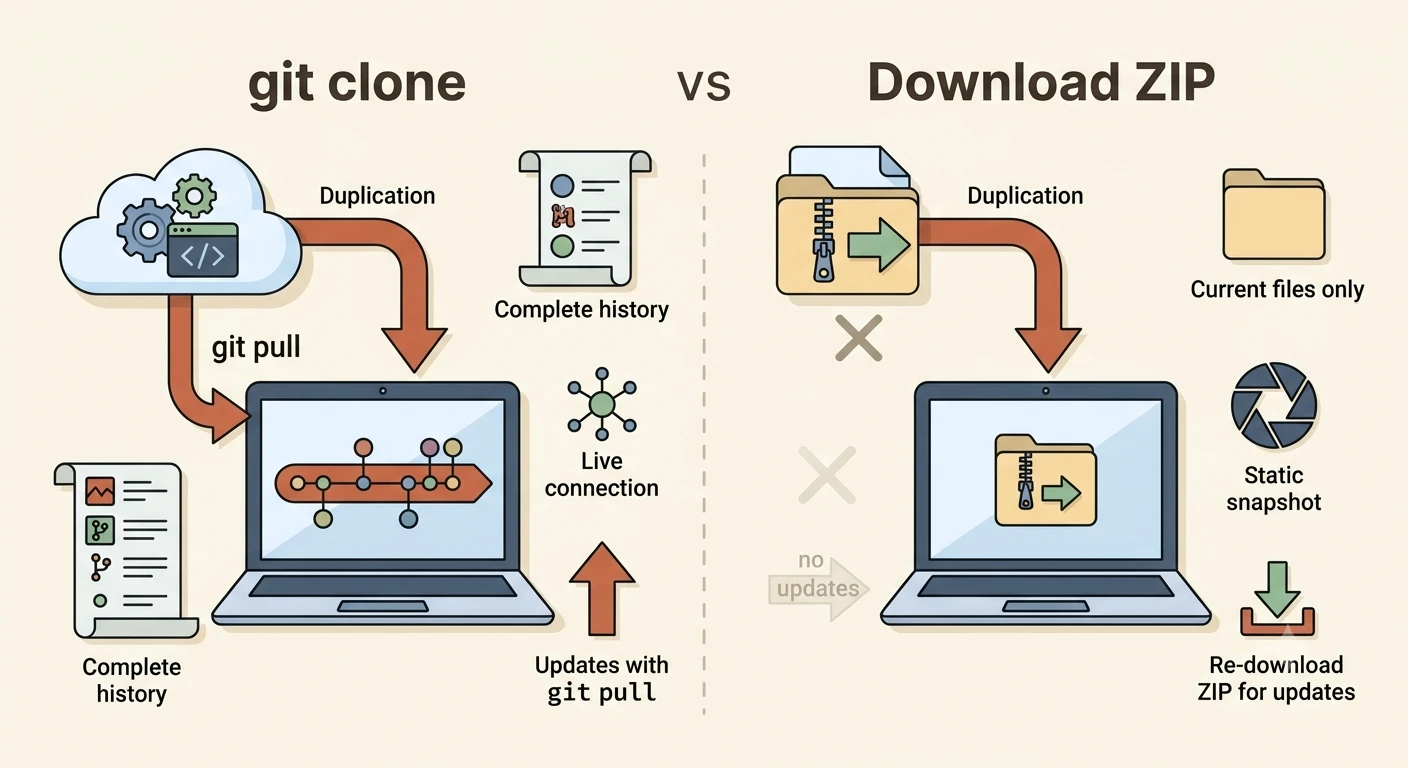
For AI development, cloning is almost always what you want. Tutorials tell you to clone for a reason. It keeps your local copy in sync with the source.
How to clone a repository
Here's the full process. It takes about 30 seconds once you've done it once.
Find the repository URL
Go to the repository page on GitHub. Look for the green Code button above the file list. Click it.
A dropdown appears with a URL. Make sure HTTPS is selected (not SSH; SSH requires extra setup). Click the copy icon to copy the URL.
Open your terminal and navigate to your projects folder
Open your terminal (Terminal on Mac, PowerShell or Git Bash on Windows). Navigate to wherever you keep your projects:
cd ~/Desktop
Or any folder you prefer. The clone will create a new subfolder there.
Run git clone
Type git clone followed by the URL you copied:
git clone https://github.com/owner/repository-name
Press Enter. Git downloads the repository. You'll see progress output, then a confirmation message.
Verify the folder exists
Run ls (Mac/Linux) or dir (Windows) to confirm the new folder appeared:
ls
Then cd into it and look at the files:
cd repository-name
ls
You now have a local copy of the entire project.
You don't need a GitHub account to clone a public repository. The URL is public; anyone can clone it.
SSH is another way to clone, and many developers prefer it for ongoing work because it skips password prompts. We're using HTTPS here because it works immediately with no extra setup. You can switch to SSH later once you're comfortable.
What you get after cloning
Your new folder is a complete Git repository. It's not just files. It has a hidden .git folder inside that stores the entire commit history and the connection back to the original on GitHub.
You can run git log to see every commit ever made to the project. You can run git pull to download any updates the author pushes after your clone.
If the project gets updated after you've cloned it, run git pull inside the folder to stay current. No need to clone again. I use this constantly when following tutorials that update their starter code.
This is why cloning is the standard for working with AI projects, SDKs, and starter templates. Once cloned, the project stays connected. When tools update, you update with one command.
The next step after cloning is usually learning to work with branches, so you can experiment with the code without touching the main version. That's the next lesson.
Your Task
Clone a public GitHub repository
In your terminal, navigate to your Desktop or a projects folder, then run:
git clone https://github.com/anthropics/anthropic-sdk-python
Wait for it to finish. You should see a new folder appear called anthropic-sdk-python.
Run ls (or dir) to confirm the folder is there.
Run cd anthropic-sdk-python then ls to see the project files.
You now have a local copy of Anthropic's official Python SDK. (You don't need to run it, this is just to practice the clone command.)
Done? You've completed Lesson 04.04.
FAQ