Absolute vs Relative File Paths Explained (For Beginners)
Confused by 'no such file or directory'? Learn the difference between absolute and relative file paths, with real Windows and Mac examples. Takes 5 minutes.
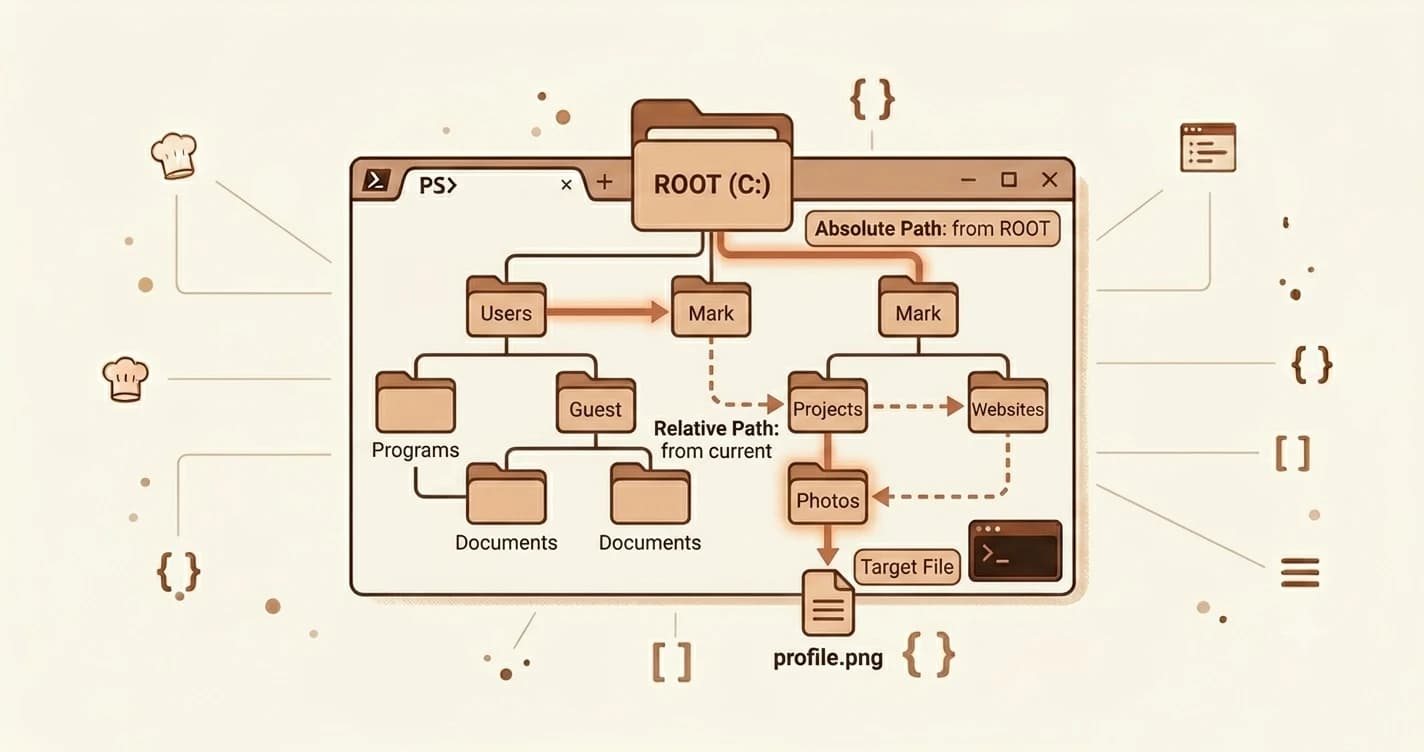
You ran a command. The terminal said: no such file or directory. You checked the spelling, it looks right. You tried again, same error. This lesson explains exactly why that happens, and how to make sure it never trips you up again.
An absolute path tells your computer the exact location of a file, starting from the very root of your drive. A relative path gives the location starting from wherever you currently are in the terminal. Understanding the difference fixes this error every time.
Key Takeaways
- An absolute path is the full address from the root of your drive, it works no matter where you currently are
- A relative path is the address from where you currently are, it only works if you start in the right folder
..means "go up one folder";.means "current folder";~takes you home from anywhere- The practical rule: when in doubt, use an absolute path
What Is a File Path?
Your computer stores files in folders, and folders inside other folders, like a tree. A file path is the written address that describes exactly where something lives in that tree.
Every time you run a cd command or open a file, your computer is reading a path to figure out where to go. Understanding the commands you'll use most often like cd and pwd is the foundation; but paths are what make those commands actually work.
The way paths are written differs slightly between operating systems. Mac and Linux use a forward slash (/) to separate folders, like /Users/hasnat/projects. Windows uses a backslash (\), like C:\Users\Hasnat\projects. That's the only real difference. The concept is identical on both.
What Is an Absolute Path?
An absolute path is the complete address of a file or folder, starting all the way from the root of your drive.
Think of it like a GPS coordinate. It doesn't matter where you are standing, the coordinate always points to the same place. An absolute path works the same way: you can be anywhere in your terminal, and an absolute path will always find the right location.
Here's what a simple folder tree looks like:
/ (root, Mac/Linux)
└── Users/
 └── hasnat/
 └── projects/
 └── my-app/
 └── index.py
The absolute path to index.py on Mac or Linux:
/Users/hasnat/projects/my-app/index.py
The equivalent on Windows (where the root is a drive letter):
C:\
└── Users\
 └── Hasnat\
 └── projects\
 └── my-app\
 └── index.py
C:\Users\Hasnat\projects\my-app\index.py
Notice how the path starts at the very top, the root, and describes every folder along the way. There's no ambiguity. It doesn't matter what folder you're currently in when you use it.
Always run pwd if you're unsure where you are in the terminal. It prints your current location as a full absolute path.
What Is a Relative Path, and Why Does It Fail?
A relative path describes a location starting from wherever you currently are in the terminal, not from the root.
Think of it like street directions: "Turn left at the corner, then go two blocks." Those directions only work if you start from the right place. Give them to someone in a different city and they're useless.
Using the same folder tree from above, say you're currently inside the projects folder:
# You are here:
/Users/hasnat/projects/

# A relative path to my-app:
./my-app/index.py

# Or just:
my-app/index.py
Both work because your terminal already knows you're in projects. It fills in the rest.
In practice, you'll develop an instinct for which folder you're in. Until then, pwd is your best friend.
Now move one level up, into the hasnat folder, and try the same command:
# You are here:
/Users/hasnat/

# The same relative path now FAILS:
my-app/index.py
# → no such file or directory
There's no my-app folder directly inside hasnat, it's inside projects. The path is the same string, but the starting point changed. That's the error.
A relative path only works if you're in the right starting folder. If a command fails with "no such file or directory," run pwd to check where you actually are.
The Two Special Symbols: . and ..
These two characters appear constantly in terminal work, and beginners often gloss over them. They're worth understanding properly.
| Symbol | Means | Example |
|---|---|---|
. | Current folder | ./my-app, "my-app inside this folder" |
.. | Go up one folder | cd .., "go back one level" |
~ | Your home folder | cd ~, "go home from anywhere" |
The .. symbol is your escape hatch, it backs you out one folder at a time, from anywhere. If you're inside my-app and want to get back to projects, you run:
cd ..
If you want to go up two levels at once, back to hasnat, you can chain them:
cd ../..
And ~ is a shortcut the terminal understands on any operating system. Running cd ~ takes you straight to your home folder regardless of where you are. It's the fastest way to orient yourself when you feel lost.
The Practical Rule — Which One to Use?
Here's the rule that resolves almost every path confusion:
When in doubt, use absolute. When you know exactly where you are, use relative.
Honestly, I use pwd more than I'd like to admit, even now. The terminal doesn't judge.
Absolute paths are slower to type, but they never fail because of your current location. Use them in scripts, automation, and any time you're unsure.
Relative paths are faster and more portable, useful for quick navigation when you know your folder structure well. A project that uses relative paths internally will work on any computer, regardless of where it's installed.
When a path fails, your debugging checklist is short:
- Run
pwd; confirm where you are - Check whether you used absolute or relative
- If relative, navigate to the right starting folder first
That's it. Most "no such file or directory" errors trace back to step one. Once you understand absolute and relative file paths, the fix is always the same: check where you are, then choose the right path type.
Your Task
Navigate using both path types
In your terminal, run this command first:
cd ~
This takes you to your home folder on any operating system.
Now navigate to your Desktop using a relative path:
cd Desktop
Then navigate back to your home folder using an absolute path (replace your-username with your actual username):
Mac/Linux:
cd /Users/your-username
Windows:
cd C:\Users\your-username
Both routes land you in the same place. One uses the full address. One uses a shortcut from where you were. Now you've used both.
Done? You've completed Lesson 02.04.
FAQ