What Is Kilo Code AI Extension? Full Breakdown
Wondering what the Kilo Code AI extension is? It's a free, open-source coding agent for VS Code and JetBrains with 500+ models. See how it works.

You just finished the Cline lesson, installed it, and asked it to fix a bug. It worked quietly in the background and rewrote three files while you watched. That's great when you trust it completely. It's a little unsettling the first time you don't, and you realize there's no easy way to just ask it "wait, explain what you're about to do" without it also doing the thing.
You want an AI tool that can explain a confusing function when you ask it to. You also want it to make a real multi-file change when you're ready, just not with the full hands-off autonomy of Cline. That middle ground has a name.
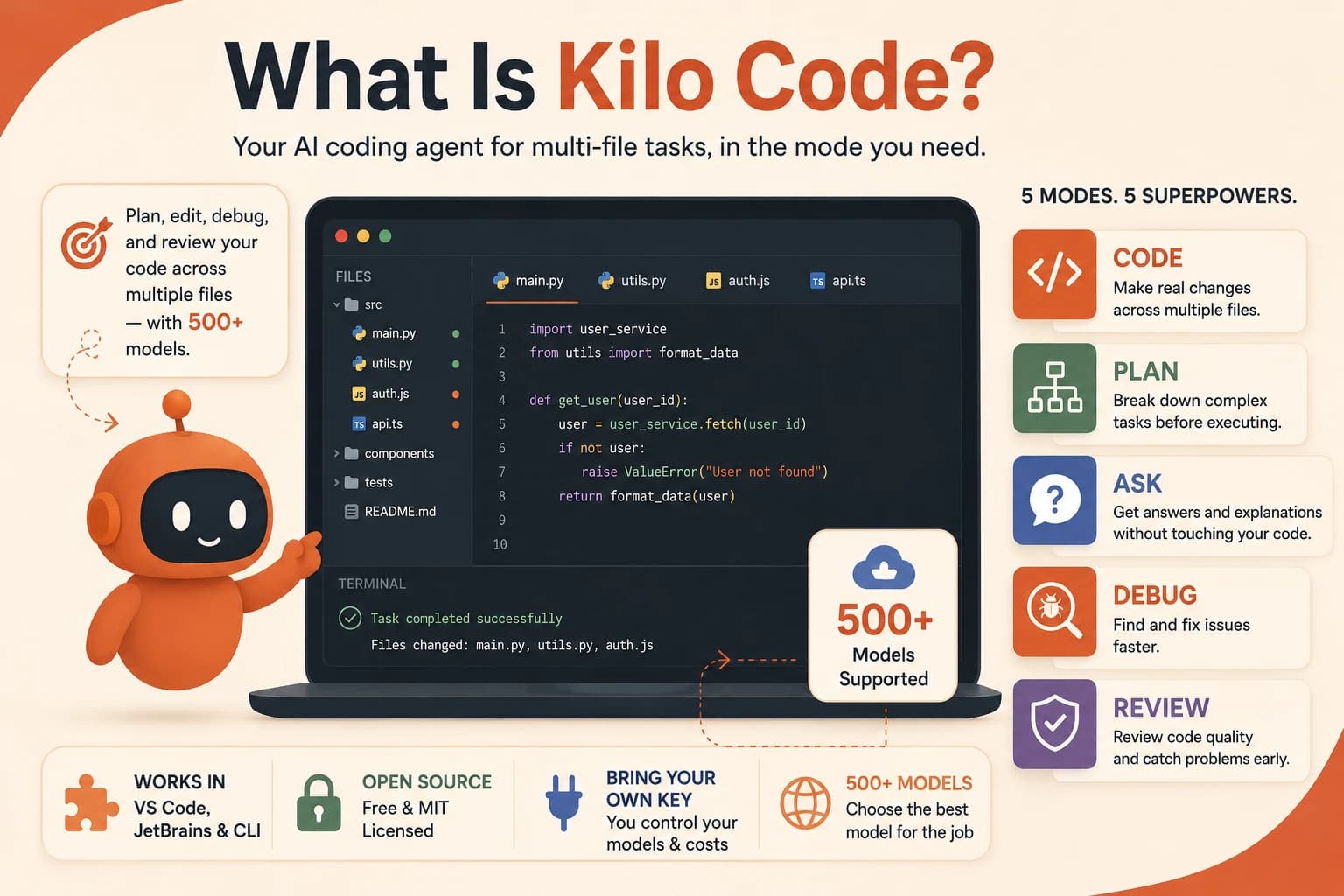
What is Kilo Code? It's a free, open-source AI coding agent for VS Code and JetBrains that combines autocomplete, chat, and multi-file agent tasks, connected to whichever of 500-plus models you choose.
In this lesson you'll learn how it compares to the tools you've already met, and where its real tradeoffs are. By the end you'll know if it's worth installing today.
Key Takeaways
- Kilo Code is a free, open-source (MIT) AI coding agent for VS Code and JetBrains, also available as a CLI
- It supports 500+ models through your own API key, more provider choice than Cline
- It splits work into five modes, Code, Plan, Ask, Debug, and Review, instead of one general chat window
- The honest tradeoff: more configuration and a real learning curve, and its line-by-line autocomplete lags behind dedicated tools like Copilot
- Its JetBrains plugin is now natively supported and generally available, a genuine strength for PyCharm and IntelliJ users
What Is Kilo Code?
Kilo Code is a free, open-source coding agent you install as an extension in VS Code or JetBrains, or run from your terminal as a CLI. It plans tasks, edits multiple files, runs terminal commands, and checks its own work, more than a next-line suggestion tool.
It has over 26,000 GitHub stars and calls itself an all-in-one agentic engineering platform. That's a mouthful, but it just means it's built to handle a whole task, not just one line of code.
Like Cline, it connects to a model of your choice using your own API key. Unlike Cline, it supports over 500 models across dozens of providers, and lets you switch models mid-task depending on what you're doing.
How Kilo Code Compares to Copilot and Cline
Copilot's ghost-text approach is simple by design: install it, and suggestions appear as you type. Kilo Code isn't trying to win at that game. Its autocomplete works, but it's not the reason to reach for it.
Kilo Code sits closer to Cline from the last lesson on the agentic side, it plans and executes multi-step changes across files too. The real difference is how it organizes that work. Instead of one continuous chat, it splits into five distinct modes: Code for making changes, Plan for breaking a task down first, Ask for explanations without touching your files, Debug for chasing down errors, and Review for checking work against your project's own conventions.
Instead of one general-purpose agent, you tell Kilo Code up front what kind of help you want, and it behaves accordingly.
Kilo Code's Honest Tradeoff: More Power, More to Learn
Here's what skipping this section costs you: installing Kilo Code and expecting it to feel like Copilot out of the box. It won't. Expect real setup time, choosing models and learning the five modes. It's a more configurable tool than a turnkey one, and that's the tradeoff.
There's a cost tradeoff too. Paying per token instead of a flat subscription is transparent, but it rewards discipline. Run an expensive model on a trivial one-line fix, and you can end up paying more than Copilot's flat monthly fee would have cost.
If you want fast, zero-configuration autocomplete and nothing else, Copilot from lesson 08.04 is still the simpler choice. Reach for Kilo Code when you specifically want multi-file agent work with model flexibility, and you're willing to spend a little time learning its modes.
Kilo Code on JetBrains
If you're on PyCharm, IntelliJ, or another JetBrains IDE, Kilo Code is a genuine strength in this module. Its native JetBrains plugin is now generally available on the marketplace, built directly for JetBrains rather than ported over from VS Code as an afterthought.
That's worth naming plainly, since a few other tools in this module either skip JetBrains entirely or treat it as a secondary option. If JetBrains is your daily editor, Kilo Code is one of the more complete choices covered so far.
Your Task
Follow this quick Kilo Code tutorial for beginners to see Ask mode explain real code in under five minutes. Want the full course map instead? The Getting Started path lays out every lesson in order.
Install Kilo Code and connect your API key
Install the "Kilo Code" extension in VS Code (or the JetBrains plugin, if that's your editor) from its marketplace.
Open Kilo Code's settings and connect it to your Anthropic API key, the same ANTHROPIC_API_KEY from your .env file in Module 05.
Use Ask mode to explain a function
Open your own copy of the ask_claude function from Module 05's functions lesson in a real file. Don't have it handy? Any short function you've written works just as well.
Switch Kilo Code to Ask mode, highlight the function, and ask it to explain what the function does and why the model parameter has a default value.
Write down one thing the answer clarified that you hadn't already understood.
Done? You've completed Lesson 08.08.
FAQ