What Is PATH? Why Terminal Says 'Command Not Found'
PATH tells your computer where to look for programs. If Python, Node, or Git says 'command not found,' here's why and how to fix it in under 2 minutes.
You installed Python. You open the terminal. You type python. The terminal says: command not found.
But you just installed it. You saw the installer finish. So what went wrong?
Nothing is broken. Your computer just doesn't know where to look. That's what the PATH environment variable is — and once you understand it, you'll fix this error in under two minutes every time it happens.
If you've been following this module, you already created a .env file to store your API keys. PATH is a different kind of environment variable — one your operating system manages, not your project.
Key Takeaways
- PATH is a list of folders your computer searches when you type a command in the terminal
- "Command not found" means the tool's folder isn't on that list, the tool is installed, but not registered
- The fix for most beginners: reinstall the tool and tick the "Add to PATH" option
What is PATH?
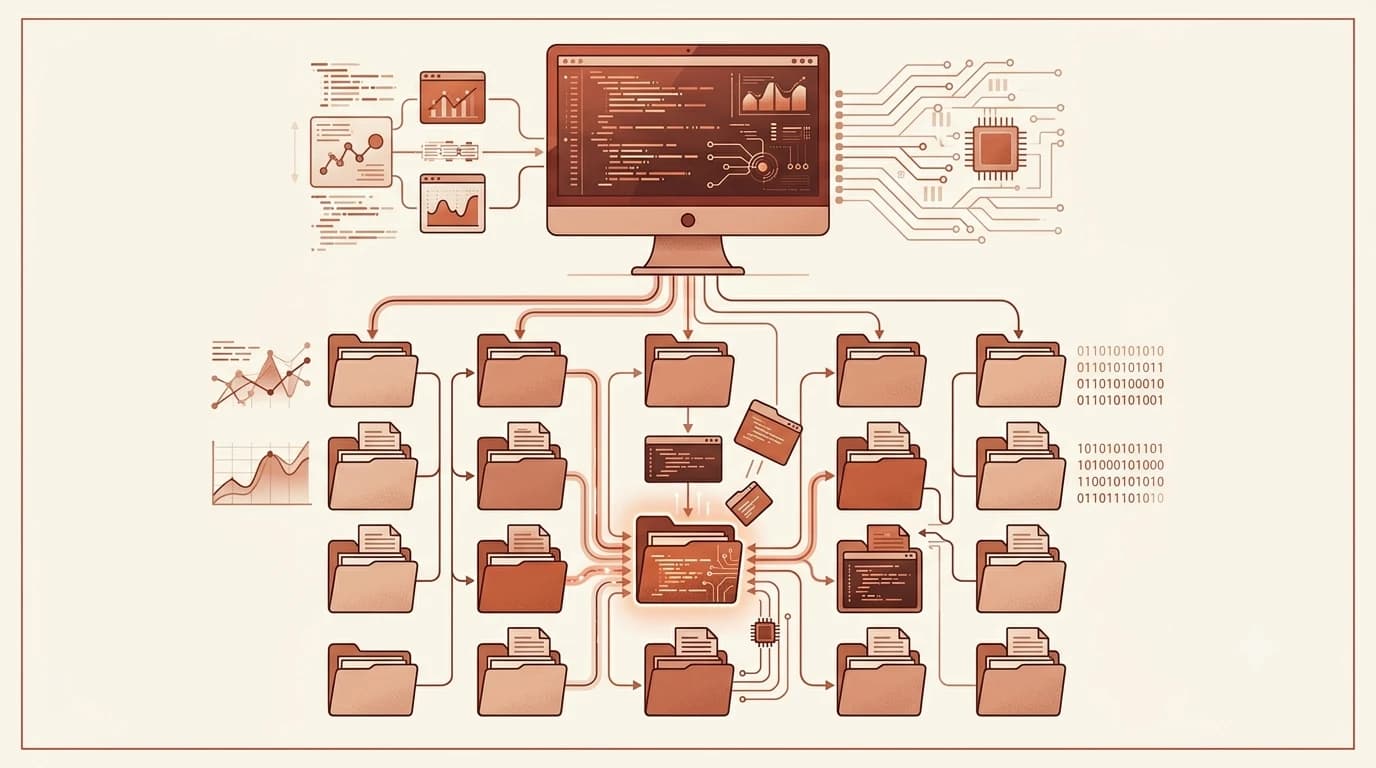
When you type python in the terminal, your computer doesn't search your entire hard drive. That would take forever. Instead, it checks a specific list of folders, one by one, looking for an executable file named python. That list is called PATH. Without it, you'd have to type the full folder path every time you ran anything — something like C:\Users\You\AppData\Local\Python\python.exe instead of just python.
Think of it like a list of addresses. Your computer follows the list in order. The first address that contains what it's looking for, that's where it runs the command from. If none of the addresses have it, you get "command not found."
You can see your own PATH list right now. Open your terminal and run:
# Mac or Linux
echo $PATH

# Windows (PowerShell)
echo $env:PATH
You'll get a long string of folder locations. On Mac and Linux, folders are separated by colons. On Windows, they're separated by semicolons. Somewhere in that list, you should see folders with names like Python, nodejs, or git, those are the tools that your terminal can find.
If the output looks like a wall of text, that's completely normal. You don't need to understand all of it. Just scan for folder names that mention the tool you're looking for.
Why your terminal can't find your tool
Here's what actually happened when you installed Python and got "command not found": the Python executable was placed on your hard drive, but its folder wasn't added to PATH. That phrase is one of a handful the terminal reuses constantly, and learning to read terminal errors tells you which ones mean a PATH problem and which mean something else entirely.
The installer had an option to do this automatically. On Windows, it's a checkbox during the Python installation, "Add Python to PATH", and it's easy to miss because it's unchecked by default in some versions.
Windows users: when installing Python from python.org, look for the checkbox that says "Add Python to PATH" at the bottom of the first installer screen. If you didn't check it, that's almost certainly why your terminal can't find Python.
On Mac, most installers handle PATH registration automatically. If you installed Python using Homebrew (a popular Mac package manager), it almost certainly registered itself correctly. If you downloaded the .pkg installer from python.org, it should also add Python to PATH for you.
Node.js and Git installers on both platforms are generally reliable about registering themselves. The main culprit for beginners is Python on Windows.
The same logic applies to any tool: if the installer doesn't register the tool's folder in PATH, the terminal won't know it exists, even if the tool is sitting right there on your hard drive.
How to check in 30 seconds
Before reinstalling anything, run the diagnostic command from above and look for the tool name in the output. I've seen people spend an hour uninstalling and reinstalling when the real issue was just an unchecked checkbox — running this check first tells you exactly what's missing in 30 seconds.
# Mac or Linux
echo $PATH

# Windows (PowerShell)
echo $env:PATH
What a working PATH looks like (Mac example):
/usr/local/bin:/usr/bin:/bin:/usr/local/opt/python@3.12/bin:/usr/local/opt/node/bin
In this example, both Python and Node are registered, you can see their folders in the list.
What a broken PATH looks like:
/usr/local/bin:/usr/bin:/bin
No Python folder. That's why python returns "not found."
If you can see the tool's folder in the PATH output, the tool is registered, restart your terminal and try again. Sometimes a fresh terminal session is all it takes. If the folder isn't there, you need to reinstall.
After reinstalling, always close your terminal completely and open a fresh one before testing. The terminal reads PATH when it opens, if it was already open during the reinstall, it won't know about the change.
The fix
How PATH registration works across platforms
| Platform | How tool gets added to PATH | What to do if missing |
|---|---|---|
| Windows | Checkbox during installation (often unchecked by default) | Reinstall and tick "Add to PATH" |
| Mac (Homebrew) | Homebrew handles it automatically | Run brew reinstall [tool] |
| Mac (.pkg installer) | Installer adds to PATH automatically | Reinstall from official site |
| Linux | Package manager handles it | Reinstall via apt, yum, or dnf |
For most beginners, the answer is a clean reinstall, not manually editing PATH. Manually editing PATH is possible, but it's easy to make mistakes and there's no need to go there when a reinstall is faster and safer.
If Python is missing: Reinstall from python.org/downloads. On the first installer screen, check "Add Python to PATH" before clicking Install Now. See the install Python lesson if you need a refresher on the full process.
If Node.js is missing: Reinstall from nodejs.org. The Node.js installer on both Windows and Mac registers itself automatically, just run through the installer normally. See the install Node.js lesson if needed.
If Git is missing: Reinstall from git-scm.com/downloads. The Git installer on Windows defaults to adding Git to PATH, leave the installer settings at their defaults.
After reinstalling, open a fresh terminal and run:
python --version
node --version
git --version
If you see version numbers, you're done.
Your Task
Find your tools in PATH
Open your terminal and run:
# Mac or Linux
echo $PATH

# Windows (PowerShell)
echo $env:PATH
You'll see a long list of folder locations separated by colons (Mac/Linux) or semicolons (Windows).
Look for folder names that mention Python, node, or git.
If Python is missing: reinstall from python.org and make sure "Add Python to PATH" is ticked.
If Node.js is missing: reinstall from nodejs.org.
After reinstalling, open a fresh terminal and run python --version, node --version, and git --version. All three should show version numbers.
Done? You've completed Lesson 03.09.
Understanding the PATH environment variable is one of those things that seems confusing the first time and obvious the second. You now have both the mental model and the fix. Explore the full setup sequence in the Getting Started path, which walks you through every tool installation in order.
FAQ