What Is Aider AI Coding Tool? Git-Native Explained
What is Aider AI coding tool? It's a free terminal tool that auto-commits every AI edit to Git, so you always know what changed and why.

You let an AI tool rewrite a function. It looks fine. You move on. Two days later something's broken, and you have no idea which of the last five AI edits caused it, because none of them left a trace you can point to.
What is Aider AI coding tool? It's a free, open-source tool that runs in your terminal and fixes exactly that problem: every change it makes gets its own Git commit, automatically, with a message describing what changed. In this lesson you'll learn how that auto-commit workflow works and how to run your first Aider session. By the end you'll know when to reach for it instead of Cline.
Key Takeaways
- Aider is a free, open-source AI coding tool that runs entirely in your terminal, not inside a specific editor
- Every AI-made edit becomes its own Git commit with a descriptive message, automatically
- Typing
/undoinstantly reverts the last AI change, no manual Git commands needed- It works with 30+ model providers, including Claude, GPT-4o, Gemini, and free local models
- It's the strongest pick when you want a clean, reviewable history of every AI change, separate from your own
What Is Aider AI Coding Tool?
Aider is a free, open-source AI coding assistant (Apache-2.0 license) you run from the command line inside an existing Git repository. You point it at a few files, describe what you want changed in plain English, and it edits the code directly, committing each change to Git as it goes, according to the official Aider documentation.
That last part is the whole reason it exists. Aider doesn't just make edits and leave you to sort out what happened. It commits its own changes with clear messages, separate from anything you typed yourself, so your project's history stays honest about who changed what.
Why Aider's Git-Native Workflow Matters
Remember the commit workflow from Module 04? Every real change gets its own commit with a message. git log tells the true story of a project, and git revert can undo exactly one mistake. Aider just automates that same discipline for AI edits.
Whenever Aider edits a file, it commits that change with a descriptive message before doing anything else. If you already had uncommitted changes sitting in that file, Aider commits those separately first, so your own work and its work never get tangled into one confusing commit, per Aider's git integration docs.
Run git log after any Aider session and you'll see its commits sitting right next to your own, each one labeled with what it changed. That's the same log you learned to read in Module 04, just with a new contributor.
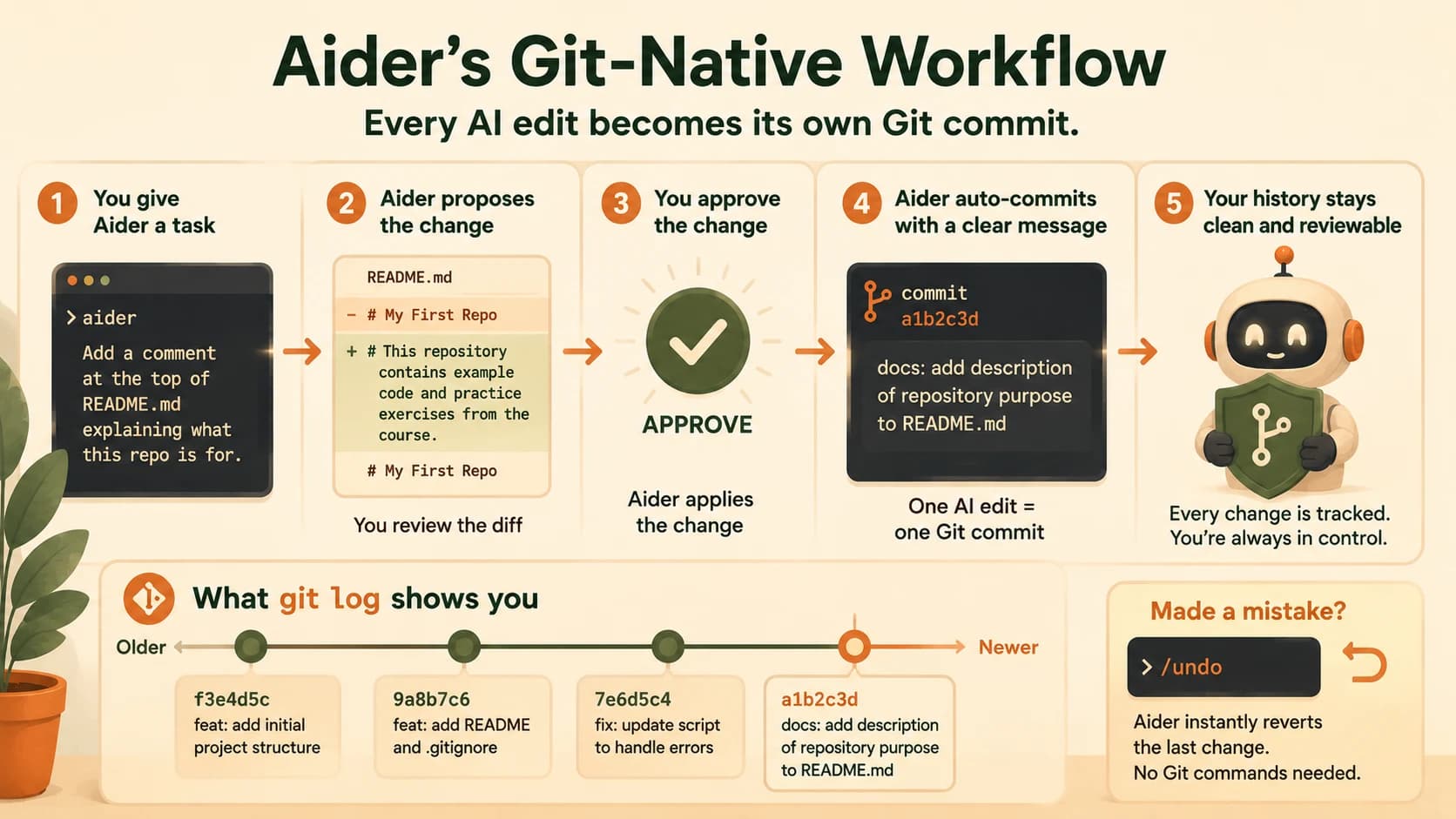
The first time I let an AI tool touch a real project without this kind of trail, I spent twenty minutes untangling which line broke a working script. I don't have that problem with Aider, because every change already has its own labeled commit waiting in git log. Skip this and an AI edit feels risky, since you can't tell what it touched or how to walk it back. Know it, and a bad edit is a one-line /undo or git revert away, never a mystery.
Aider vs Claude Code vs Cline: Where It Fits
All three are AI coding agents, but they live in different places and solve slightly different jobs. the Cline extension, covered last lesson, is a VS Code extension, so it only works inside that one editor. Aider and Claude Code both run in your terminal, but Claude Code is locked to Anthropic's models, while Aider works with any provider you want.
Aider vs Claude Code vs Cline
| Aider | Claude Code | Cline | |
|---|---|---|---|
| Where it runs | Any terminal, any editor | Terminal | VS Code extension only |
| Model choice | 30+ providers, or local | Claude only | 30+ providers, or local |
| Git behavior | Auto-commits every edit | Manual commits (you decide) | Manual commits (you decide) |
| Best for | Focused, single-file tasks with a clean history | Large multi-file refactors | Visual step-by-step approval inside VS Code |
| Cost | Free, pay per API call | Included in Claude plans, or pay per API call | Free, pay per API call |
Pick Aider when you want a fast, editor-agnostic tool for a specific fix and a Git history you can trust without thinking about it. Pick Claude Code when the task spans many interdependent files. Pick Cline when you want to watch every step inside VS Code before it happens. Grab the wrong one and you'll either overpay for a simple fix or watch a big refactor stall because your tool can't hold enough of the codebase in view at once.
How to Install and Run Aider
This Aider tutorial for beginners takes about five minutes if you already have Python installed from Module 05.
python -m pip install aider-install
aider-install
Then navigate into any Git repository and run aider. It'll ask which model provider to use; paste in the API key you already saved back in Module 05's .env setup.
On small edits, Aider sometimes shows you the whole file as the diff instead of just the changed lines. It's not a bug, just something that throws people off the first few times, until you get used to skimming past the unchanged parts.
Your Task
Time to see Aider's auto-commit behavior for yourself, using the same repo you set up back in Module 04.
Run Aider inside your Git repo
Install Aider:
python -m pip install aider-install
aider-install
Navigate into your my-first-repo folder from Module 04 (or any git-tracked project), then run:
aider
Ask it to make a small, safe change: "add a comment at the top of README.md explaining what this repo is for."
Review the diff it proposes, approve it, then run git log. You should see a new commit Aider created automatically, with a clear message describing exactly what it changed.
Done? You've completed Lesson 08.07.
Next up: What Is Kilo Code AI Extension? Full Breakdown, lesson 08.08 →
FAQ