Claude Code vs Cursor: A Beginner's Decision Guide
Claude Code and Cursor aren't rivals, they're peer environments. Install Claude Code, run your first terminal session, and learn when to use each.
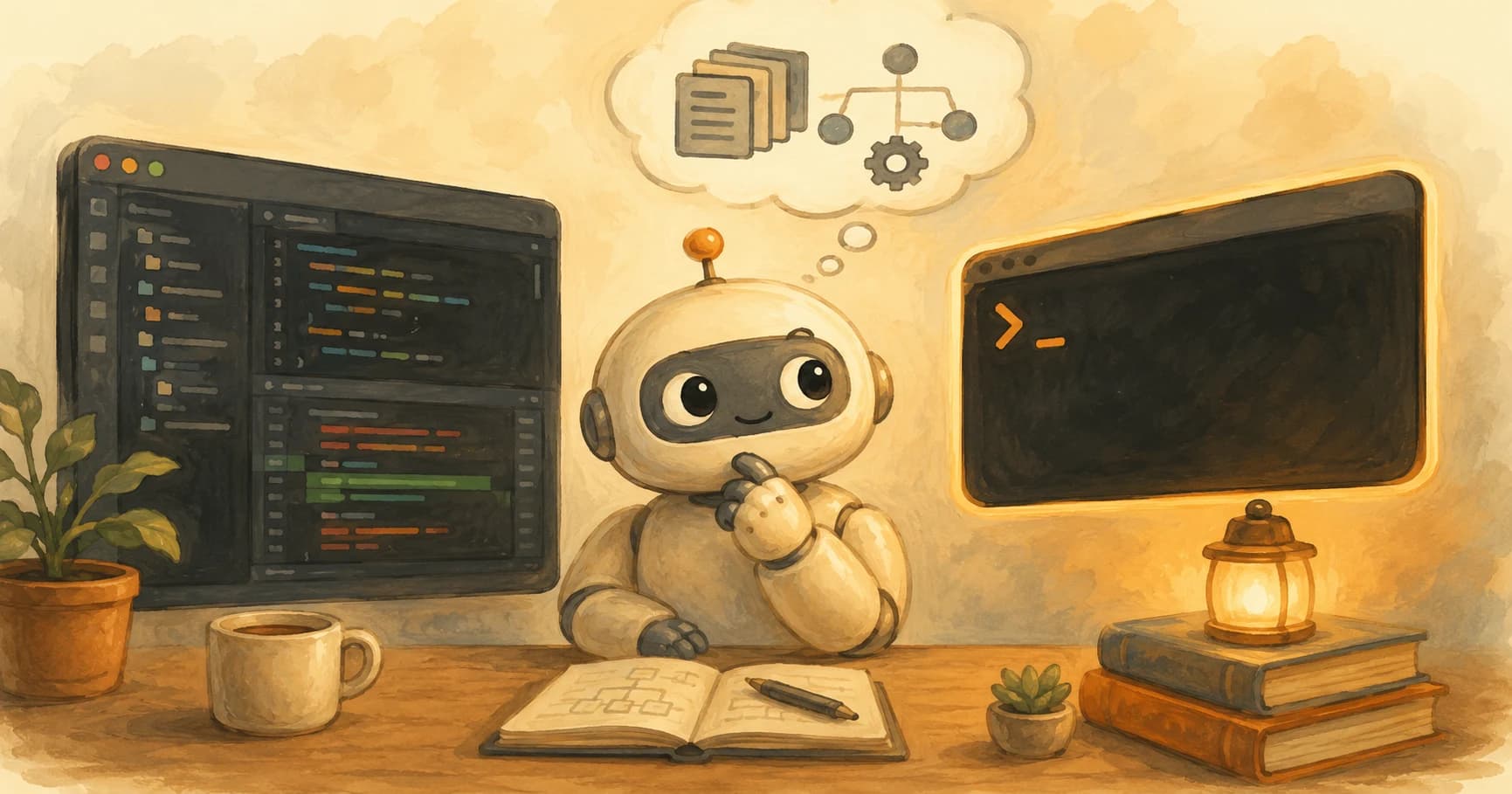
You type claude into your terminal for the first time, hit enter, and get back a blinking cursor on an otherwise empty line. No progress bar, no chat bubble, nothing rendering. For a few seconds it genuinely looks like nothing happened.
Claude Code and Cursor aren't competing tools you have to choose between, they're two peer environments for the same craft. Cursor is the editor you already installed in the last lesson; Claude Code is a terminal-based agent you'll now set up alongside it. This lesson covers what actually separates them, gets Claude Code installed and authenticated, and walks you through your first real session.
Key Takeaways
- Claude Code is a terminal agent, not a rival editor, install it and it runs beside Cursor, not instead of it
- The core adjustment is reading a plain-text log instead of watching a rendered diff, that's the whole terminal-first mental model
- Installing and authenticating Claude Code takes under two minutes, the full mechanical steps live in a dedicated lesson this one links to
- Working developers overwhelmingly report using both tools, routing by task rather than picking a winner
What's Actually Different Between Claude Code and Cursor?
Cursor is a full graphical editor, a fork of VS Code with AI built in; Claude Code is a command-line agent with no editor, no sidebar, and no visual diff view of its own.
That's the entire structural difference. Cursor shows you a file tree, syntax-highlighted code, and an inline diff you can accept or reject line by line. Claude Code shows you a scrolling terminal transcript: what it read, what it's about to change, and a plain-text summary of what it did. Both can read your whole project, both can edit multiple files, and both can run commands on your behalf, the difference is entirely in how they show you the work, not in what work they're capable of.
Miss this distinction and you'll do the thing almost every beginner does: open Claude Code expecting a Cursor-style diff view, panic when nothing renders, and quit before you've actually seen it work. If you want the fuller "what is Claude Code, and how does it compare to other tools" explainer, that groundwork is covered separately. This lesson assumes you already have Cursor working and is about adding Claude Code as a second, equally legitimate environment, not replacing anything.
The Terminal-First Mental Model
A terminal agent gives you no visual confirmation that it's working, that pause is normal, not a hang.
In Cursor, an AI edit renders as a colored diff in a familiar editor pane, so "did it work" is answered visually, instantly. Which Cursor mode produced that diff also decides how much you had to review before it landed, a question Claude Code answers differently, through the terminal log itself. Claude Code answers the same question with text: a line telling you it read a file, a line telling you it's editing another, a final summary of what changed. There's no flash of color to reassure you, just output you have to actually read.
I remember the first time I asked Claude Code to summarize an unfamiliar repo, expecting a vague paragraph back. Instead it came back with a clean, file-by-file breakdown, correctly flagging which module handled auth and which one was dead code nobody had deleted, all from reading the project cold.
Nothing rendered while it worked. The value only showed up once I actually read what it printed. That's the mental model shift this lesson is really teaching: trust the log, not the absence of a spinner. Once it clicks, a blank terminal stops feeling like a failure state and starts feeling like normal output waiting to be read.
If a bare terminal still feels unfamiliar on its own, separate from Claude Code entirely, Getting Started covers terminal basics from zero.
Installing and Authenticating Claude Code (the Short Version)
Installing Claude Code means running one native install command for your OS, then authenticating once through your browser, the whole thing takes under two minutes.
On macOS or Linux, run the official install command from a terminal; on Windows, run the equivalent PowerShell command, both are listed on Anthropic's official Claude Code docs. Neither requires Node.js if you use the native installer. The first time you run claude, a browser tab opens automatically so you can log in with your Anthropic account and approve the connection. That only happens once per machine. Once it's authenticated, the real payoff is watching it run an autonomous loop on a real task instead of a single suggestion.
This lesson deliberately keeps installation brief. The full install walkthrough covers the exact commands for every OS, dependency edge cases, and verification steps, if anything above doesn't go smoothly, that's where to look.
Once authenticated, claude works from any project folder, you don't reinstall or re-authenticate per project.
Running Your First Real Session
Your first Claude Code session should ask it to do something real, not just say hello, because reading actual output is the skill this lesson is building.
Open a terminal in a project folder (any real repo works, including one from earlier in this path) and run claude. Once the session starts, ask it directly to summarize the codebase, what it does, which files matter most, and anything that looks unfinished. Watch the transcript scroll. It will read files, and then print a structured answer back in the same terminal window.
Don't skim past the parts where it says what it's about to check, that's the log doing exactly what a rendered diff does in Cursor, just in text. The graded lab below has you do this for real and grade the result yourself.
When to Reach for Claude Code vs Cursor
The honest answer, backed by how working developers actually use both, is that you'll keep both installed and route by task rather than pick a permanent favorite. Plenty go one step further and run Claude Code in a terminal inside Cursor, which turns the routing decision into a single window rather than two.
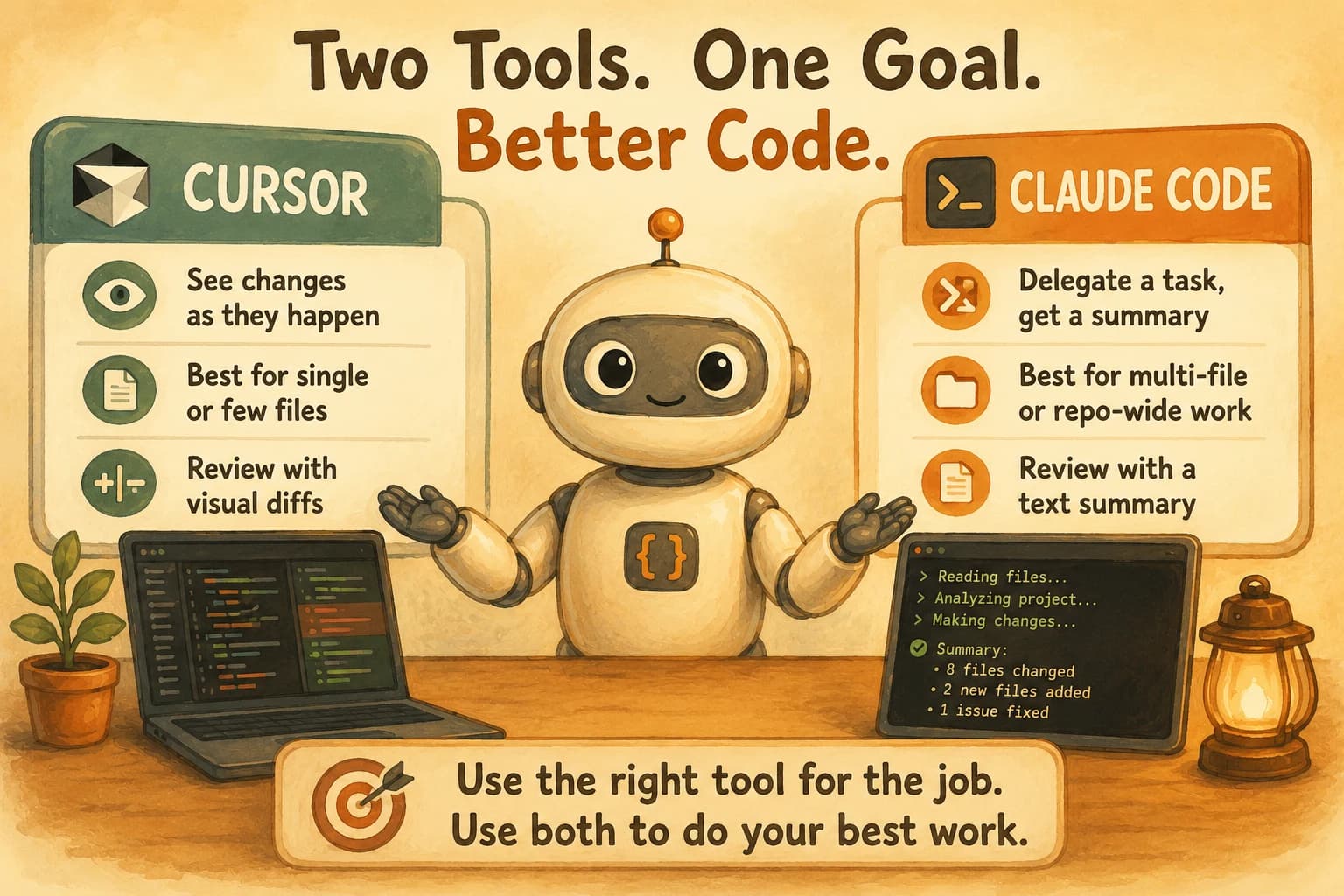
Three questions tend to decide it in the moment: do you want to watch every change happen live, or hand off a task and check the result after? Is the work confined to one file, or does it touch a pile of them? Do you want a visible diff to accept line by line, or a plain-text summary you review at the end?
Choosing between Claude Code and Cursor
| Question | Favors Cursor | Favors Claude Code |
|---|---|---|
| How involved do you want to be? | Watch each edit live | Delegate, review after |
| How many files does the task touch? | One or two | Many, across a repo |
| What kind of review do you want? | Line-by-line visual diff | A read-through of a text summary |
Developers who've used both for a while consistently land on the same answer, one widely-cited 2026 comparison puts it plainly: rather than debating which is better, experienced developers keep subscriptions to both.
Neither replaces the other, they cover different moments in the same workday. Cursor stays open for the moment-to-moment editing; Claude Code runs alongside it for the tasks you're comfortable handing off fully. You'll build that same instinct across the rest of this path, this lesson is just the first time you'll feel the difference directly.
Your Lab
You've now got Claude Code installed, authenticated, and you understand why a quiet terminal isn't a broken one. This lab proves it on a real repo, not just on paper.
Run your first session
Open a terminal in a real project folder and run claude. Once it starts, ask it to summarize the repository, what it does, which files matter most, and anything unfinished.
Read the full transcript
Read the entire terminal output before doing anything else, don't skip to the final summary. Notice which parts read like a diff would in Cursor, just in text.
Grade what it got right and wrong
Compare its summary against what you actually know about the repo. Write down two things it got right and one thing it got wrong or missed.
Log it
Paste the session transcript into learning-log.md in your repo, along with your two-right/one-wrong note from Step 3.
Done? You've completed Lesson 14.03.
FAQ