claude mcp add: Command Syntax, Scopes & Team Setup
claude mcp add connects Claude Code to any MCP server. The exact command, what project vs user scope controls, and how to share config with your team.

To add an MCP server to Claude Code, run claude mcp add <name> -- <command> for a local server, or claude mcp add --transport http <name> <url> for a remote one. By default the server is registered at local scope, meaning it's private to you and only loads in the project where you added it. Use --scope project to commit the config to .mcp.json so your whole team gets the same server, or --scope user to make it available to you across every project on your machine.
Below: what each transport flag does, how the three scopes actually differ (most blog posts get the precedence order backwards), how to share a server with your team without leaking a credential, and the one gotcha that trips up almost everyone the first time they try it. Full command reference: Claude Code's official MCP docs.
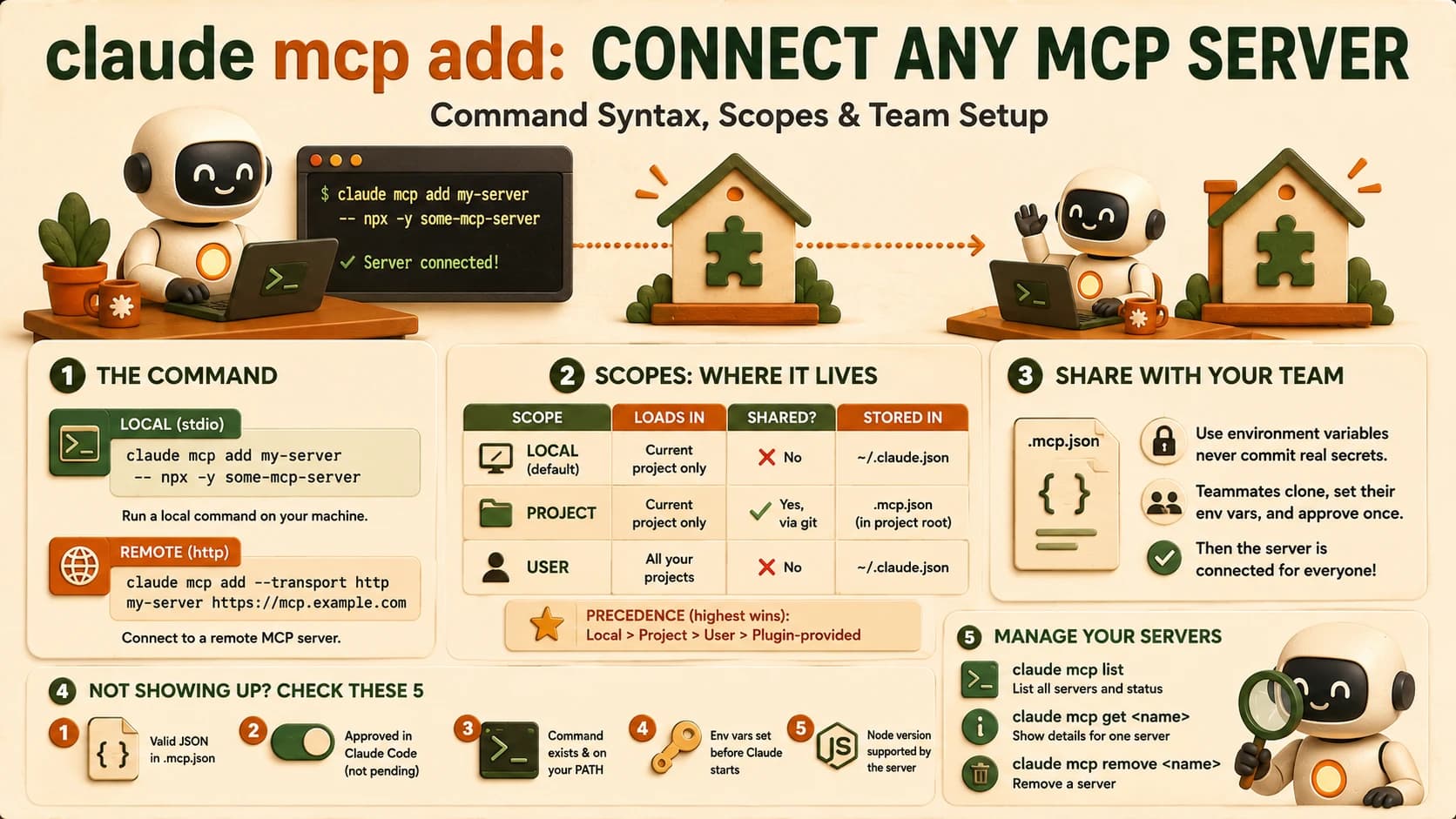
The claude mcp add Command and Its Three Transports
The transport you pick determines how Claude Code talks to the server: as a local process, or over the network. If you haven't yet seen how the host, client, and server pieces fit together, MCP's architecture covers that lifecycle first.
stdio runs the server as a local process on your machine. This is the right choice for a filesystem tool, a local database connector, or anything that needs direct access to your machine.
claude mcp add --transport stdio my-server -- npx -y some-mcp-server
The -- matters. Everything before it is Claude's own flag (--transport, --env, --scope); everything after it is passed straight to the server, untouched. Drop the -- and add a server whose own arguments look like flags (say, python server.py --port 8080) and Claude Code tries to parse --port as one of its own options instead of the server's. That's the single most common copy-paste failure with this command.
http is the current standard for remote servers: regular HTTP requests with optional streaming, and the transport most hosted MCP servers (Notion, Sentry, Stripe) expose.
claude mcp add --transport http notion https://mcp.notion.com/mcp
sse (Server-Sent Events) still shows up on a handful of older remote servers, but it's deprecated. Use http wherever the server documentation offers a choice.
claude mcp add --transport sse my-legacy-server https://mcp.example.com/sse
What Scope Actually Controls
Scope decides which projects a server loads in and whether your teammates get it too, and it's the part almost every tutorial explains loosely enough that people copy the wrong assumption.
The three scopes at a glance
| Scope | Loads in | Shared with team | Stored in |
|---|---|---|---|
| Local (default) | Current project only | No | ~/.claude.json |
| Project | Current project only | Yes, via version control | .mcp.json in project root |
| User | All your projects | No | ~/.claude.json |
If the same server is defined at more than one scope, Claude Code doesn't merge the definitions. It uses the entire entry from whichever scope wins, in this order: local beats project, project beats user, user beats a plugin-provided server. That's worth memorizing directly, because several widely-read setup guides state the opposite: they claim project scope overrides user scope only, or skip local entirely. If you've ever added the same server name at two scopes and gotten confused about which config actually ran, this is why.
# local (default) — just you, this project
claude mcp add --transport http stripe https://mcp.stripe.com

# project — everyone on the repo, via .mcp.json
claude mcp add --transport http shared-db --scope project https://example.com/mcp

# user — every project on your machine, just you
claude mcp add --transport http hubspot --scope user https://mcp.hubspot.com/anthropic
As of mid-2026, two GitHub issues against the Claude Code repo confirm that --scope user writes the server into ~/.claude.json keyed to your current project path rather than a true machine-wide entry, so a brand-new project directory doesn't always inherit a user-scoped server the way "available across all projects" implies: issue #32939 and issue #37165. Both were closed as "not planned," meaning the behavior stays as-is rather than getting fixed. If a user-scoped server isn't showing up somewhere you expected it, this known behavior is the first thing to check, not your own config.
Sharing a Server With Your Team via .mcp.json
The whole point of project scope is that a teammate who clones your repo gets the same MCP tools without redoing your setup. If committing config to a repo isn't yet familiar territory, the Getting Started path covers Git basics first.
claude mcp add --transport stdio db --scope project -- npx -y @bytebase/dbhub --dsn "postgresql://readonly:pass@prod.db.com:5432/analytics"
That command writes a .mcp.json at the repo root:
{
  "mcpServers": {
    "db": {
      "type": "stdio",
      "command": "npx",
      "args": ["-y", "@bytebase/dbhub", "--dsn", "postgresql://readonly:pass@prod.db.com:5432/analytics"]
    }
  }
}
Committing that file with a raw connection string or API key baked in is the wrong move. The moment it's in git history, it's exposed to anyone with repo access, past or future. Claude Code supports environment variable expansion in .mcp.json specifically so you don't have to do that:
{
  "mcpServers": {
    "db": {
      "type": "stdio",
      "command": "npx",
      "args": ["-y", "@bytebase/dbhub", "--dsn", "${DB_CONNECTION_STRING}"]
    }
  }
}
Each teammate sets DB_CONNECTION_STRING in their own environment. The committed file never contains a real secret, and the server still works identically for everyone.
The Fresh-Clone Trap
A server showing up correctly in .mcp.json is not the same as a teammate's Claude Code actually connecting to it. There's one approval step in between that catches almost everyone the first time.
For security, Claude Code doesn't auto-trust project-scoped servers from a file it didn't write itself. The first time you run claude in a folder containing an unapproved .mcp.json, you get a workspace trust prompt; until you accept it, every server in that file sits at Pending approval, visible but not connected.
The first time I committed a .mcp.json and cloned the repo fresh to test it, the server sat at ⏸ Pending approval in claude mcp list and I spent a good ten minutes assuming the config itself was broken, checking the JSON syntax twice, before realizing Claude Code was just waiting on the trust dialog, not the config. Running claude interactively in the cloned folder and accepting the prompt was the entire fix.
That means your team-sharing task isn't done when .mcp.json is committed. It's done when a fresh clone runs claude, accepts the trust prompt once, and the server shows ✔ Connected. That's the real success criterion, not just "the file has the right JSON in it."
Managing Your Servers
Once servers are configured, a handful of commands cover the rest of the workflow:
claude mcp list          # every configured server, with health status
claude mcp get <name>    # details for one server
claude mcp remove <name> # delete a server's config
Inside a session, /mcp shows the same status list plus the option to re-authenticate or toggle a server off without removing its configuration. A server that reads ✘ Failed to connect in claude mcp list means Claude Code tried and couldn't reach it. Check the command or URL, not the list command itself.
Once you can add and share a server, the natural next question is which ones are actually worth connecting, and how to vet a third-party MCP server before you trust it with real access.
Your Lab
Register the same server at project scope
Take the MCP server you added to Cursor in 18.04 (a Postgres or filesystem server) and register it in Claude Code with --scope project, using an environment variable for any credential instead of a literal value.
Commit .mcp.json
Commit the resulting .mcp.json to your repo. Confirm the file itself contains no raw secret, only the ${VAR} reference in its place.
Clone the repo fresh
Clone the repo into a new folder (or have a teammate clone it), set the required environment variable there, and run claude inside it.
Accept the trust prompt and confirm connection
Accept the workspace trust dialog, then run claude mcp list and confirm the server shows ✔ Connected, not Pending approval.
Done? You've completed Lesson 18.05.
FAQ