Cursor Ask Mode vs Agent Mode: Which One to Use When
Ask mode reads and answers without touching files; Agent mode edits and runs commands. When to use each in Cursor, plus Tab and Cmd-K for quick edits.

You type a question into Cursor's chat, something simple like "why is this function returning undefined," and hit enter expecting an explanation. Instead, three files change. A diff you never asked for is sitting there waiting to be accepted or thrown away, and now you're debugging your debugging question.
Cursor agent mode vs ask mode comes down to autonomy, not features. Agent, Plan, Ask, and read-only are one dial that controls how much control the model has over your code, from "just look and tell me" to "go make the change and run the tests." Picking the wrong setting is why a question turns into an unwanted edit. This lesson teaches you to read that dial by the stakes of the task, then covers the fast, low-risk everyday tools, Tab completion and Cmd-K, that you reach for constantly before you ever need to touch the dial at all.
Key Takeaways
- Cursor's modes map directly to autonomy level: read-only and Ask only look and explain, Plan researches and proposes a reviewable step list, Agent reads, edits, and runs commands across files
- The right mode is chosen by blast radius and reversibility, not by habit or whichever one is fastest to reach
- Tab completion and Cmd-K are the manual gears: fast, scoped, and reviewed one diff at a time, mastered before you lean on Agent for everything
- The same tiny bug fixed in Ask, then Plan, then Agent shows a real speed-versus-control trade-off, not a theoretical one
- Defaulting to Agent mode for everything quietly trains you to stop reading your own diffs
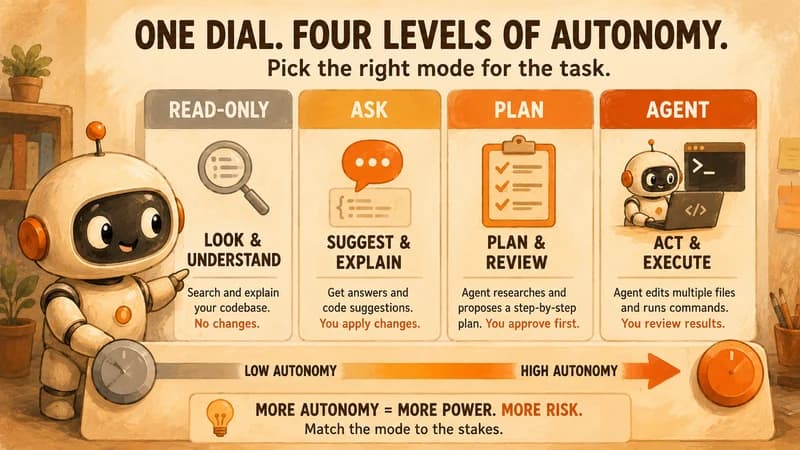
Cursor Agent Mode vs Ask Mode: Four Modes Are Risk Dials, Not Buttons
Cursor's four chat modes are a single autonomy dial, and the setting you pick should track how expensive a wrong guess would be, not which one feels fastest. If you installed Cursor in the last lesson and only ever touched the mode picker once to make the default popup go away, this is where that setting actually starts to matter.
Read-only is the lowest setting: Cursor can search and explain your codebase but cannot write anything, ever, no matter what you type. Ask mode sits one notch up: it can suggest code changes in the chat window, but nothing gets written to your files until you copy it yourself. Plan mode is the deliberate middle setting: instead of writing code immediately, the agent researches your repo, asks clarifying questions if it needs to, and hands you back an editable step-by-step plan before touching a single file, exactly as Cursor's own Plan Mode announcement describes it. Agent mode is the top of the dial: it reads relevant files, proposes and applies multi-file edits, and can run terminal commands like tests or installs, pausing at checkpoints for your approval rather than for every keystroke.
The mistake that opened this lesson happens because Agent mode is the default in most Cursor setups, and it's genuinely quick to forget which setting the dial is on. If you only wanted an explanation and Agent silently rewrote three files while you were mid-thought, that's not a bug in Cursor, that's the dial sitting one notch too high for the question you actually asked.
A rough way to hold the four settings in your head:
- Read-only → I want to look, nothing else.
- Ask → I want to think out loud with the model, I'll copy what's useful.
- Plan → I want a reviewable plan before anything gets touched, because a wrong first guess here would be expensive.
- Agent → I trust this change enough to let the model make it and run whatever checks it needs.
The Same Bug, Three Ways: Ask, Plan, Agent
The clearest way to feel the difference between modes is to run the identical tiny task through all three and notice what changes, not to read a table of features.
Say you've got a function that's supposed to filter out expired coupon codes but is returning the expired ones instead, a classic inverted-condition bug. Here's the same bug worked through each setting.
In Ask mode, you paste the function and ask what's wrong. Cursor reads it, replies that the comparison operator is backwards, code.expiresAt < now should be code.expiresAt > now, and shows you the corrected line in the chat. Nothing in your file changes. You decide whether to copy it in, and you do, by hand, in about ten seconds. Total time: maybe 30 seconds, but you did the actual editing.
In Plan mode, you describe the bug and ask for a fix. Cursor first states what it found: the inverted operator, plus what else touches that function, two call sites and one test file. It proposes a one-step plan: flip the operator, then re-run the existing test suite. You read the plan, it looks right, and you approve it. Only then does the edit and test run happen. Total time: closer to a minute, but you got a second look at blast radius before anything changed, which matters if that function guards a payment flow instead of a coupon list.
In Agent mode, you describe the bug and Agent just fixes it: flips the operator, runs the test file, sees green, and reports back what changed and why the tests still pass. Total time: maybe 15 seconds of your attention, but you reviewed the diff after the fact instead of before.
I've run this exact three-way comparison on real bugs more times than I can count. The honest takeaway is that Agent mode is not "better," it's faster and less reviewed. For a one-line coupon-filter fix, that trade is fine. For anything touching money, auth, or data you can't easily restore, Plan mode's extra thirty seconds of review before the edit happens is the cheapest insurance you'll find in this entire tool.
The Manual Gears: Tab Predictive Completion
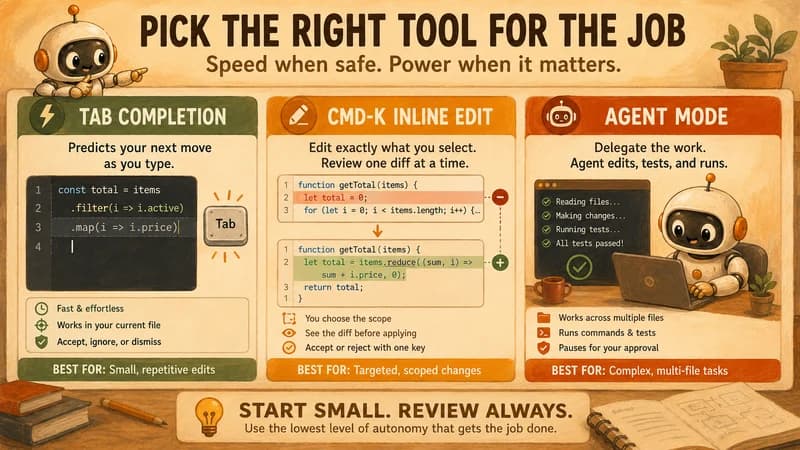
Tab completion is Cursor predicting your next few keystrokes as you type, and accepting or rejecting a prediction takes one keypress, which makes it the lowest-friction tool in the entire editor.
As you type, gray "ghost text" appears ahead of your cursor when Cursor is confident about what comes next: a closing bracket, the rest of a variable name, a repeated pattern from three lines up. Press Tab to accept it, keep typing to ignore it, or press Escape to dismiss it outright. When the suggestion would change code you already wrote rather than just add new code, Tab swaps to a small diff popup beside the line instead of ghost text. That way you never silently overwrite something without seeing the before and after.
Tab's real limitation, and it's worth knowing honestly rather than discovering it mid-task, is that it's tuned for narrow, local context: the file you're in and whatever you've had open recently. It is not doing a full-repository search the way Agent mode can. If you're expecting Tab to "know" about a function defined in a file you haven't touched all session, it won't, and reaching for Cmd-K or Agent with an explicit file reference is the right move instead of waiting on a prediction that isn't coming. That's a different kind of context than the deliberate @-mentions covered next, but the same underlying idea: what the model can see, and what it's just guessing about, are two very different things.
One underused feature, confirmed in Cursor's own Tab documentation: after you accept a suggestion, pressing Tab again predicts your next editing location and jumps there, even across files when a change in one spot needs a coordinated update in another. On a repetitive edit, like renaming a variable across ten near-identical lines, that turns into a fast rhythm of tab, tab, tab that's genuinely quicker than any chat-based edit would be for the same job.
The Manual Gears: Cmd-K Scoped Edits and Inline Diff Review
Cmd-K is a scoped inline edit: you select exactly the code you want changed, describe the change in plain language, and review the result as a single diff before it becomes real.
The loop is always the same four steps. Select the lines you want touched. Press Cmd-K (Ctrl-K on Windows). Type what you want, "extract this into a helper function" or "add a null check here," and press Enter. Cursor returns a diff of just that selection, red for removed lines and green for added ones. Accept it with Cmd-Enter, or reject it and try again with a different instruction.
What makes Cmd-K the disciplined middle ground between Tab and Agent mode is scope: you decided exactly which lines are in play before the model touched anything, so there's no surprise about which files changed. That's a meaningfully different guarantee than Agent mode, where the model chooses which files to open based on what it judges relevant. For a scoped rename, a small refactor, or fixing one function you've already located, Cmd-K gives you Agent-mode-quality edits with Ask-mode-level certainty about blast radius, which is exactly why it's worth mastering before you start reaching for Agent out of habit.
Choosing the Right Dial for the Task
The right setting for any given edit comes down to three questions: how many files does this touch, can I undo it easily if it's wrong, and how sure am I already about the fix.
Blast radius is how many files and systems the change could realistically affect. A one-line coupon-filter fix has a blast radius of one function. A refactor of your authentication middleware has a blast radius of everything downstream of it. Reversibility is how expensive a wrong version is to walk back, a git revert on a feature branch is cheap, a bad migration that already ran against a shared database is not. Certainty is how confident you already are in the fix before the model gets involved. If you already know exactly which line is wrong, you don't need Plan mode's research step, you need Cmd-K's speed. This is the same dial Claude Code's permission tiers apply from the terminal instead of an editor. The tool changes, the underlying question, how much do I trust this change unreviewed, doesn't.
Comparing the four settings by these dimensions
| Mode | Blast radius handled | Reversibility needed | Best when certainty is |
|---|---|---|---|
| Read-only | None (no writes) | N/A | You just need to understand something |
| Ask | Single suggestion, manual apply | High (you control the copy-paste) | Low to medium |
| Plan | Multi-file, reviewed before writing | Medium (plan catches mistakes early) | Low |
| Agent | Multi-file, applied then reviewed | Low-risk changes only | High |
| Cmd-K | Exactly your selection | High (scoped diff) | Medium to high |
Once you can answer those three questions honestly for a task, the mode choice mostly picks itself. The habit worth building is asking them at all, before you open the chat window, not defaulting to whichever mode happened to be selected last time. This is the same judgment call this whole path keeps coming back to: learning to build inside the tools professionals actually use means learning their controls on purpose, not by accident.
Your Lab
Reproduce the same tiny bug three times
Open Cursor on any small project (or create a five-line function with an intentionally inverted condition, like the coupon-filter example above). Fix it once in Ask mode, copying the suggested change in by hand. Undo it. Fix it again in Plan mode, reading the proposed plan before approving it. Undo it. Fix it a third time in Agent mode, letting it apply and test the change directly.
Refactor using only Cmd-K and Tab
Find or write a roughly 30-line function in the same project. Without switching to Agent mode at all, refactor it using only Cmd-K (for scoped, described changes) and Tab (for accepting predicted completions). Break it into at least one smaller helper function this way.
Write your 150-word comparison
In a plain text file or a comment at the top of your project, write exactly 150 words comparing control versus speed across the three chat modes and the two manual tools. Name at least one concrete moment where you noticed the trade-off directly, not a general statement about it.
Done? You've completed Lesson 14.04.
FAQ