How to Build an MCP Client in Python (Step by Step)
Build an MCP client in Python from scratch: connect to your FastMCP server, discover its tools, call one, and check for is_error correctly.

I registered my notes server in Claude Code back in the last lesson, typed a query, and watched it call add_note without me writing a line of connection code. Then I tried to do the same thing from a plain Python script, and the first version just hung: no error, no tools, no response, forever.
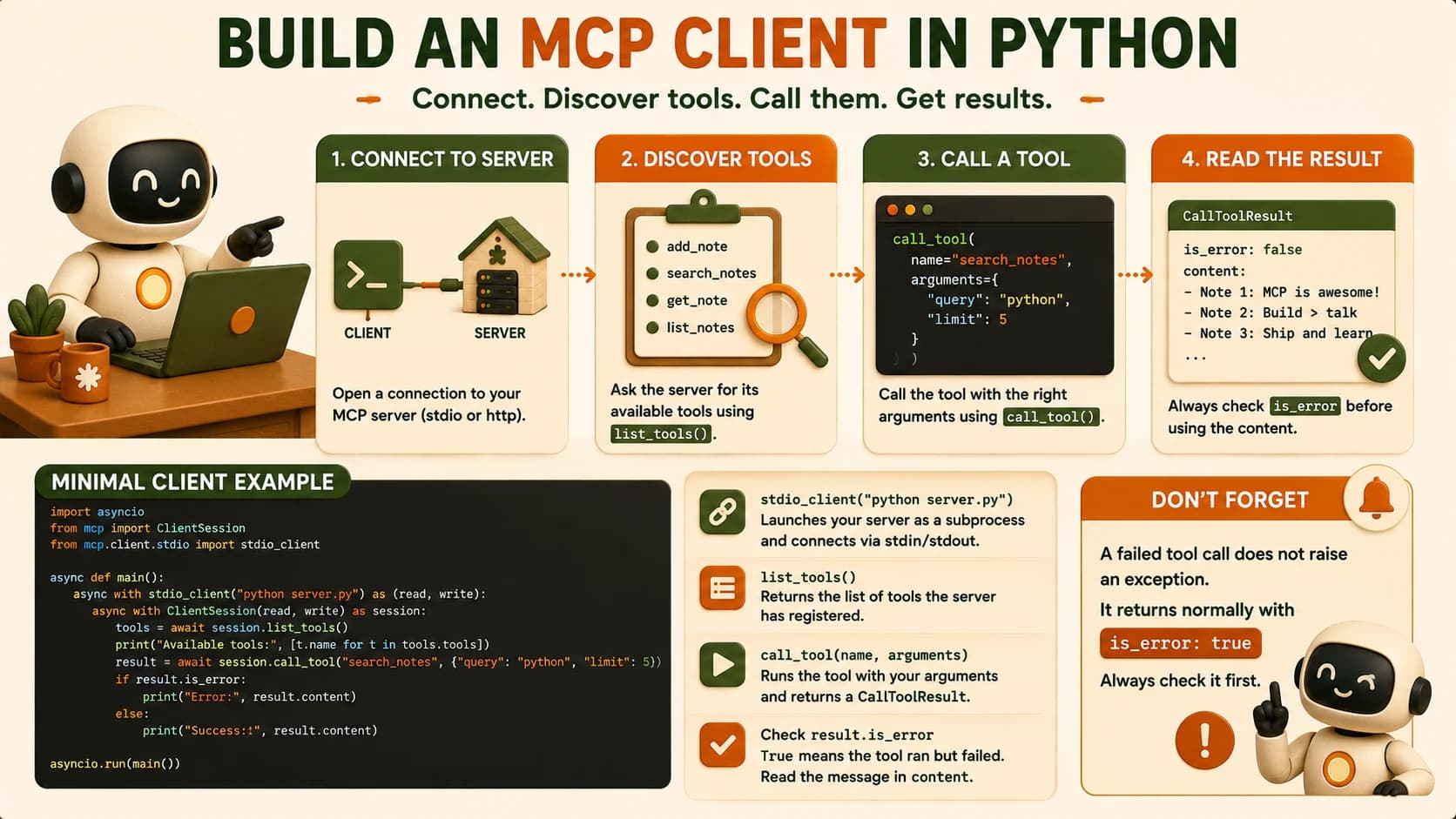
Building an MCP client means writing the code that opens a connection to a server, asks it what tools exist with a list_tools call, and calls one with call_tool when it's needed. That's exactly what Cursor and Claude Code are doing behind the scenes every time they "connect" to a server, and building one yourself is how that hang stops being a mystery.
Key Takeaways
- An MCP client owns one connection to one server: it discovers tools, calls them, and hands results back to a model
list_tools()andcall_tool()are two separate concerns, and debugging them separately makes failures much easier to isolate- Stdio transport means the client launches your server as a subprocess and talks to it over stdin/stdout, not a network port, so stdout has to stay clean
- A failed tool call returns normally with
is_error: true, it doesn't raise, which is the single most common place a homemade client misreads failure as success- This client connects to the exact FastMCP server from the last lesson, so the two pieces you've now built are the full MCP loop, end to end
What Does an MCP Client Actually Do?
A client is the piece of code that turns "the model wants to search notes" into an actual request-response exchange with a server, and it's the same role MCP's architecture lesson already named. When you registered your FastMCP server in Claude Code, Claude Code's built-in client did three things for you automatically: opened the connection, called list_tools, and routed every call_tool the model asked for. It's a small, learnable API surface once you see it laid out in your own code.
That's the gap most MCP tutorials leave open. Server tutorials are everywhere; almost none of them show what's happening on the other end of the wire, so "connecting to a server" stays a black box even for people who can write a server from scratch. Writing the client side yourself closes that gap for good, because you'll never again wonder what a host is doing when it says "connected."
It also splits a "my MCP setup isn't working" problem into two independently debuggable halves for the first time. Up to this lesson, if a tool call failed inside Claude Code, the failure could be in your server, in the host's client, or somewhere in between, with no way to isolate which. Once you own the client code too, you can call your server directly, outside any host, and see exactly what it returns before a model ever gets involved.
Connecting to Your Server Over Stdio
A stdio-based MCP client launches the server as a subprocess and talks to it over stdin and stdout, not a network port, which is why the connection code is closer to subprocess.Popen than to anything with a URL. Your client needs to know one thing to get started: which command starts your server.
import asyncio
import sys

from mcp import Client, StdioServerParameters
from mcp.client.stdio import stdio_client

def server_params(server_script_path: str) -> StdioServerParameters:
    """Describe the subprocess that runs the target MCP server."""
    if not server_script_path.endswith(".py"):
        raise ValueError("This client expects a Python server script")
    return StdioServerParameters(command="python", args=[server_script_path])
StdioServerParameters only describes the subprocess, it doesn't start anything yet. The actual connection opens when a Client enters its async with block, and closes automatically when that block ends, so there's no manual connect/disconnect pair to get wrong.
I lost twenty minutes to a client that hung with no output at all, and the cause was a print() statement I'd left inside search_notes on the server for debugging. Over stdio, stdout is the protocol wire: every byte on it has to be valid JSON-RPC, and one stray print line corrupts the stream, so the client sits there indefinitely reading garbage instead of a real response. Debug output on a stdio server always goes to stderr, never stdout.
Discovering Tools at Runtime
Calling list_tools() is how a client finds out what a server can do without either side hardcoding anything in advance, and it's a separate step from actually calling one.
async def main() -> None:
    if len(sys.argv) < 2:
        print("Usage: python client.py <path_to_server_script>")
        sys.exit(1)

    async with Client(stdio_client(server_params(sys.argv[1]))) as client:
        tool_list = await client.list_tools()
        tool_names = [tool.name for tool in tool_list.tools]
        print("Connected to server with tools:", tool_names)
Run this against your notes server and you should see add_note, search_notes, and the rest printed back, the same list Claude Code shows you when it connects. If the list comes back empty or the process never gets this far, check the subprocess command and path first: that's almost always where this particular failure lives.
A server can also silently drop a tool with an invalid JSON Schema instead of erroring. Treat "my tool isn't showing up" as a schema problem on the server side first, before you go looking for a bug in the client code you just wrote.
Calling a Tool and Handling the Result
call_tool() sends the actual request, and the response comes back as a CallToolResult, whose content field is a list of typed blocks rather than a single string.
from mcp_types import TextContent

async def call_and_print(client: Client, tool_name: str, tool_args: dict) -> None:
    result = await client.call_tool(tool_name, tool_args)
    text = "\n".join(
        block.text for block in result.content if isinstance(block, TextContent)
    )
    if result.is_error:
        print(f"Tool call failed: {text}")
    else:
        print(f"Tool result: {text}")
A tool that fails doesn't raise an exception the way a broken function call normally would. It returns a completely ordinary CallToolResult, with is_error set to true and the failure message sitting inside content, same shape as success. Code that reads result.content without checking result.is_error will print that failure as if it were a real answer, which is exactly the "it succeeded but did nothing useful" bug people report most often. The official MCP client tutorial calls this out directly: check is_error rather than expecting a failing tool to raise.
Wiring It Into a Chat Loop
process_query() is the function that connects a typed query to an actual model, so a tool call happens because the model decided it should. It needs one thing you haven't set up yet: an Anthropic client, created from an API key in an environment variable, the same way you'd set one up for any script that calls Claude directly.
async def process_query(client: Client, model, query: str) -> str:
    messages = [{"role": "user", "content": query}]
    tool_list = await client.list_tools()
    available_tools = [
        {"name": t.name, "description": t.description, "input_schema": t.input_schema}
        for t in tool_list.tools
    ]

    response = model.messages.create(
        model="claude-opus-5", max_tokens=1000, messages=messages, tools=available_tools
    )

    final_text = []
    for content in response.content:
        if content.type == "text":
            final_text.append(content.text)
        elif content.type == "tool_use":
            result = await client.call_tool(content.name, content.input)
            final_text.append(f"[Calling tool {content.name} with args {content.input}]")
    return "\n".join(final_text)
That loop is the entire client-side story: list the tools, hand their descriptions to the model, let the model decide, call whichever tool it names, and read the result back. Cursor and Claude Code run a fuller version of exactly this. A real client takes one extra step this sketch skips: once content.name and the tool's result are in hand, it appends both to messages and calls the model a second time. That second call is what turns a raw CallToolResult into an actual sentence, rather than stopping at "[Calling tool search_notes]" and leaving you to read the output yourself.
Once this loop runs end to end against your own server, you've built an MCP client and finished the other half of the pair: a server that exposes real capabilities, and a client that discovers and drives them. The next lesson in this path takes both off localhost and onto a real deployment, and the client you just wrote keeps working exactly as it is, just talking to a server that no longer lives on your machine.
Your Lab
Set up the client project
In Cursor or Claude Code, create client.py in a new project, and install the MCP SDK and the Anthropic SDK (pip install mcp anthropic or uv add mcp anthropic). Set ANTHROPIC_API_KEY in your environment, you'll need it for Step 4.
Connect to your own server
Write the server_params and connection code from this lesson, pointing at the path to your notes_server.py from Lesson 18.07. Run python client.py notes_server.py and confirm the tool list prints, showing add_note, search_notes, and the rest.
Discover and call a tool
Add the list_tools and call_tool code, then call search_notes directly with a test query and print the result, checking is_error before you trust the output.
Drive it from a chat prompt
Wire in process_query from this lesson, type a chat prompt that requires searching your notes, and confirm the model calls the tool through your client rather than answering from its own memory.
Commit the transcript
Commit client.py to the same repo as your server, then paste the terminal transcript from Step 4 into learning-log.md and commit that alongside it.
Done? You've completed Lesson 18.08.
FAQ