Add an MCP Server to Cursor: Config, Location & Limits
Add an MCP server to Cursor with the exact mcp.json config, file location, the 40-tool limit, and fixes for a server that won't show up.

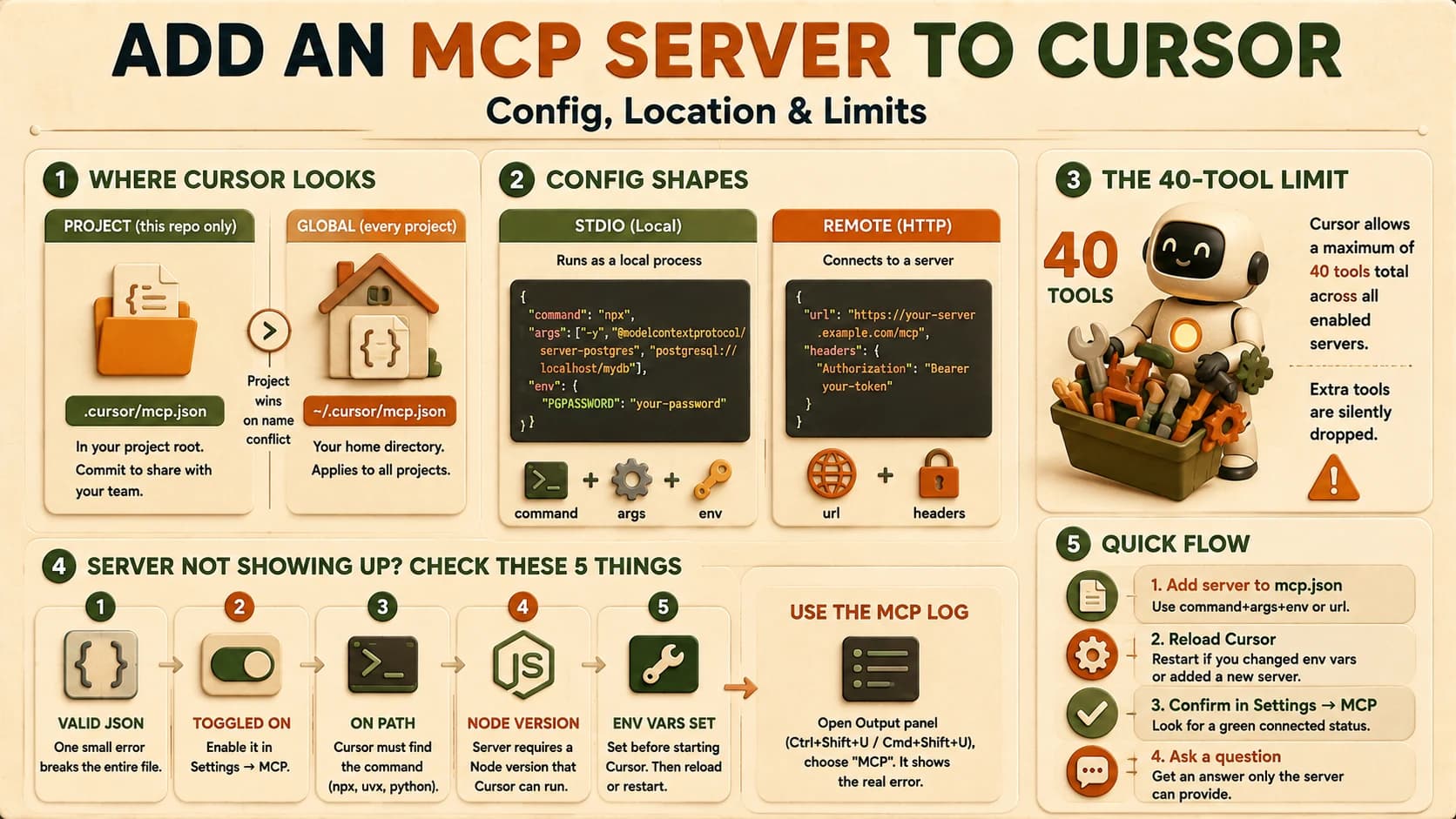
To add an MCP server to Cursor, drop an entry into .cursor/mcp.json (project-only) or ~/.cursor/mcp.json (every project), naming a command, its args, and any env variables the server needs, then reload the window:
{
  "mcpServers": {
    "postgres": {
      "command": "npx",
      "args": ["-y", "@modelcontextprotocol/server-postgres", "postgresql://localhost/mydb"],
      "env": { "PGPASSWORD": "your-password" }
    }
  }
}
Below: where each config file lives and which one wins, the shape of a stdio entry versus a remote one, the 40-tool ceiling Cursor enforces, and the ordered checklist for a server that silently refuses to appear. If you haven't yet covered what a server actually exposes, that's worth a quick pass first, this lesson assumes you know a tool from a resource.
Key Takeaways
- Cursor reads MCP servers from
.cursor/mcp.json(project) and~/.cursor/mcp.json(global); when a name collides, the project file wins- A stdio entry uses
command+args+env; a remote entry uses aurlinstead- Cursor caps the agent at 40 tools total across all enabled servers combined, not per server
- A server that won't show up is almost always invalid JSON, a disabled toggle, a bad PATH, or a missing env var read before Cursor started
Where Cursor Looks for MCP Config
Cursor checks two config files, and which one you use decides who else gets your setup. Project scope lives at .cursor/mcp.json in the repo root and applies only while that project is open; commit it and anyone who clones the repo gets the same servers automatically. Global scope lives at ~/.cursor/mcp.json on macOS/Linux or %USERPROFILE%\.cursor\mcp.json on Windows, and it loads for every project you open on that machine, regardless of what's in the repo.
Use project scope for anything tied to the codebase itself, a Postgres server pointed at that project's database, a filesystem server scoped to that repo's docs. Use global scope for servers you want everywhere, a general-purpose fetch or search server you'd reach for on any project. If you define a server with the same name in both files, the project-scoped one takes priority, which is the one gotcha worth remembering: a global server you thought was active can get silently shadowed by a project file that redefines the same name with different settings.
The project-scope file is what actually makes a team's setup reproducible: commit .cursor/mcp.json alongside the code, and the next person who clones the repo opens it in Cursor and gets the identical servers with zero manual configuration, no shared doc, no "ask Slack which MCP servers you need." That's worth doing even for a solo project, because it means your own setup survives a fresh machine or a wiped ~/.cursor folder intact.
The Shape of an mcp.json Entry
Every entry in mcpServers is either a local (stdio) server you launch as a subprocess, or a remote server you connect to over a URL, the same host/client/server roles and transport split covered in the official Cursor MCP documentation. The fields you set depend on which one it is.
A local server needs a command (the binary to run, often npx, uvx, or python), an args array (arguments passed to that command), and an optional env object for anything the server reads from its environment:
{
  "mcpServers": {
    "filesystem": {
      "command": "npx",
      "args": ["-y", "@modelcontextprotocol/server-filesystem", "/path/to/allowed/dir"]
    },
    "github": {
      "command": "npx",
      "args": ["-y", "@modelcontextprotocol/server-github"],
      "env": { "GITHUB_PERSONAL_ACCESS_TOKEN": "ghp_your_token_here" }
    }
  }
}
A remote server, one already running somewhere over Streamable HTTP or SSE, skips command entirely and points at a url instead, and can carry its own headers object for a bearer token or API key:
{
  "mcpServers": {
    "hosted-tools": {
      "url": "https://your-server.example.com/mcp",
      "headers": { "Authorization": "Bearer your-token" }
    }
  }
}
The -y flag in the npx examples above matters more than it looks: it tells npx to install the package non-interactively on first run instead of pausing on a confirmation prompt Cursor's spawned process can't answer, and a config missing it is a common reason a server hangs on its very first launch rather than failing outright.
One config, both shapes coexisting is fine, mix local and remote servers freely in the same mcpServers object. What isn't fine is mixing the fields, a command entry with a stray url key (or the reverse) is the kind of malformed config that fails without a clear error message.
Cursor's 40-Tool Ceiling
Cursor caps the agent at 40 total MCP tools active at once, combined across every enabled server, not 40 per server. Cross that line and Cursor warns "you have [X] tools from enabled servers, the limit is 40, some tools may not be available," then quietly sends only the first 40 and drops the rest, without telling you which ones got cut.
The reason isn't arbitrary. Every tool's name, description, and parameter schema gets embedded directly into the model's context on every single turn, whether or not that tool ever gets called. A handful of well-designed tools costs a few hundred tokens. Dozens of tools, especially from a server that exposes one endpoint per API method, can burn thousands of tokens before the model has read a single line of your actual request, and past a certain point that overhead doesn't just cost tokens, it measurably hurts tool-selection accuracy because the model has more near-duplicate options to sort through.
This is a real problem in practice, not a hypothetical one. The GitHub MCP server alone exposes more than 30 tools. Enable it plus almost anything else, and you're over the cap immediately.
I've had a filesystem server I actually needed for a task silently lose half its tools to GitHub's server eating the rest of the budget, with no indication in the UI of which ones went missing, just fewer capabilities than I expected. The fix is to disable servers per-project rather than leaving everything toggled on globally, keep only what a given task actually needs enabled in Settings → MCP.
This is the same context-budget tradeoff that shows up across agentic AI more broadly: every capability you hand an agent has a token cost before it does anything useful, and MCP tool schemas are one of the most visible places that cost shows up.
Why Isn't My MCP Server Showing Up in Cursor?
A server that doesn't appear or shows a red status dot almost always fails one of five checks, and checking them in this order finds the problem fastest.
- Invalid JSON. A missing comma or an unclosed bracket breaks the entire file, not just the one entry you were editing, so no servers load. Paste the file through any JSON validator before troubleshooting anything else.
- The server is toggled off. Adding an entry to
mcp.jsondoesn't enable it automatically, Settings → MCP has its own on/off switch per server, and it's easy to add a config and forget to flip it. - The command isn't on PATH. If
commandisnpxand Cursor's process can't findnpxin its environment (common on machines with multiple Node installs or version managers), the server process never starts. - The Node version is too old. Some server packages require a newer Node than what's active in Cursor's spawned shell.
- A required env var is missing, or was added too late. A server like the GitHub one exits immediately if
GITHUB_PERSONAL_ACCESS_TOKENisn't set, and Cursor just reports a generic connection failure rather than naming the missing variable. Critically, Cursor reads env values and spawns the process once, at startup: an env var you add tomcp.jsonwhile Cursor is already running won't take effect until you reload the window.
When none of those five explain it, open the Output panel (Ctrl+Shift+U on Windows, Cmd+Shift+U on Mac), switch the dropdown to MCP, and read the server's actual startup log. It names the real failure far more precisely than the connection-status dot ever does.
Before you even open Cursor, validate the JSON on its own: python -m json.tool .cursor/mcp.json (or any online JSON validator) catches a stray comma or unclosed brace in seconds, ruling out check one before you spend time on checks two through five.
In practice, invalid JSON is the single most common cause, because it's the only one of the five that breaks every server in the file at once rather than just the one you're debugging. If you add a server and suddenly none of your other servers work either, that's the tell.
Your Lab
Register a database server in Cursor
Reuse the sample Postgres database you built in querying databases from an agent. In your project's .cursor/mcp.json, add a postgres entry pointing at that database's connection string (or use @modelcontextprotocol/server-filesystem against a local folder if you'd rather test with files). Reload the Cursor window.
Confirm the server is active
Open Settings → MCP and confirm the server shows a green/connected status, not a red dot. If it doesn't, work through the five-check troubleshooting list above before continuing, starting with the Output panel's MCP log.
Ask a question only the server can answer
In a Cursor chat, ask something the model can only get right by actually querying your database or filesystem through the new server, for example "how many rows are in the notes table" or "list every file in this folder over 10KB." A generic answer means the server isn't actually being called.
Commit the evidence
Save the config you added and the agent's correct, server-backed answer (a screenshot or copy-pasted transcript) to learning-log.md in your repo.
Done? You've completed Lesson 18.04.
FAQ