Claude Code Plugins: The Marketplace Commands That Work
The exact /plugin marketplace add and /plugin install commands for Claude Code, plus the name-collision qualifier most tutorials skip.

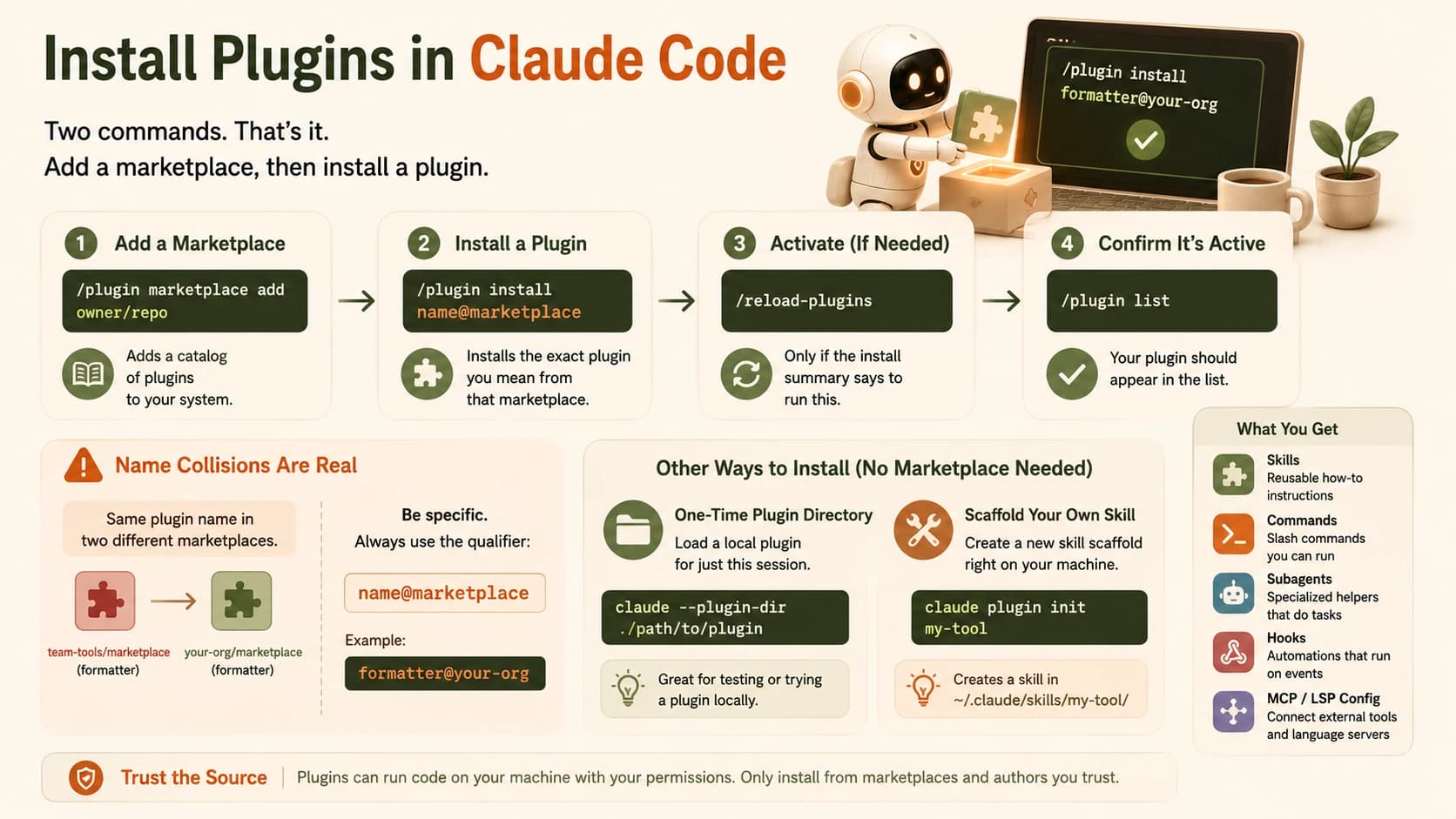
A Claude Code plugin is a self-contained bundle of skills, commands, subagents, hooks, and MCP or LSP server configuration, packaged as one versioned, installable unit. You add a catalog of plugins with /plugin marketplace add owner/repo, then install one with /plugin install name@marketplace. Below: the exact commands, the name-collision trap that breaks the second command for anyone running more than one marketplace, and how to install a skill without a marketplace at all. Once you've installed a few, the next step is building and publishing your own.
Key Takeaways
- A plugin bundles skills, commands, agents, hooks, and MCP/LSP config into one shareable install: never just a single file
- Two commands do the whole job:
/plugin marketplace add owner/repoto add a catalog,/plugin install name@marketplaceto install from it- The same plugin name can exist in two different marketplaces: the
name@marketplacequalifier is what tells Claude Code which one you actually want- Some installs activate immediately; others need
/reload-pluginsand the install summary always tells you which- You can skip marketplaces entirely with
claude --plugin-dirorclaude plugin initfor a skill that lives only on your machine
What Claude Code plugins actually bundle
A plugin is a directory that packages skills, commands, subagents, hooks, and MCP or LSP server configuration into one versioned, installable unit, so a whole setup moves to a new project or a teammate's machine with a single install command instead of a folder of files copied by hand.
Inside a plugin's directory you'll typically find a .claude-plugin/plugin.json manifest (name, description, version), a skills/ folder of SKILL.md files, commands/, agents/, a hooks/hooks.json, and sometimes .mcp.json or .lsp.json for external tools and language servers. Anthropic's own plugin creation docs lay out the full directory structure if you ever want to build your own. Every skill a plugin adds is namespaced to the plugin's name: installing commit-commands gives you /commit-commands:commit, not a bare /commit that could collide with something else you've installed. That namespacing is the whole reason two plugins with overlapping skill names can coexist without a fight.
Plugins are the "share this setup" answer to a problem every Claude Code user eventually hits: you build a good custom command or a useful hook, and copying the file to a teammate's .claude/ folder by hand doesn't scale past two people. If you haven't seen the rest of the extensibility stack plugins sit inside, that's the map to read first.
Adding a marketplace
A marketplace is a catalog. Adding one doesn't install anything, it just makes plugins visible. Run /plugin marketplace add owner/repo for any GitHub-hosted marketplace, for example:
/plugin marketplace add anthropics/claude-code
Anthropic's official marketplace, claude-plugins-official, registers itself automatically the first time you launch Claude Code interactively. You'll only need to add it by hand if that first-run registration failed (a blocked network, for instance):
/plugin marketplace add anthropics/claude-plugins-official
The community marketplace, where third-party submissions land after review, is always manual:
/plugin marketplace add anthropics/claude-plugins-community
/plugin market works as a shortcut for /plugin marketplace if you're typing this often. I keep three marketplaces added on my own machine: the official one, the community one, and a private repo for house skills I don't want public. That third one is exactly where the collision trap below first bit me.
Installing a plugin
Once a marketplace is added, install by name. Before you run this on a plugin you don't recognize, see how to audit its hooks first, since installing one runs its code with your full permissions:
/plugin install name@marketplace
For example, to grab the official GitHub integration:
/plugin install github@claude-plugins-official
You'll be asked to choose a scope: user (every project on your machine), project (shared with collaborators via .claude/settings.json), or local (just you, just this repo). Run /plugin list any time to see what's installed, and /plugin uninstall name@marketplace to remove one.
The name-collision trap
The same plugin name can exist in two different marketplaces, and Claude Code will not silently pick the "right" one for you. Once you've added more than one marketplace, running /plugin install formatter alone is ambiguous: Claude Code needs to know which catalog to look in.
The fix is the qualifier you've already seen: name@marketplace. /plugin install formatter@your-org and /plugin install formatter@claude-plugins-official are two completely different installs that happen to share a name. Skip the qualifier and you can end up running a plugin that isn't the one you meant to trust.
I've had exactly this happen: the same plugin name resolved to two different authors across two marketplaces I'd added for a client project, and the qualifier was the only thing that told me which copy had actually loaded. To double-check after any install, run claude plugin details name@marketplace. It lists the exact commands, agents, and hooks that specific copy contributes, so you can confirm you got the one you meant, not a same-named impostor.
Do you need to restart?
Not always: check the install summary line, not your memory of an old rule. When you install a plugin from the /plugin interface, the summary tells you directly:
Plugin is now active.: you're done, nothing else to runRun /reload-plugins to activate.: the install didn't take effect yet, usually because activating it would invalidate the prompt cache
Run /reload-plugins whenever you see the second message, or after enabling or disabling a plugin mid-session. Versions before v2.1.221 didn't offer this distinction at all: every install needed a manual reload or a full restart, no exceptions. If your muscle memory says "always restart," it's a habit worth dropping. Half the time now it costs you nothing to check first.
Installing a skill without a marketplace
Marketplaces aren't the only path in. If you just want to try a skill or plugin someone shared as a plain repo, two commands skip the catalog step entirely:
claude --plugin-dir ./path/to/plugin
This loads a plugin directory directly for that session only: no manifest registration, no marketplace, nothing installed permanently. It also accepts a .zip archive, and --plugin-url works the same way for a hosted zip you don't want to download by hand first.
For something you want to keep around, claude plugin init scaffolds a skill straight into your personal skills folder:
claude plugin init my-tool
This creates ~/.claude/skills/my-tool/ with a starter manifest and SKILL.md, and it auto-loads on your next session as my-tool@skills-dir with no marketplace and no install command, ever. This is the same shape graphify's own installer uses: hand a skill folder to a user, they drop it in ~/.claude/skills/, and it just works next launch. It's the same mechanism behind authoring your own skills, just packaged for a plugin instead of a bare folder.
Plugins run code on your machine
A plugin is not a passive config file; its hooks and MCP servers can execute arbitrary code with your own user privileges the moment it's installed. Anthropic's documentation states this plainly: plugins and marketplaces are "highly trusted components," and Anthropic doesn't control or verify what a third-party plugin actually does once it's running.
That's not a theoretical warning. Security researchers at PromptArmor documented a real attack pattern in 2026: a malicious marketplace shipping a plugin engineered to hijack a Claude Code session the moment a user installed it. The lesson isn't "never use community plugins." It's the same rule you'd apply to any script you didn't write: check who published it, check what it actually installs (the /plugin details view lists every command, agent, and hook before you commit), and only add marketplaces you'd trust with shell access on your machine. This is the gate to keep in mind as you start actually installing a few plugins worth having, before a later lesson goes deeper on the safety side of extensibility.
Your Lab
Add two marketplaces
Run /plugin marketplace add anthropics/claude-plugins-official (or confirm it's already registered) and /plugin marketplace add anthropics/claude-plugins-community. Confirm both appear with /plugin marketplace list.
Install a plugin with the qualified name
Pick any plugin from either marketplace and install it as name@marketplace, not the bare name. Note whether the install summary says the plugin is active or tells you to run /reload-plugins.
Install a skill directly from a repo
Find any small skill repo (or use one of your own) and load it with claude --plugin-dir ./path. Confirm it appears when you run /help under Custom commands.
Verify, don't assume
Run claude plugin details name@marketplace on the plugin you installed in Step 2 and confirm the commands/agents listed match what you expected: proof you got the exact copy you meant.
Done? You've completed Lesson 20.06.
FAQ