Multimodal Prompting: How AI Reads Images and PDFs
Multimodal prompting lets AI read images, screenshots, and PDFs together with text. Learn how image order and labeling change results.

You paste a screenshot of an invoice into a chat and ask, "what's wrong here?" The model writes back three warm, confident paragraphs describing the layout, the logo, the general vibe of the document. It never mentions that the total on line 4 doesn't match the sum of the line items above it, which is the only thing you actually needed to know.
Multimodal prompting is giving a model more than one kind of input, like an image plus text, in the same request. The model doesn't fail here because it can't see the mismatch. It fails because "what's wrong here" doesn't tell it what job to do, so it defaults to a general description. Fix the prompt, and the same model catches the error in one line.
Key Takeaways
- Multimodal prompting means combining images, screenshots, or documents with text instructions in a single prompt
- Vague prompts like "describe this image" produce rambling, general answers, not useful analysis
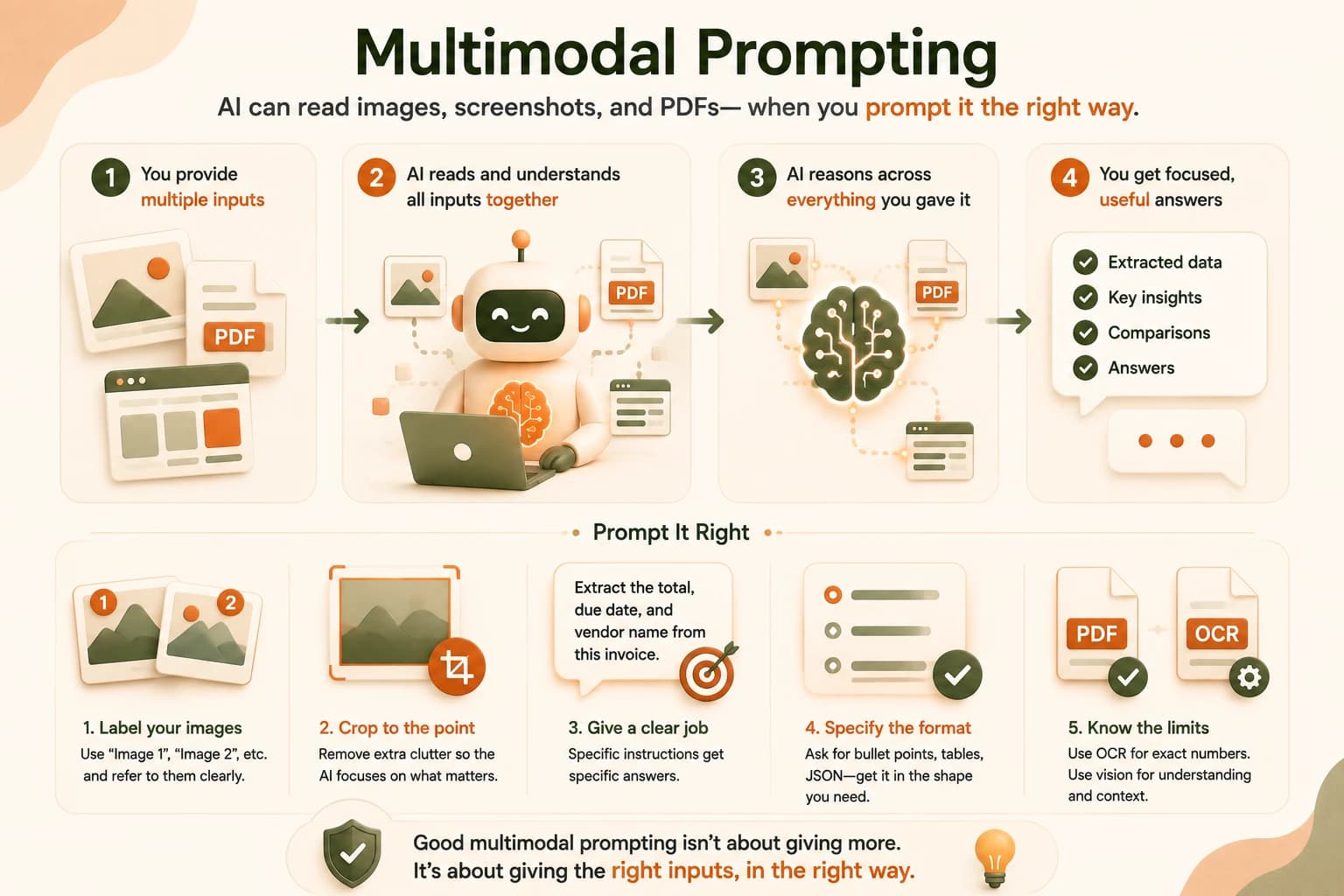
- Image order and labeling change the output: put images before text, and label each one when you send more than one
- Use vision models for understanding what a document is about, and a dedicated OCR tool when you need exact numbers pulled off it
What Is Multimodal Prompting?
Multimodal prompting is sending a model an image, screenshot, or document alongside your text instructions, instead of describing what you want in words alone. It's sometimes called vision model prompting for that reason. This builds directly on how large language models process input: a multimodal model reads the image and the text together and answers based on what it actually sees, not just what you tell it is there.
This is different from asking a model to imagine or generate an image from a text description. Multimodal prompting is about giving the model something real to look at first: a chart, a form, a photo, a page of a PDF, then telling it what to do with it.
Miss this distinction, and you'll end up asking a text-only model to analyze a screenshot it never received, or handing a vision model a photo with no instructions and getting back a tour of the whole picture instead of an answer.
Why Image Order and Labeling Change the Output
Most models pay closer attention to what comes first in a prompt. That means putting your image before your text instructions usually gets better results than the reverse. The image sets the scene the model reasons about; the text tells it what to do with that scene.
When you send more than one image, label each one: "Image 1: the invoice. Image 2: the shipping receipt." Then refer back to those labels in your instructions, like "compare the total in Image 1 to the amount in Image 2." Skip the labels, and the model has to guess which image your question is even about.
If a follow-up question in the same conversation refers to an earlier image, restate the label ("in Image 1") rather than saying "the image." It costs you three words and saves the model from guessing wrong.
On a real project, this mistake is invisible until it isn't: the model will confidently answer about the wrong image, and nothing in its tone gives away that it's answering the wrong question.
Prompting with Screenshots
Screenshots are usually high-contrast with clear text, so models handle them well, as long as you give a specific job instead of a generic one. "Describe this image" invites a full narration of everything visible. "Extract the total, due date, and vendor name from this invoice screenshot" gets you exactly those three things.
If you only care about one part of the screenshot, crop it before you send it. A cropped shot of a single form field or error banner forces the model to focus there instead of processing an entire UI and guessing at what mattered to you. The same instinct applies to long, awkwardly-shaped screenshots: Anthropic's own vision cookbook recommends splitting an oversized receipt or document into separate images rather than forcing it into one, so the model can read each part clearly.
Skip the specific instruction on a real support ticket screenshot, and you'll get a paragraph explaining that the screen "appears to be an error message," instead of the one line telling you which field caused it.
Prompting with PDFs and Documents
Some models read PDFs directly and reason across multiple pages at once, a capability confirmed in Claude's vision documentation. Others only accept images, which means you convert each page of the document to an image first and send them in order, labeled by page number, before asking your question.
Vision models are strong at telling you what a document is about, what kind of chart is on a page, or whether a form looks legitimate. They're less reliable for pulling an exact number off a scanned page and getting it right every time. For anything where being off by one digit actually matters, like a total on an invoice, pair the vision model's read with a dedicated OCR tool and treat the vision answer as a sanity check, not the final number. This is the same PDF and document prompting distinction that trips up most beginners: the model isn't wrong, it's just answering with confidence about a number it only approximated.
Common Mistakes
- Dumping several images and a wall of text with no structure. The model has too much to weigh at once and won't know what to prioritize.
- Not specifying an output format. Ask for "your thoughts on this chart" and you'll get a paragraph. Ask for "the three biggest changes as a bulleted list" and you'll get exactly that. The same lesson from structured outputs applies here: tell the model the shape you want, not just the content.
- Sending a full page when you need one field. Crop first, always.
None of these mistakes make the model wrong. They just make it answer a much vaguer question than the one you meant to ask, which reads as confusion but is really just multimodal prompting done carelessly.
Your Task
Find a real screenshot or PDF page
Pick a screenshot from your own computer: an invoice, a receipt, an error message, or a chart from something you already have open. If you don't have one handy, take a screenshot of any webpage right now.
Ask the vague version first
Send the image to a model like Claude with just "what do you see here?" Read the answer. Notice how general it is.
Rewrite it as a job
Send the same image again, this time with a specific instruction: "Extract [the three most important fields] from this image as a bulleted list." Compare the two answers.
Done? You've completed Lesson 12.09 and practiced turning a vague image prompt into a specific one.
FAQ